As we approach the end of 2012 (or the world, according to some), I’ve been reflecting on just how much we’ve accomplished this year here at Omni.

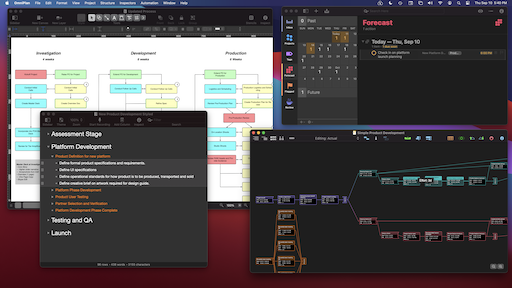
We celebrated 20 years of omnigroup.com, of course, and we moved to new offices. But, more importantly, we finished our two-and-a-half-year “iPad or Bust!” initiative by shipping the last of those five apps, OmniPlan for iPad! Version 1.0 doesn’t mark the end of all our work, of course—but it’s a great milestone and I’m incredibly proud of all our team has accomplished.
Finishing up our “iPad or Bust!” initiative has given us the opportunity to start working through a number of other projects on our “to do” lists, so there’s been a lot of news in 2012…
We rolled out our own Omni Sync Server, so you don’t have to become a sysadmin and run your own web server just to sync your devices. (But you can still run your own server if you like: our syncing engine is based on open web protocols.)
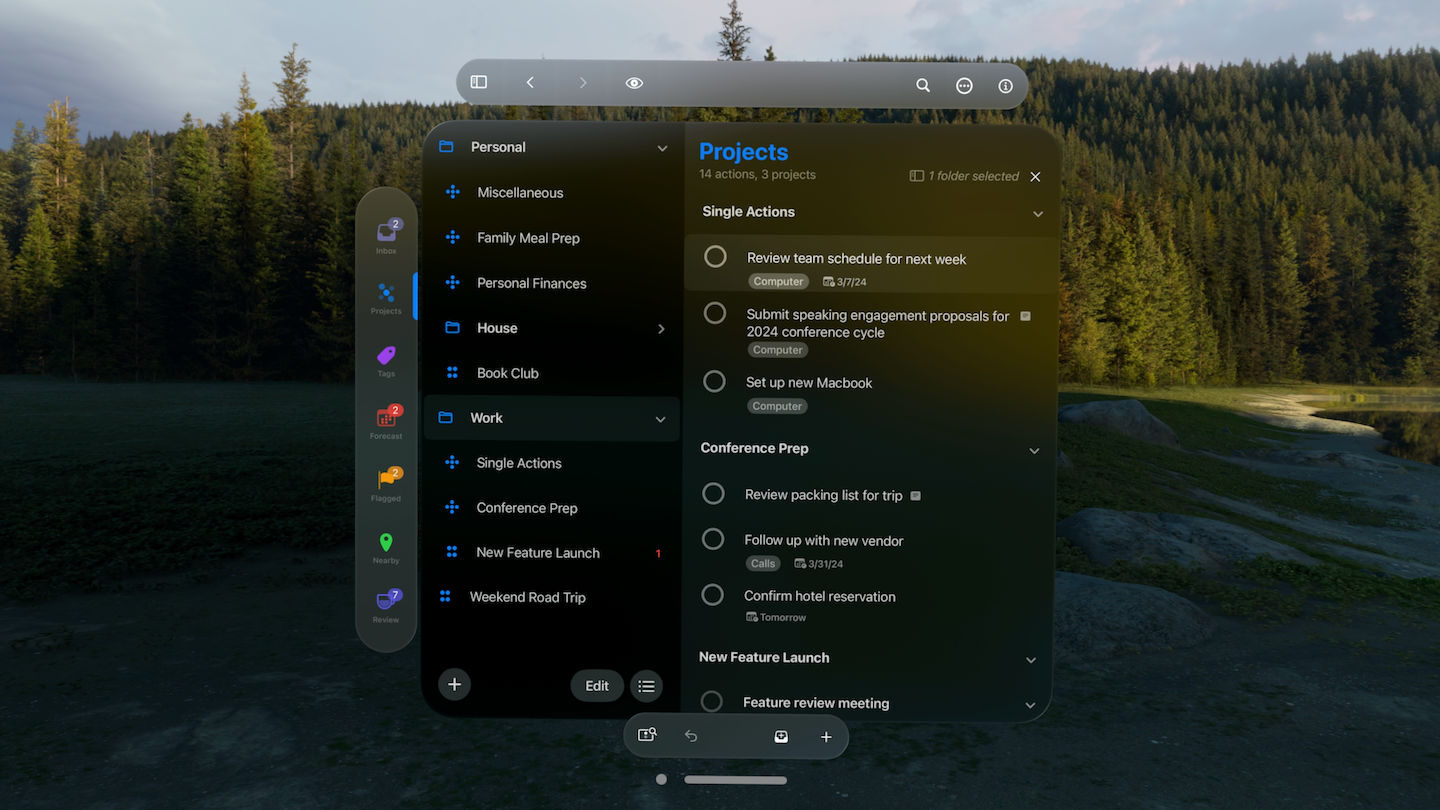
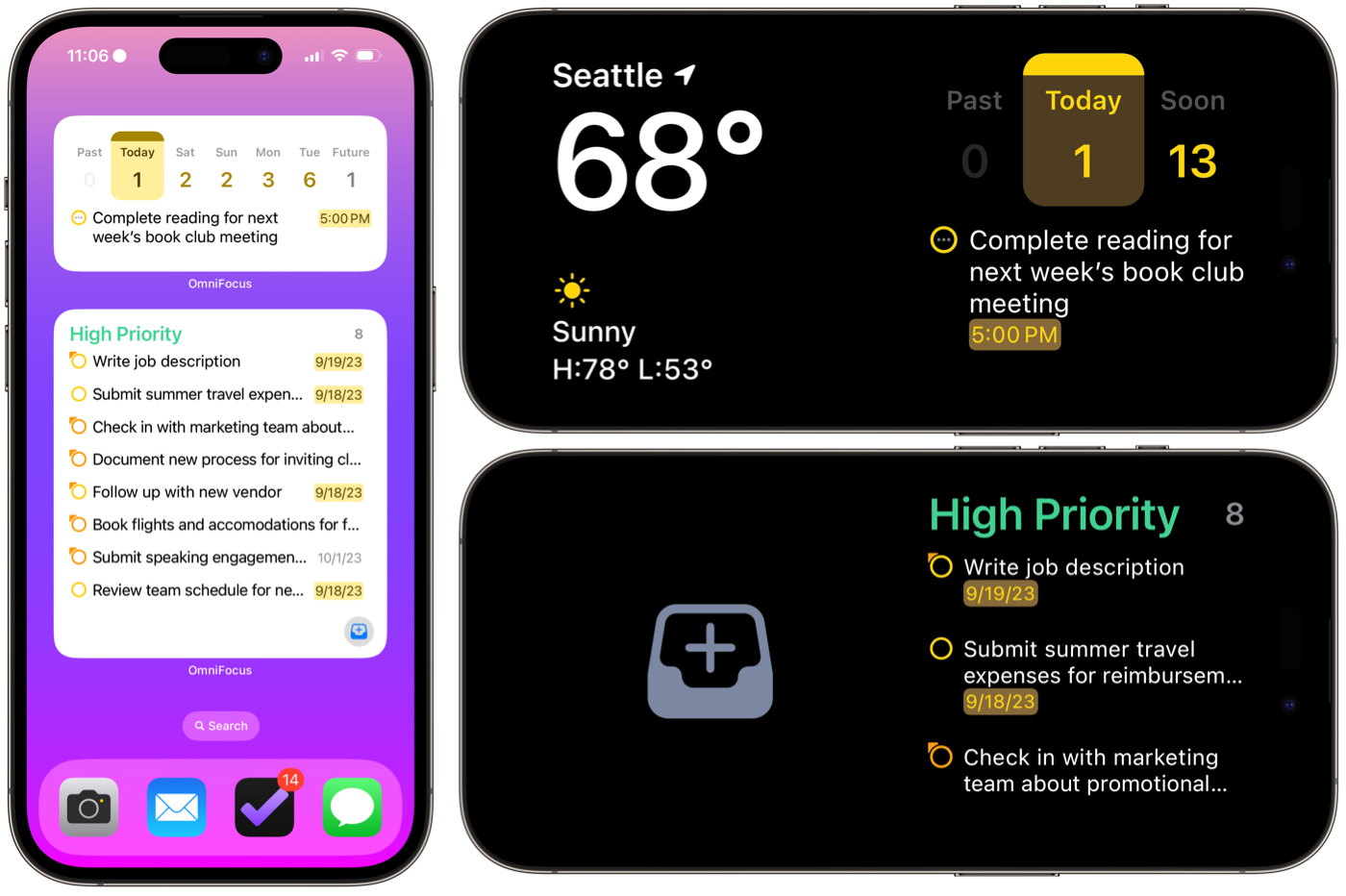
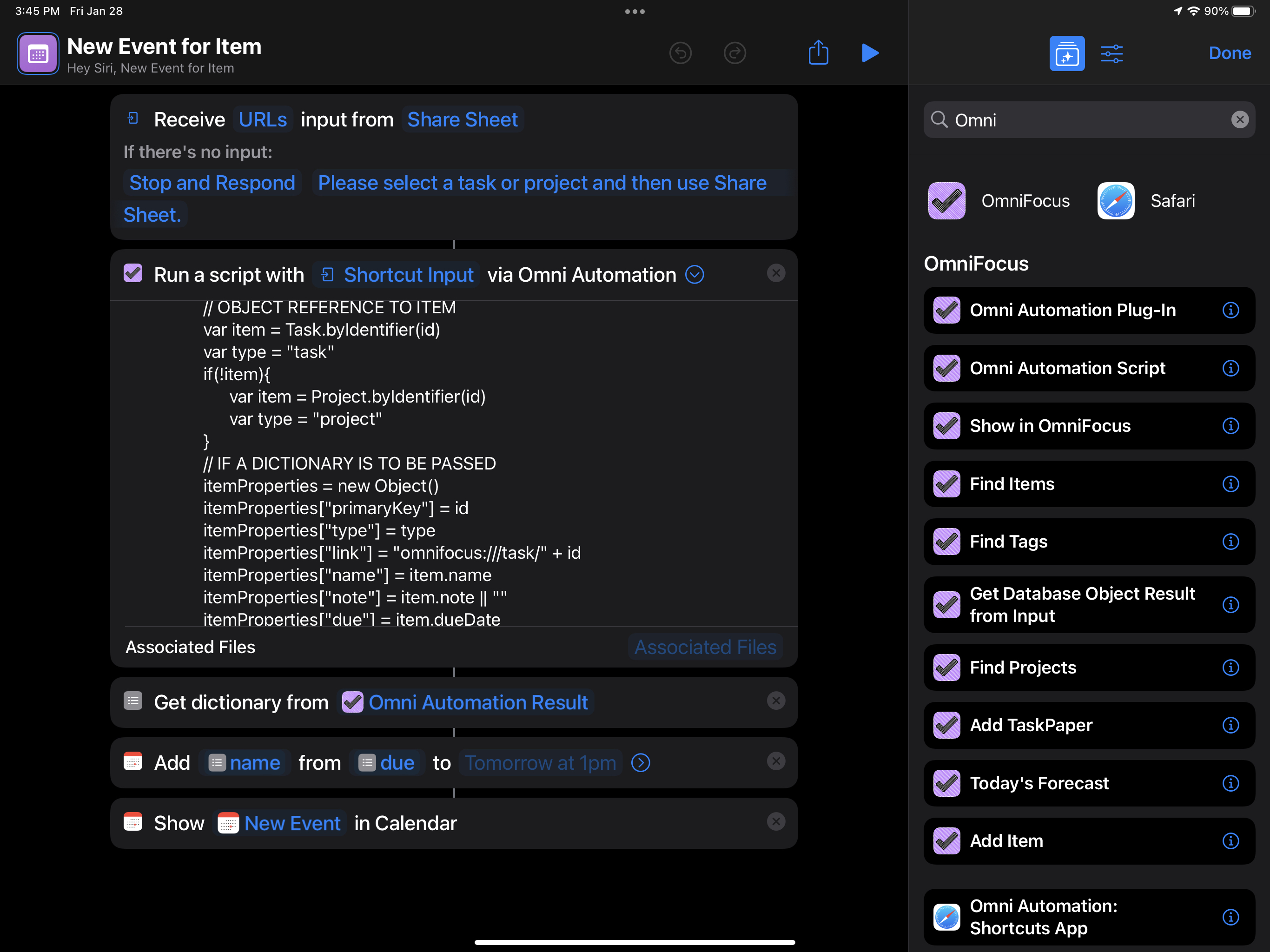
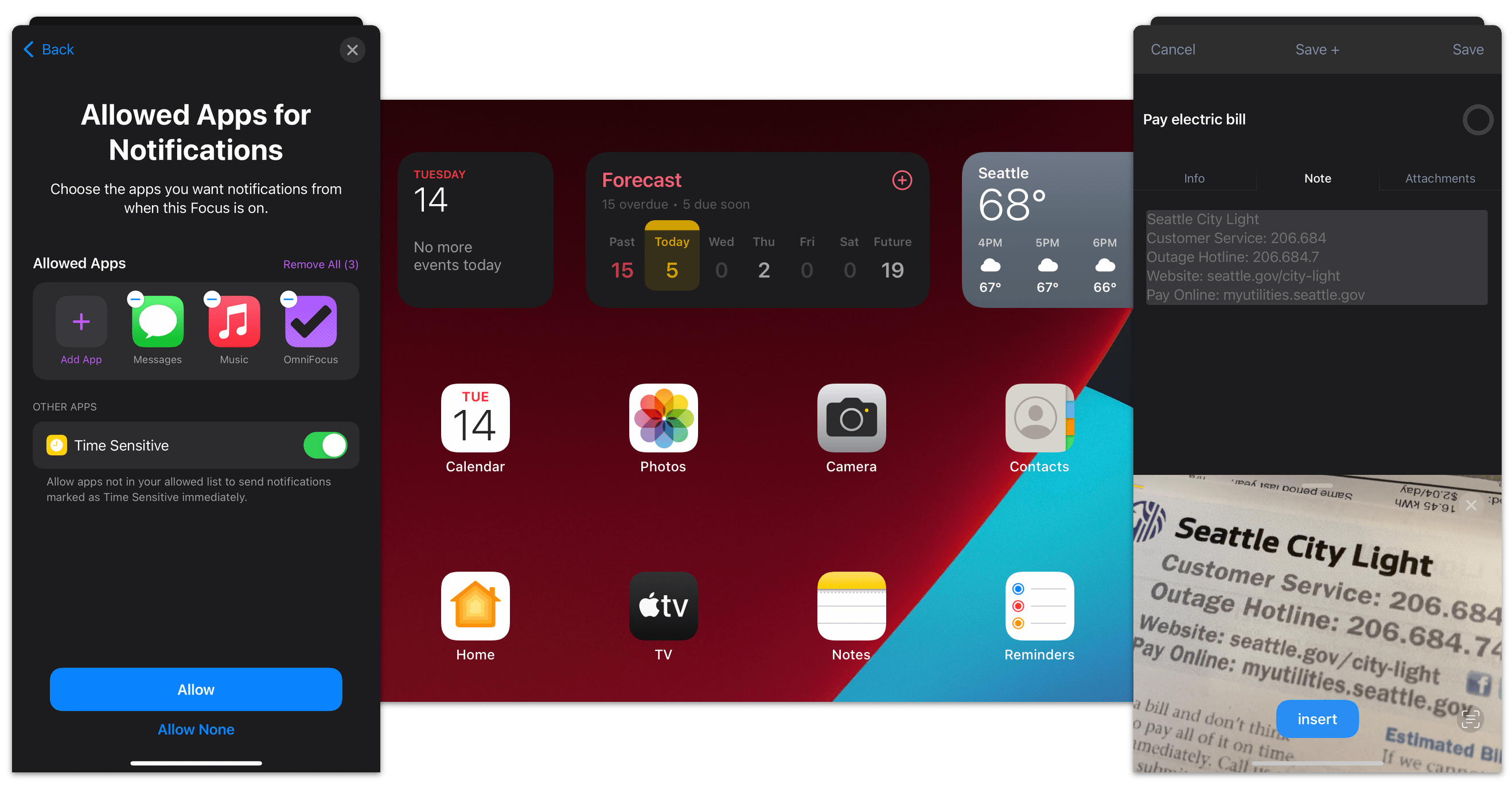
OmniFocus has been on speaking terms with Siri since late 2011, of course, but in 2012 we’ve made it more robust and brought support for Siri to the iPad app as well. We also added support for flexible weekly repeats and TextExpander—and just this month we’ve started beta testing our new Mail Drop which lets you email tasks directly to your OmniFocus database.
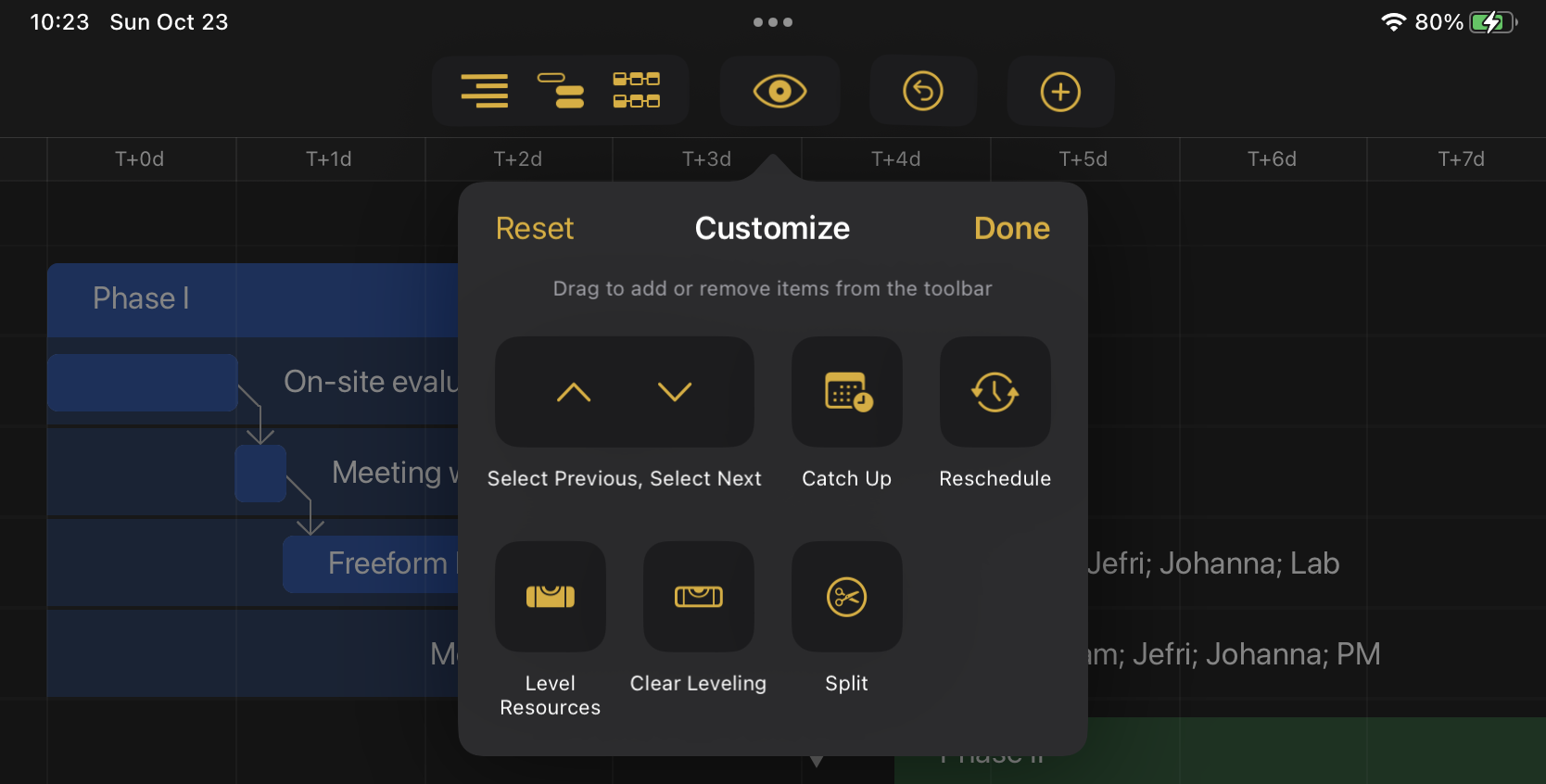
This year Apple introduced iPads with Retina displays, and we immediately shipped Retina updates for all of our iPad apps. Apple also introduced Retina displays to the Mac with the new MacBook Pro, and we’ve already shipped Retina updates for OmniGraffle and OmniPlan (and are busy working on Retina updates for the rest of our Mac apps).
Behind the scenes, we’ve also been updating all our Mac apps to leverage the latest fundamental advances in OS X: this year we shipped Developer ID-signed updates for all our apps, 64-bit updates for OmniGraffle, OmniDiskSweeper, and OmniDazzle—and we expect to ship 64-bit updates for the rest of our apps soon. We’ve also been hard at work adopting OS X’s new App Sandbox.
Even before we finished “iPad or Bust!” one of our top priorities has been to build automatic document syncing into OmniGraffle, OmniOutliner, and OmniGraphSketcher—we want it to be as easy to sync all our apps as it is to sync OmniFocus and OmniPlan. We’ve been working on this for over a year and a half now, and at the start we had very promising results: it felt like magic when it worked, and we thought we’d be ready to ship last year. But though our code was finished, we found the back end service we were trying to use wasn’t working reliably, and we felt it would be irresponsible to ship something so critical until we knew the full solution was solid. After a year of trying to help get that solution working, we went back to the drawing board and designed a new syncing solution based on open web protocols. Nobody was more disappointed about the delay this caused than we were—but we knew we needed to find some way to move forward, and I’m pleased to report that the redesign has gone very well (and our new syncing solution is now in internal testing).
Which, of course, leads right into the subject of my next blog post: what’s coming next from Omni? (Stay tuned!)
The #1 requested feature customers sent in for OmniPlan on the iPad has just hit the App Store, so go grab it!
Tap and hold a project in the document browser to email a PDF of the Gantt chart (a full canvas, or paginated) or an HTML report (a task report or a resource report for a standalone web page.)
Instead of emailing, you might also send it over to an app like Dropbox to put it in a shared folder.

If you have an AirPrint enabled printer, you can send your Gantt chart there, too.
Head here if you were waiting for v1.1!
It’s with great excitement we’re able to introduce OmniPlan for iPad — a great new way to manage and create projects on the go. You can get it right now on the App Store for $49.99.
OmniPlan is the last of our core applications to hit the iPad, and we’re delighted with the app you’re now able to use. The first bits were checked in over a year ago—we even showed off a fairly functional app at Macworld this year—but the last few months have brought an absolute flurry of changes.
Learn more about specific features on OmniPlan’s product page. If you have questions, shoot us an email.
Major releases like this one require a lot of effort from everyone, and now we can share it with you. Enjoy, and happy planning.
Behold! A new cloud-y day is upon us. We shall make backups of old, look to the new, and say goodbye to MobileMe.
Apple decided about a year and a half ago to shut down MobileMe, iCloud would be the new, better solution, and iDisk functionality would cease to exist.
That affects some OmniFocus users: if you’re still using MobileMe to sync your OmniFocus data, you need to switch. Our latest updates to OmniFocus remove all mention of iDisk and MobileMe, but your existing settings will continue to work up until the day the service is shut down, June 30th.
Afterwards, take some time to make the transition from MobileMe to iCloud. (Don’t miss out on the improved calendar, contact, and bookmark syncing, along with Photo Stream and Document Storage.) You can do that at me.com/move, and there’s a great Apple Support page here. (Update: Apple has removed both pages after the transition.)
Now a look at options:
The Omni Sync Server
Our own Omni Sync Server is fast, free, and extremely easy to set up (25 seconds if you move fast), and is run by a team of folks that are determined to craft the best server specifically for our applications.
You’ll also benefit from future, device-agnostic features.

Alternatives
If your data can’t leave the network, Bonjour syncing is handy. Public networks and firewalls occasionally cause pain, but can (usually) be remedied.
If you’re not using an iPhone or iPad, (physical) Disk syncing is another option. (Don’t use your Dropbox folder!)
Finally, use pretty much any WebDAV server. Search one out, set one up yourself if you know how, or have a friendly sysadmin set one up.
After picking a method or service, head to our “How do I Migrate?” page and finish up.
“How Do I Migrate” tl;dr: Sync all your devices, then sync your primary device again. Switch to your new sync server on each, starting with your primary device.
If you’re concerned about transitioning from MobileMe to something else, don’t hesitate to email us here or call at 800 315-6664.
Know of an encrypted (on disk), secure, or otherwise trustworthy WebDAV service worth passing on? Let others know in the comments.
Howdy, friend-os! Today, I get to do something we’ve been looking forward to for a while now: announce that the Omni Sync Server is coming out of beta.
We’ve had the server up for almost two years now - it launched way back in April of 2010. In that time, the server has been scaled up from a Mac mini here in our offices to a collection of machines in our colocation facility, all working together to help you move your Omni apps’ data back and forth between your OS X and iOS devices, as well as to store backup copies of that data just in case things go totally diggstown and you need them.
When we launched the server, it was an OmniFocus-only affair, but we’ve added support for the server to all of our iOS apps. On the Mac, OmniFocus and OmniPlan have built-in support for the server as well. (The Mac apps that don’t already include support will get it in the future.)
So, to the tens of thousands of folks out there that have been storing your data on the server this whole time: thank you very much for being willing to sign up and help us build this thing. There’s always a seat for you on our little red wagon. To everyone else: if you were interested in using the server but didn’t want to sign up while it was in in a testing phase, we’re rolling out the red carpet for you. Head over to omnigroup.com/sync and set up an account.
Oh, and did we mention that you can have this all for the low, low price of zero? One of the things we learned is that we can build and run a service like this without needing to charge for it. Consider it a delicious after-dinner digestif you get whenever you buy one of our apps. Enjoy!
OmniPlan v2.0.3 is a free update to licensed OmniPlan v2.0 users. This release includes a critical fix to project syncing with an OmniPlan server repository. If you'd like to check out the full release notes, click here.
We love hearing from you! You can reach us by tapping using the Send Feedback feature in OmniPlan, sending email to
omniplan@omnigroup.com, tweeting to @omniplan, or calling 1-800-315-OMNI or +1 206-523-4152.
To start using the new version, you can use the built-in software updater in OmniPlan v2.0 or you can download it from our website here.
Howdy, everybody! With a new release of iOS and new iPhone hardware, there’s been a ton of excitement and news this week; fun times!
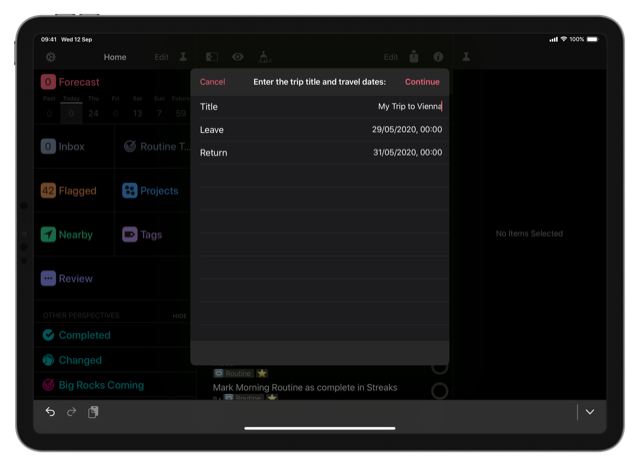
In addition to all the cool new stuff Apple’s released, we’ve been able to build a few things using their toys that we hope will also be pretty exciting; I wanted to take a few moments and tell you about one of them. Specifically, the new location-based notifications we’ve added to OmniFocus for iPhone 1.12 and OmniFocus for iPad 1.4!
One of the first things we added to OmniFocus was time-based reminders; it wasn’t too long after that that folks asked for location-based ones as well. In fact, the first request we got for location-based reminders was back in May of 2007, before we’d even shipped version 1.0 of the Mac app! Over the years, we got more requests, especially once OmniFocus for iPhone and iPad appeared - wouldn’t it be great if the device you were carrying around in your pocket could tell where you were and remind you of the things you needed to do?
The first couple versions of iOS mostly made use of location data on maps. It was useful - you could create a context for a pharmacy you used, add the address, and see a dot on the map if any actions needed doing. You had to remember to look at the map screen, though. With iOS 4, it started to look like the pieces we needed to add the feature were coming together - that version of the OS had the ability to monitor location information and notify an application when the device was in a certain area. We did some preliminary work towards implementing location reminders; the feature worked and didn’t use much battery charge, but it became apparent it wasn’t as fast or as accurate as we hoped. We decided to pause work on the feature.
We were pretty excited by some of the changes Apple made in their recent hardware, though; they found a way to improve the accuracy of location monitoring without using more power. Specifically, the iPhone 4 (and 4S) include a feature called “region monitoring”, which lets them track the devices’ location via GPS without running down the battery. iPad 2 models with 3G also have this capability. Unfortunately, devices released before then don’t have a low-power way to monitor their location as accurately, so they won’t be able to use this type of reminder in OmniFocus. (The Reminders app included in iOS 5 has the same limitation.)
Still, if you have a device that supports it, the location reminders can give you an extra nudge, helping you to complete actions you might otherwise forget. Because battery life is a top priority, though, it’s important to remember that the location is only being checked from time to time. If you pass through an area quickly (by driving past it on the highway, for example) you may not get an alert. It’s also important to note that the regions being monitored are fairly broad - the smallest “distance” setting still corresponds to about one city block, and things get more broad from there. Hopefully in the future we’ll have never-fail pinpoint-accuracy location monitoring, but we’re not quite there yet.
Since we shipped this feature, we’ve gotten questions from some customers that are seeing the “your location is being monitored” indicator more often than they used to, and it’s true that it’ll show up more often. As long as you have an available action in a context with a location attached, OmniFocus will stay subscribed to location information, activating that indicator.
The folks that are concerned by this are usually worried that their battery will be drained more quickly, and in previous versions of iOS, that would have been the case. In iOS 5, though, you shouldn’t have to worry as much. Behind the scenes, iOS 5 is handling things. We can’t know the exact details of how it works, but Apple’s stated goal was to be reasonably accurate while minimizing battery drain. The location monitoring indicator is mainly to help you manage your privacy; avoiding battery drain was a useful side-effect. But in iOS 5, the device is better able to conserve the battery.
It may also be helpful to know that OmniFocus’ map view also shows the indicator: that view determines your location more precisely than the location reminders do - you will see some battery impact there. In fact, shortly after shipping the iPhone update, we discovered that the Map view doesn’t remember to stop monitoring your location after you close the view; that actually can cause battery drain! Thanks to the folks that reported this problem - we’ll get an update out that fixes that as soon as possible.
For more details on location reminders, check the new help pages; they’re accessible from the Settings screen in each app. In the meantime, I hope this post helps you decide if location reminders will work for your purposes. Have ideas, suggestions, or concerns? We’d love to know what you think! Drop some comments here, or email our support ninjas; you’re also welcome to ask questions in our forums or on Twitter. Thanks, everyone!
OmniPlan v2.0.1 is a free update to licensed OmniPlan v2.0 users. This release is focused on addressing bugs and usability issues found in v2.0. Some of the areas we worked on include importing & exporting, publishing & subscribing, printing & imaging, filtering, and overall stability. If you'd like to check out the full release notes, click here.
We love hearing from you! You can reach us by tapping using the Send Feedback feature in OmniPlan, sending email to
omniplan@omnigroup.com, tweeting to @omniplan, or calling 1-800-315-OMNI or +1 206-523-4152.
To start using the new version, you can use the built-in software updater in OmniPlan v2.0 or you can download it from our website here.
“Wow, your customers are nerdy!”
That was a friend’s response recently when I mentioned that logarithmic axes are the number-one feature request for OmniGraphSketcher.
The way I see it, our customers understand that logarithmic scales are the best way to present many types of data and ideas. Stock prices, advances in technology, and many other phenomena tend to change by multiples rather than additions. Logarithmic scales show each doubling as a constant distance, so you can compare percent changes without large differences in absolute size getting in the way.
So I’m very excited to announce that OmniGraphSketcher 1.2 for Mac and OmniGraphSketcher 1.5 for iPad are now available, with full support for logarithmic axes!
.png)
You don’t even need to know anything about logarithms to use this feature. You just turn it on via the axis inspector, for either or both axes. (The resulting charts are sometimes called lin-log and log-log.) There is no step two!
These logarithmic axes are designed to follow best practices in information visualization, and they work seamlessly with all the other features of the app, such as dragging, nudging, snapping, sketch recognition, axis manipulation, and scale-to-fit. And because logarithmic scales are more likely to span many orders of magnitude, we now support much larger and smaller numbers (up to 10300 and down to 10-300), more decimal precision (up to 13 digits), and scientific notation (so you can use numbers like 3 x 10200 without typing 200 zeroes).
Given that the known sizes of physics only range from about 10-35 meters (the Planck distance in quantum theory) up to 1026 meters (the size of the observable universe), we figure that +/- 300 orders of magnitude should be plenty.
At least for now.
As part of these updates, we’ve also refined the algorithms that draw axis tick marks and tick labels. When there is not enough room to label every tick mark, we now consistently label every other tick mark, or every 5th, or every 10th, etc. If we skip a lot, we’ll automatically use major/minor tick marks to make it easier to see which tick marks are getting labeled.

On logarithmic axes, we show just the first five numbers between each power of ten when possible, then only the powers of ten themselves, and then evenly-spaced powers of ten. OmniGraphSketcher makes all of these decisions for you, so you never have to think about it.

And did I mention that your axis ranges don’t have to end on powers of ten? Suppose your data values fall between 8 and 200. In many charting programs, the best you can do is this:

But we think logarithmic axes should be just as flexible as linear ones, and we want you to be able to switch between linear and logarithmic scales seamlessly. Again, we’ve done the work so you can get what you’d expect:

Last but not least, we’ve added a really nifty new feature called line interpolation. As you know, OmniGraphSketcher lets you draw lines freehand even if you don’t have exact data to back them up. This is great if you have a rough idea of a trend or want to visualize several possible scenarios. But wouldn’t it be cool if you could also turn your sketched lines into sampled data points for analysis or re-plotting in another program? That’s exactly what line interpolation does. It samples at each horizontal tick mark (x-value) to convert your line into a data series.
The reason we’re introducing this at the same time as logarithmic axes is because it lets you see how the shape of a line differs in linear vs. logarithmic space. Regular lines in OmniGraphSketcher simply connect two or more data points as smoothly as possible, so intermediate values do not necessarily stay the same when you convert between linear and logarithmic scales. Line interpolation solves this by letting you anchor some of the intermediate points. Now you can easily demonstrate, for example, how a straight line in logarithmic space becomes an exponential curve in linear space:

Download the latest versions of OmniGraphSketcher from the App Store (Mac, iPad) or from our online store (Mac); or use the built-in software update to download automatically.
And let us know what you think!
(If you want all the details, check out the release notes for the Mac and iPad versions.)
Hello OmniPlan planners!
Hot on the heels of OmniPlan v2.0, we give you OmniPlan v2.0.1 beta! For this beta we improved stability, fixed a few publish & subscribe issues involving calendars, and updated the default project template so the UI is not as large. We also addressed some issues with scheduling, opening/importing of files, as well as various bugs that were reported by users over the last couple of weeks. If you'd like to check out the full release notes, click here and scroll down to the bottom of the page.
As always, please keep in mind that this version is still in development so feedback is encouraged and we apologize if it breaks your computer, corrupts your files, or ruins your weekend. We're looking forward to hearing your thoughts about OmniPlan v2.0.1 beta: You can contact us directly by our support page or by using the Send Feedback feature in your copy of OmniPlan.
You can download the beta from our website here.