The Blog

Yes, it's yet another article in this why-pay-for-the-full-seat-when-you'll-only-need-the-edge series on OmniFocus: a Beginner's Experience Going from Productivity Zero to HERO. Oh, I know what you're thinking: if you're so productive, Ms. Blog Writer, don't you have something better to do than document every excruciating detail of your OmniFocus learning process?

Well, according to my OmniFocus document, I DON'T. My only tasks due today are “search Twitter for amusing mentions of the Seattle bear” and “bore the pants off the Omni blog readers yet again”. So put that in your productivity . . . uh, pipe . . . and . . . listen, let's just all put our pants back on, okay?

ANYWAY. Where were we? I talked about the first days of setting up OmniFocus, and configuring more in-depth task information like due dates and start times.  I now have a bunch of useful information in my document, but I'm finding that unless I assign a due date to a task, it sometimes gets ignored. Take for example “wash car”—I've had that in there for three weeks now, but does my car still have seventeen giant splotches of seagull poo on it? Yes, yes it does.

Plus, things are just getting a little sloppy. My fastidiousness of the first couple weeks has worn off and now I have a few items in there that aren't really defined as an individual action, like “fix website”. In this case, I should break that task into some more specific to-dos: “install latest copy of WordPress”, and “check plugin compatibility”.

It seems like it would be helpful if I had a process for periodically going through my document to re-assess the status of each action and make sure it's correctly filed. Not that I want another to-do, exactly (to-do: check to-dos?), but the whole idea here is to stay on top of things, right? Sloppiness leads to entropy and entropy leads to suffering and something something Yoda.

The Getting Things Done® methodology recommends that all items in your task management system are reviewed at least once per week, to make sure they're properly filed away and that everything's up to date. As I've mentioned before, I'm not a hardcore GTD®-follower, but a weekly review definitely seems doable. I know OmniFocus has a Review function, but I don't really get how it works—how is a “review” view more useful than just, you know, looking at all your projects at once?

To get this figured out, I go and talk to Kris, the Support Ninja whose OmniFocus workflow I briefly described in this post (recap: Kris sets each of his projects to be reviewed every Tuesday). He gives me some background on the Getting Things Done concept of a weekly review, which is a much more big-picture function than I had imagined it to be. It's about looking at your existing tasks, sure—but also processing emails, capturing new projects, reviewing areas of responsibility and goals, and evaluating your “someday/maybe” lists (where things like “Stuff on Amazon I want to buy” and “Holiday ideas” might go).

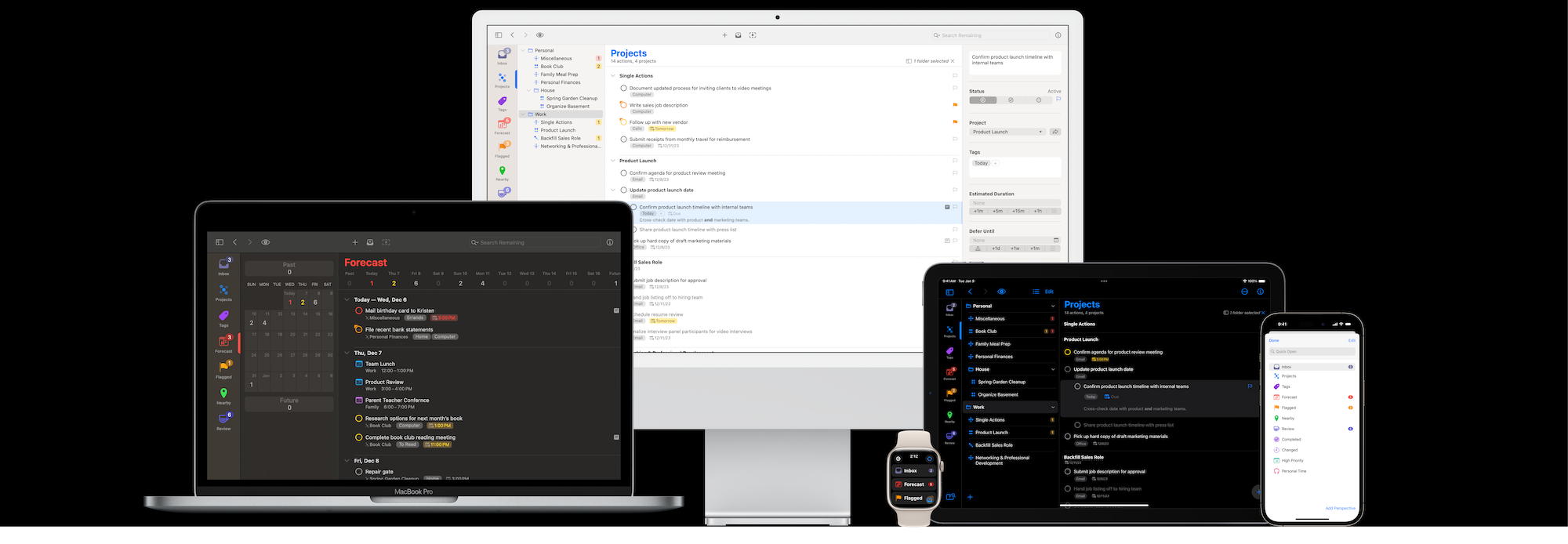
The actual functionality OmniFocus provides when it comes to the review process isn't super-complex—it's really just another way to group and display your information. You assign review dates under the Next Review field in a task's inspector, and clicking the Review icon in your toolbar essentially just re-orders your projects by this filter. Selecting a task or project and choosing Mark Reviewed from the Edit menu (or clicking the Mark Reviewed toolbar button) makes it disappear from view until the next review process.

To me the importance of the review seems less about how it works in OmniFocus—because, again, it's just another view of your existing data—and more about how you incorporate reviewing into your own workflow. You can use reviewing simply as a way to quickly scan your task list, or to take a step back and do some more meaningful evaluating and organizational processes.

I have to say, I'm sort of warming up to this whole GTD thing. It feels a little goofy—actually, the word I think I'm looking for here is uber-meta (well, or possibly anal-retentive)—but I go ahead and add some GTD-specific items to my document with the reviewing function in mind. I basically take Kris's lead, as he's added some guidelines from the GTD Weekly Review Template Handout that's available inside GTD Connect, although I change them slightly to be more meaningful to me.

Now I've got a little roadmap of sorts for doing my reviews. Like Kris, I set all my tasks to be reviewed once a week, and while I'm looking at my Review perspective, I also open another OmniFocus window that only contains the reviewing guidelines (you can focus on a specific project or folder just by double-clicking it).

WHEW. Okay then, reviewing = deeper than I thought! I'll let you know how that process works for me over time, and I hope it's been at least marginally useful to suffer through this long-winded discussion.

OTHER THINGS I WANTED TO TELL YOU ABOUT:

• By default a project or group must be marked as completed in order to change its status. If you'd rather have it automatically marked as completed once you complete all the tasks within, you can change that setting under Preferences: Data.

• Also, the default Due time is set to 12 AM. Which I think is cuh-RAZY, because if you make something due today it will turn red like INSTANTLY and how depressing is that? Happily, you can also can change this setting in Preferences.

AMUSING TERM THAT ENTERTAINS ME BECAUSE I AM IMMATURE:

• “Tickler file”. Heh. Tickler.

And now for my question of the week: is reviewing part of your workflow? If so, how often do you do it? What sorts of things do you review?

(Actual GTD® Do Not Disturb sign hanging on my actual office door! HA HA HA DOOOOORK.)


Hello! Welcome to the second article in an ongoing series documenting my experiences using OmniFocus as a task manager n00b. The first post is here.

I've been using OmniFocus pretty diligently for a couple weeks now and I'm still learning new stuff every day. It's amazing how much there really is to this app, and I think one of the biggest challenges to making the most of it all is figuring out what sorts of options work best for you. I know there's that helpful book and everything, but the nice thing about OmniFocus is that it's flexible—you don't have to be a hardcore GTD person to benefit from it. Which is good for me, since just between you and me I started reading Getting Things Done but got sidetracked by something shiny about halfway through.

(BTW: has anyone written Doing Things Half-Assed yet? I would totally read that.)

That might explain my approach to projects, which a couple people asked about. If you take a look at my OmniFocus document, you'll notice that the projects I've created are more categories (or buckets) than anything else—they don't have a beginning and an end.

This is just what seems to be most useful for my working style, maybe because I have more ongoing activities than I do projects with steps towards completion. You can, however, specifically tell OmniFocus that something is not a project if you like. Click on a project, open the inspector, and click the Single Actions icon under Type. This will change the way your tasks are styled (in my document, remaining tasks become blue instead of gray); it's just another way to organize your info.

Now that I've got my tasks all squared away into projects and contexts, it's time to add info to the tasks so they're more meaningful to me. I start assigning due dates, which is easy enough: just click the task, open the inspector, and click in the Due field to assign a date and time. Many of my tasks are recurring—blog posts that are due each week, for instance—so for those I start selecting the Repeat Every . . . option and pick the appropriate interval of time.

After I've been working with due dates for a few days, I realize I can customize the way tasks repeat. Some tasks are due on specific days each week, while others fall into more of an “every so often” category. For example, I have a task reminding me to take receipts out of our checkbook so I don't let scraps of paper build up in my wallet and cluelessly empty our checking account because I bought too many zombie-themed comic books one month, not that I have ever done such a thing, ha ha ha *cough*.

I want this task to repeat every three days, and but I want it to show up three days from whenever I complete it. Maybe I'll take out those receipts on a Monday, maybe I'll do it again one day later in a fit of wallet-tidying. Whenever I do it, I want to be reminded three days later, so I choose the Repeat from: Completion date option. Now whenever I mark it as completed, OmniFocus knows to make it due three days later.

This receipt reminder is such a small example, and yet I can't tell how handy it's been. My checkbook is always up to date now, and my wallet isn't straining at the seams with nine thousand “Walking Dead” sales slips. BRAAAINNS! I mean, WIN!

Okay, so now I have lots of repeating tasks, and I can't help but notice the act of marking things as completed is starting to feel unpleasantly Sisyphean in nature. For only the briefest nanosecond do I get to enjoy the reward of checking something off and watching my task get that satisfying strikethrough, then KERBLAM. The task repeats and there it is AGAIN. Almost like it's back from the dead or something.

This really bugs me, maybe because so much of my life is steeped in the sense of continually working at something only to have to do it all over again (hi, please enjoy the typical fruits of my housecleaning efforts). I whine to a few Omni peeps about this issue, and they school me on the concept of a Start date.

For some reason I thought a task's Start date was referring to when you were supposed to start the actual task, but it really means something more like “Make this task available by” (which is of course too long to fit in the inspector, and can I just say I'm only recently starting to really appreciate the myriad challenges of UI design?). So here's what I do for a blog assignment that's due every other Wednesday: I assign a Start date that's two days before the Due date.

Now OmniFocus knows to make that task show up as available every other Monday, rather than just having it lurk in my document all the time. If I filter my tasks to show what's actually available to me, that task will not appear.

It's still there, of course, it's just not cluttering up my document and making me feel burdened with that continually-rolling-a-boulder-up-a-hill feeling. Awesome!

After two weeks I'm falling into some usage patterns with OmniFocus, and I notice that I'm using the phone only as a reminder when I'm out shopping. I should probably get more used to capturing items on the go. I also need to put more thought into how I actually want to view my Focus document contents—there are a million options, and I'm still figuring out what's most useful for me. That's the subject for the next post: filtering, viewing, Perspectives, oh my.

ROOKIE MISTAKE MADE:

• When I was first setting up my repeating tasks, more than once I accidentally marked something as completed when it wasn't. I'd finish this week's task, mark it off, it would repeat (this was before I customized any Start dates), and I'd mark it off again, having stupidly forgotten that I'd already done so for the week. One way to avoid this is to show the Due Date column, so you can tell at a glance which task you're looking at.

A WORKAROUND:

• You can repeat tasks by minutes, hours, weeks, etc, but you can't yet tell OmniFocus you have a task that's due every Monday, Tuesday, and Thursday. How to deal? Make three separate tasks that repeat each week.

WEIRD SIDE EFFECT I DID NOT EXPECT:

• The first time I had a task go overdue and the little red badge showed up? I HAD HEART PALPITATIONS. Note to self: dude, it's okay. Calm down. Everyone gets behind, at least this way you're not forgetting it altogether.

RELATED LESSON I AM LEARNING:

• Managing tasks with OmniFocus will get you partway there, but you still have to, you know, do them. Just because it's in the document doesn't mean it's going to magically get completed all on its own. Now that the initial ooh-I'm-so-productive glow has worn off, I'm realizing the no-duh concept: it's about planning your work, then working the plan. I've got all the tools, now I just have to figure out how best to use them.

CONCLUSION THUS FAR:

• I am really and truly finding OmniFocus to be a big help—I'm staying more organized, I'm remembering a bunch of things I know I would have otherwise forgotten, and I don't feel that it's too much of a chore to keep my document up to date. At this point, I think I need to figure out the best way to view/review my data, and maybe establish some habits of when to check in with OmniFocus. I'm going to go back to the comments on this post to find some workflow inspiration, and if you've got any more tips to share, I'd love to hear them!

PS: Last time, when I said I'd try and keep the next post shorter? I LIED.


OmniFocus 1.6.1 is a free update which improves compatibility with 10.4, improves sync performance (and sets the stage for even more substantial improvements in future releases), fixes some attachment bugs, and updates localizations.  For more details on this release, please see the OmniFocus release notes.

You can update to 1.6.1 by choosing Check for Updates from the OmniFocus menu (which will automatically update your currently running copy), or by downloading and installing the latest release from the OmniFocus web page.  As always, we welcome any feedback you might have! You can reach us by choosing Send Feedback from the Help menu, or by sending email to omnifocus@omnigroup.com.

Enjoy!


As threatened promised, here is my first installment of Mastering OmniFocus: Can a Slacker go from Productivity Zero to Guru or Come Up with a Pithy, Descriptive Blog Post Title? Well, we certainly know the answer to one of those questions, don't we?

The first thing I do upon launching my copy of OmniFocus is to delete the paltry amount of outdated info in my document. Wow! That feels GREAT. Look how I have nothing to do any more! I am like some sort of efficiency god. I instantly hit command-Q and vow never to open it again.

Or . . . not. Dang it, I'm committed to seeing this thing through. So I start dumping items in the inbox all willy-nilly, anything and everything I can think of that I need to take care of. After a minute or two, I find this activity enjoyable, and at the point where I find myself dreaming up random pointless to-dos just for the pleasure of entering them (“inhale”, “circulate blood”) I force myself to stop, and move to the next steps: organizing actions into projects and contexts.

This is an area where I've found myself tripped up in the past, so I try not to overthink these categories. I can always change them later, so I don't need to waste time fiddling with coming up with the perfect filing system right this minute. I start with contexts and assign one to each action, then I move on to creating projects. After I add a few projects it becomes more clear to me which folders will be most useful.

I spend about twenty minutes on organizing everything, call it good enough, and move on to setting up synching. I am very nearly as technically skilled as a parsnip, so I'm pitifully excited when I'm able to set up a MobileMe account and perform my first OmniFocus sync. I'm briefly confused when clicking “Sync Now” does not return a mouthbreathingly obvious “Hey dummy, this actually WORKED” window, maybe with a large smiley face or a thumbs up icon, but a quick glance at the “Last Sync” info assures me everything is copacetic.

Next I get my phone set up, which is so easy I can hardly believe it (you click an emailed link and OmniFocus just . . . figures everything out. Awesome). And finally, I sync my home Mac, which is really easy and—wait. What?

After some head-scratching I realize this message is trying to warn me that the copy of OmniFocus on my home machine has nothing in it that looks anything like the current data I synchronized to MobileMe, which isn't shocking considering the only thing in my home document was “USE OMNIFOCUS MORE YOU FORGETFUL FOOL”. I click “Use Server Copy” , and voila! All my data is belong to me!

(BTW: Omni folks tell me a less-potentially-confusing version of this error message will be included with the app soon.)

Now I've got things somewhat organized; all my info is up-to-date and accessible from my home computer, work computer, and iPhone; and I've dinked around with the app long enough to start feeling, well, if not exactly proficient, at least competent. Go me! It's my birthday! It's my—okay, it's not really my birthday.

ROOKIE MISTAKE MADE:

• After I first worked through my inbox and assigned a project and context to everything, I clicked over to the project view and instantly panicked because OMG where did everything go? It wasn't in the context view either! Did everything get DELETED? Answer: no. I had forgotten to click the “Clean Up” button, which is the OmniFocus command for “Clean everything out of my inbox and process it into its appropriate location”. Oops.

AWESOME BUILT-IN AWESOMENESS:

• If you have a phone task, like “Call Benny”, you can add the phone number as a note and when you use your iPhone to make the call, just click the number to dial.

USEFUL FEATURE I FIND ANNOYING:

• I wish there was a preference to turn off the notification badge in OmniFocus for iPhone (you know, the small red whatsit that's all HEY LOOK AT ME!). I find the due date reminders really helpful on the desktop version, but I'd prefer not to see them all the time on my phone.

(My coworker Bill shares this annoyance, and we have filed a bug request. I also asked that OmniFocus periodically release the invigorating scent of lavender.)

PRODUCTIVITY BENEFITS THUS FAR:

• I brought up my “Grocery” context on my phone while I was at the store, and totally remembered everything on my list. Wow, that's a first.

• I am realizing the upside of doing a bunch of related tasks at one time; staying in a certain work mode without switching topics all over the place really helps me finish things more quickly.

• Even when I'm not looking at my OmniFocus document, just the activity of capturing items helps me be more aware of everything I've got to do and less apt to forget things.

WEIRD SIDE EFFECT I DID NOT EXPECT:

• To my last point, actively working with my to-dos has made me more cognizant of all the stuff on my plate, whereas before I would tend towards an “out of sight, out of mind” mentality—which is bad, obviously, but I found that for the first couple days of using OmniFocus I was actually feeling kind of overwhelmed. By my projects themselves (yikes! This is due soon! Must work on it NOW!) and the preoccupying desire to enter new things as I thought of them.

Two things have helped: 1) learning to use the Quick Entry window so I can quickly enter a task from whatever application I'm in and kerblam, send it on its way; and 2) just getting familiar with the system in general. The more OmniFocus becomes a regular part of my day, the more I'm learning to rely on it and the less I'm obsessing over its contents. Which I think is the whole point, right? Get the stuff out of your head so you can just . . . do stuff, instead of thinking about it?

Next up: working with more in-depth task information, establishing a workflow, learning cool tips and tricks. Stay tuned for more HEART-POUNDING INSTALLMENTS.

(PS: Jeez, sorry for how LONG this post was. I'll try and keep it shorter next time.)


In my last post, I confessed my slackerdom when it comes to personal task management, and the subsequent dust that continually builds up on my poor neglected OmniFocus document. In the course of writing that article, I got a glimpse at some of my co-worker's documents, and . . . friends, I think I have finally seen the light. There is a life out there to be lived, one with order and efficiency and things that actually get accomplished on time.

Also, a near-complete absence of “notes” covered with illegible scribblings, mysterious phone numbers, and weird robot doodles.

I've decided to make a concerted effort to get myself organized with OmniFocus, and in the interest of accountability via public humiliation, I'll be posting updates on my progress. Every week, I'll document how I've been using OmniFocus, and what sorts of benefits and setbacks I experience along the way.

IMPORTANT DISCLAIMER: this will not be a “Best Practice” series in any way shape or form. Instead, this will be the real-life process of someone trying to change their disorderly habits and become a dedicated OmniFocus user. I do hope to unearth some tips and tricks that may be useful to you, and I'll be asking for your input and ideas, but if you're looking for a good resource on how to use the app, I recommend starting with the manual or the basics video.

Can a person go from productivity zero to guru? Well, I hope to find out. Stay tuned for my next installment, which covers the thrilling activity of writing down my tasks, organizing them into folders and contexts, and figuring out what the heck to do from there.

But first! A getting-started workflow suggestion sent to me from Omni's CEO, Ken Case:

“If you haven't already, drag OmniFocus to your dock right next to Mail, then control-click on the dock icon and set it to “Open at Login”.  Now OmniFocus is always running, and adding items to its Inbox (via Quick Entry or Clippings) is just a keystroke away. Even if you're not yet making good (or any!) use of projects or contexts or due dates, you can at least start collecting things into your OmniFocus Inbox and checking them off there.”

DONE. Thanks, Ken!

Until next time, I have a question for you: how long would you say it took to make task management a routine in your life? Did you have to force yourself for a certain amount of time before it became something that felt like a natural part of your day?


I'm going to be straight with you: I'm not good at using OmniFocus. I know HOW to use it, and I'm not just blowing smoke up your heinie when I tell you I think it's a great app, but I haven't been able to . . . well, commit to it.

I've never really managed to embrace the process of recording and organizing my to-dos, and I think this mostly has to do with the fact that I tend to view that activity as just another to-do. I feel like I need a task reminder to write down my task reminders, you know what I mean? Like I need to make a note to myself not to forget to make a note of all the stuff I need to not forget ahhhhhhh I am trapped in an infinite loop of checkboxes SEND HELP ALSO COOKIES.

Ironically, when I do get into little bursts of self-improvement with regards to productivity I find it immensely helpful to have sorted, organized reminders of everything that's on my plate, and I'm amazed at how much easier it is just to bomb through a list of nagging to-dos when they're filed somewhere instead of floating around in the ether. I get motivated to actually pick up the phone, say, and get the kids' pediatrician appointments scheduled, cancel that gym membership I never use, and book a salon visit because duuuuude, it's been too long. Five minutes on the phone and I'm DONE, instead of having those things bumbling around in my head, never at the forefront of my mind but taking up valuable clutter space that could otherwise be filled with Coen brother movie quotes (“Donny, you're out of your element!”).

In short: I definitely get the value of using a system to manage my tasks, but my follow-through is, ah, lacking.

I asked a couple of Omni folk what methods they're using to stay on top of their OmniFocus documents, and I got some really good tips which I thought I'd share:

Bill, Omni User Experience Lead: Bill seems frighteningly organized to me, so it was a surprise to hear he wasn't into task management before he started using Kinkless, Ethan Schoonover's set of scripts that was the OmniOutliner predecessor to OmniFocus. His tactic for configuring OmniFocus to be useful for his work style is to create a bunch of recurring tasks that are either standalone to-dos (“practice guitar”), or send him to other places (“Check Omni email”). He then sets OmniFocus's built-in “Due” perspective to display only those actions that are due today or this week, and that's his default view of the app. As soon as OmniFocus is launched, he's able to see everything he needs to take care of at a glance. Bill also relies on the “Flagged” perspective to only view those tasks which he's flagged as needing to be done sooner than later, but don't have a strict due date.

I like this approach because it really only requires that you set up a bunch of tasks once in order to start making good use of the app. Having a good starting point on a daily basis is probably exactly what I need to be more active with entering and organizing my own information.

Kris, Omni Support Ninja. Kris is a pretty hardcore OmniFocus user, as evidenced by a peek at the long list of tidy folders and actions in his document. His trick for managing all of this information is to set each of his tasks to be reviewed on a specific day per week (you can do this by selecting multiple items and using the Inspect button to configure the date under “Next Review”). He then commits to sitting down every Tuesday morning and using the “Review” perspective to go through all of his projects and to-dos, at which time he re-assesses the status of each action.

Kris tells me this not only helps him keep his document up to date and reflecting reality, but the process of really looking at all of the areas of his life he's managing with OmniFocus helps him realize when certain things are getting out of balance. His point is that we often fall into a trap of putting too much time into one area—our jobs, for instance—without even thinking about it, so there's real value in taking the time to continually assess where our energies are going.

Awesome. I hadn't even thought of that, but what a great side effect of using the program.

I'd love to hear from you folks on this subject. Those of you who are GTD followers or OmniFocus fans, do you have any tips for incorporating task management into your daily life, without making the process itself another odious task? How do you stay committed to the practice?


Hello, friends of OmniFocus! Let's sit down and have a little talk about review templates. Review templates are a means to stay on top of habitual work. The daily review is a list of actions that you'd normally complete every day. For example, reading and responding to mail messages, processing your Inbox (both physical and in OmniFocus), taking care of your plants, and so on.

Be careful though — this is not a list to remind you of the things you already remember to do like brushing your teeth (hopefully).

To set up a review template, create a new single-action list. This can be done by clicking the action menu in the sidebar and choosing New Single-Action List. Then, add all the things you'd like to stay on top of.

Choose each action and use the Inspector to give them a due date and a repeat interval (probably one day from completion date). Now, just keep an eye on your due perspective and you're set!


Hi, all!

In case you missed it, we shipped OmniFocus 1.5 last November, adding synchronization between any number of OmniFocus for Mac and OmniFocus for iPhone databases, archiving, view presets, style preferences, and more. You'll definitely want to make sure you're using this latest version, which you can grab from the OmniFocus page.

We're also hard at work on OmniFocus 1.6, and if you're interested in trying out the latest ongoing (possibly unstable) builds, you can access the sneaky peeks at the sneaky peek page. It adds support for projects which automatically complete when all tasks within the project are complete, makes contexts completely optional (actions without contexts are no longer considered unavailable), lets you filter your inbox and no context lists, and lets you view all your due or flagged items in a single list.

In other news, we are working closely with the The David Allen Company to promote OmniFocus as a GTD enabled software solution. What does this mean for you? Well, hopefully our working relationship will help us better support those of you who are using the GTD methodology, by having an ongoing connection with the folks at David Allen & Co. and staying in touch with their latest thinking. As we look to future versions of OmniFocus, we want to help you get the most out of your GTD-specific workflows, and provide more GTD resources that supplement our software.

(Of course, you don't have to be a GTD fan to use OmniFocus: we think we provide a very useful set of features for other task management styles, and we're continuing to make improvements there as well.)

COME SEE US AT THE GTD SUMMIT

We also wanted you to know that Omni will be at the GTD Summit in San Francisco on March 11-13. If you're interested in attending, you can access a special discount of 35% (more than $800) off the Summit fee. To register, go to the registration page and enter the coupon code “Summit35”.

You may wish to view a short invitation from David, and you can find more details about the event at www.gtdsummit.com. We hope to see you there!

Lastly, we're thrilled to announce that this past weekend we sold our 50,000th copy of OmniFocus for iPhone! Thank you so much to all the folks who have helped us immeasurably by sending in suggestions, reporting issues, and recommending OmniFocus to friends.


(Want to hear what we're working on next? Look for @omnifocus on twitter!)  

Note: Before updating, we recommend that you either synchronize your data with MobileMe or a WebDAV server (even if you're not using OmniFocus for Mac), or that you have a current backup of your iPhone data in iTunes. (That way you won't lose any data if your update is accidentally interrupted!)

Highlights of this v1.2 release:

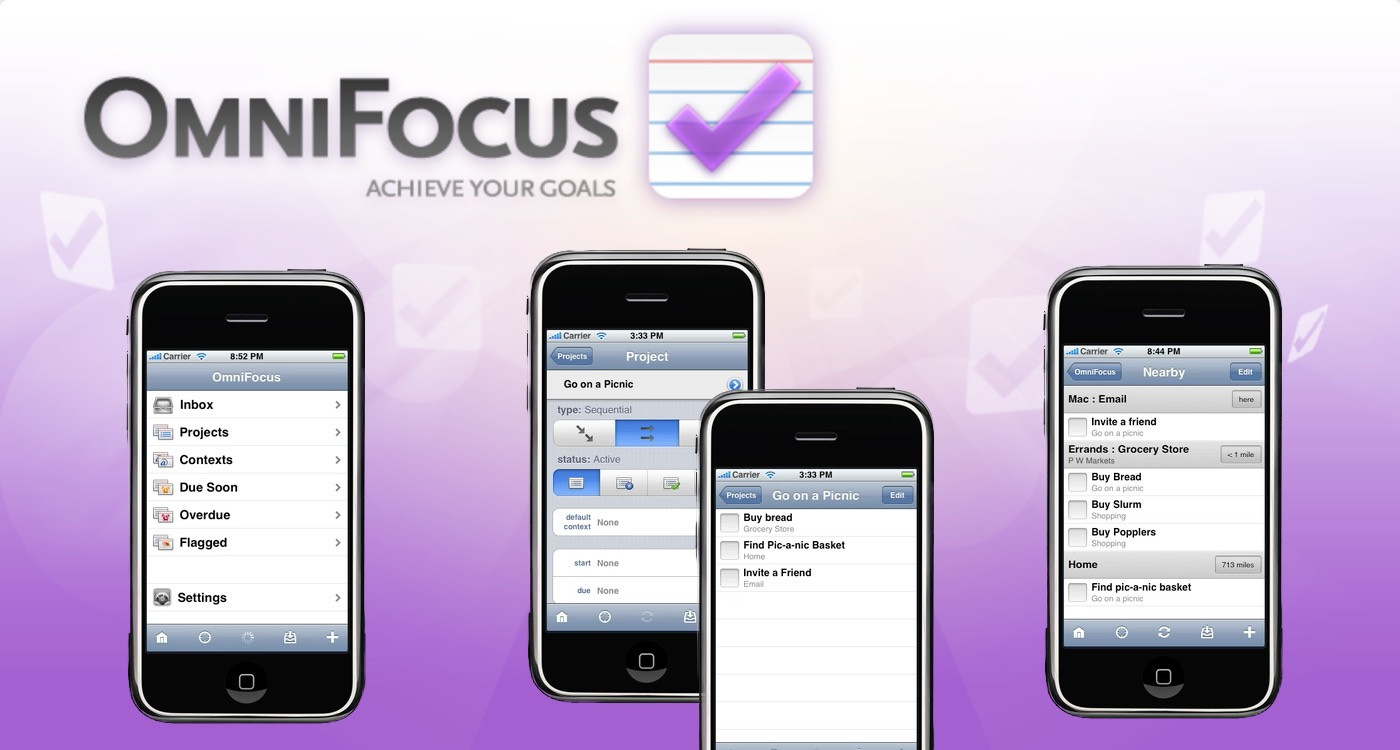
  • The Nearby view now displays each context as soon as its distance is determined, rather than waiting to figure out the distance to each context before showing any results. It also scrolls much faster.
  • Checkboxes are much easier to touch.
  • When creating a new action, the keyboard appears immediately rather than sliding in after the screen.
  • On the home screen, Settings have moved to the Info button in the bottom right corner.
  • The Reset Database button in Settings will now reset the saved sync password in addition to the database, and will then take you back to the original welcome screen.
  • Syncing automatically compacts the database on a regular basis, but when syncing is not enabled there's now a Compact Database button in Settings. (There's also some text there indicating how many tasks are stored in how many zip files, so you can tell whether your database could benefit from compacting.)
  • Added underlying support for the new autocomplete settings for projects and groups which are coming in OmniFocus v1.6 for Mac.
  • Actions without contexts are no longer considered unavailable.

Please continue to send suggestions or report issues to omnifocus-iphone@omnigroup.com. We appreciate your feedback!


New OmniFocus Videos!

by Michaela on January 13, 2009 | Comment

Why, hello again! Michaela here. I don't know if you noticed that fancy title, but there are two new OmniFocus videos available from our friends at ScreenCastsOnline.

The first, found here, is on the basics of OmniFocus. It has some new information not found in the Quick Start video and is a great starting point.

The second, found here, is on OmniFocus advanced usage and the iPhone. It's a special double-length show that covers topics such as Syncing, the Inspectors, Growl integration, Perspectives, Clippings, and integrating with other applications like Mail and iCal.

As always, the ScreenCastsOnline team does fantastic work. We thank them.

Do check it out!


Page 6 of 11 pages ‹ First  < 4 5 6 7 8 >  Last ›