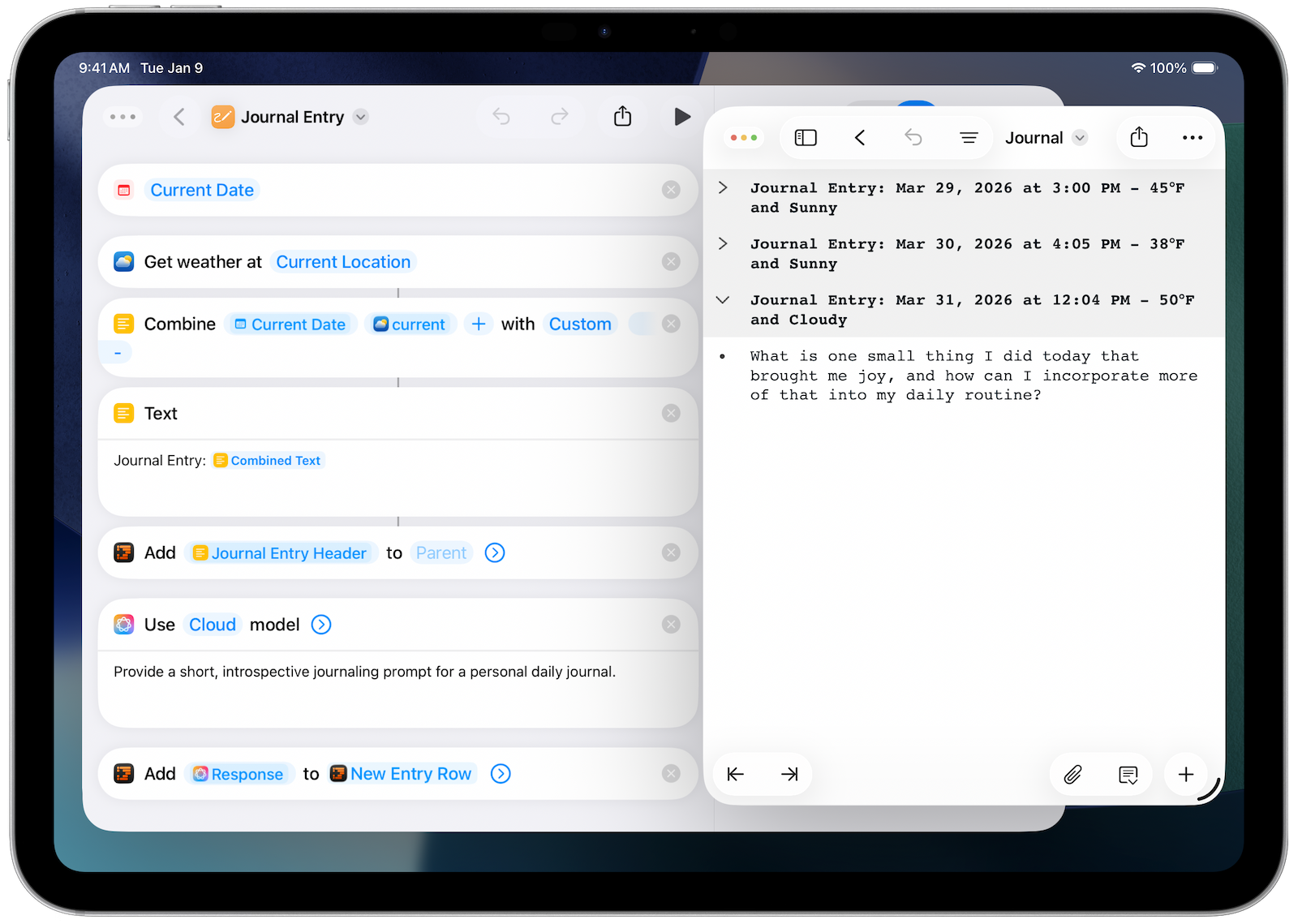
We’re excited to share with you that OmniOutliner 6.1, available today for all platforms, introduces a powerful collection of new Shortcuts actions—bringing the collection of actions available for automating OmniOutliner via shortcuts to 25! OmniOutliner Shortcuts actions can be used to create, add content to, or manipulate data within an OmniOutliner document, integrate OmniOutliner with other applications or Apple Intelligence, and more!
OmniOutliner Shortcuts Actions in Action
Interested in taking new OmniOutliner Shortcuts actions for a test drive? Our team has built a handful of example shortcuts so you can jump right in. To try these out, simply update to OmniOmniOutliner 6.1 on your Mac, iPad, iPhone, or Apple Vision Pro, then install the example shortcuts via the provided link! (If you’re brand new to Shortcuts, you may also find it helpful to review Apple’s Shortcuts User Guides for Mac, iPhone and iPad, and Apple Vision Pro.) Most OmniOutliner shortcuts require OmniOutliner Pro.

Add a new entry to a personal journal in OmniOutliner with the Journal Entry example shortcut.
Translate Document Rows
This example shortcut provides Spanish, Japanese, and German translations for row text in an OmniOutliner document. To try this shortcut out, first create an OmniOutliner document with a set of English sentences or phrases to translate. When the shortcut is run, additional columns which contain translated text in Spanish, Japanese, and German will be created in your document.
Install Translate Document Rows example shortcut
Checkout Nearby Coffee Shops
This shortcut provides an example of populating an OmniOutliner document with content created by another application. When run, this shortcut searches Maps for coffee shops near your current location, then populates an outline with these results and adds columns for coffee shop address, distance from your current location, and your personal rating. (Note, in order to run this shortcut, you’ll first need to create a new outline document in OmniOutliner with your preferred template.)
Install Nearby Coffee Shops example shortcut
Unchecked Rows to OmniFocus Project
This shortcut provides an example of moving information out of OmniOutliner into another application (in the case, OmniFocus). When run on a flat outline, this shortcut copies the title and note field of any row with an unchecked status box to a new action in OmniFocus. This could be useful for sending a list of camping supplies you don’t already have to an OmniFocus shopping list, or for creating follow up actions for select items in a set of meeting notes.
Install Unchecked Rows to OmniFocus Project example shortcut
Endless Workflow Possibilities
This is just a small sampling of the functionality you can unlock with Shortcuts and OmniOutliner 6! OmniOutliner Shortcuts actions can also tap into Apple Intelligence via the Use Model action, which can create or analyze outline content via Apple’s secure on-device or cloud compute models. OmniOutliner shortcuts also can continue to leverage the full power of cross-platform Omni Automation via the Omni Automation Script and Omni Automation Plug-In actions.
We’re excited about the wide range of unique workflows that could be created with these Shortcuts actions, and we’d love to see the shortcuts you create! If you’d like to share your own shortcuts with our team and members of the Omni community, Omni’s Slack workspace and Discourse forums are great places to share and connect. We hope you enjoy this OmniOutliner update and can’t wait to find out what you do with it!
