The Blog

Omni’s Plans for 2013

by Ken Case on December 21, 2012 | 60 Comments

In my last blog post, I reflected on all the things we accomplished in 2012 here at Omni—in particular, the completion of our huge “iPad or Bust!” initiative. But as Professor Hathaway said to Chris Knight, “That was yesterday. What have you done for me today?”

With “iPad or Bust!” out of the way, we’ve been able to move some of our projects off the back burner and here are some highlights of what’s coming: OmniFocus 2. OmniOutliner 4. Automatic document syncing. Sandboxing. Accessibility. Visio and Microsoft Project compatibility in our iPad apps. Upgrade pricing from Mac App Store apps.

Junction: Omni 13, OmniFocus 2, OmniOutliner 4

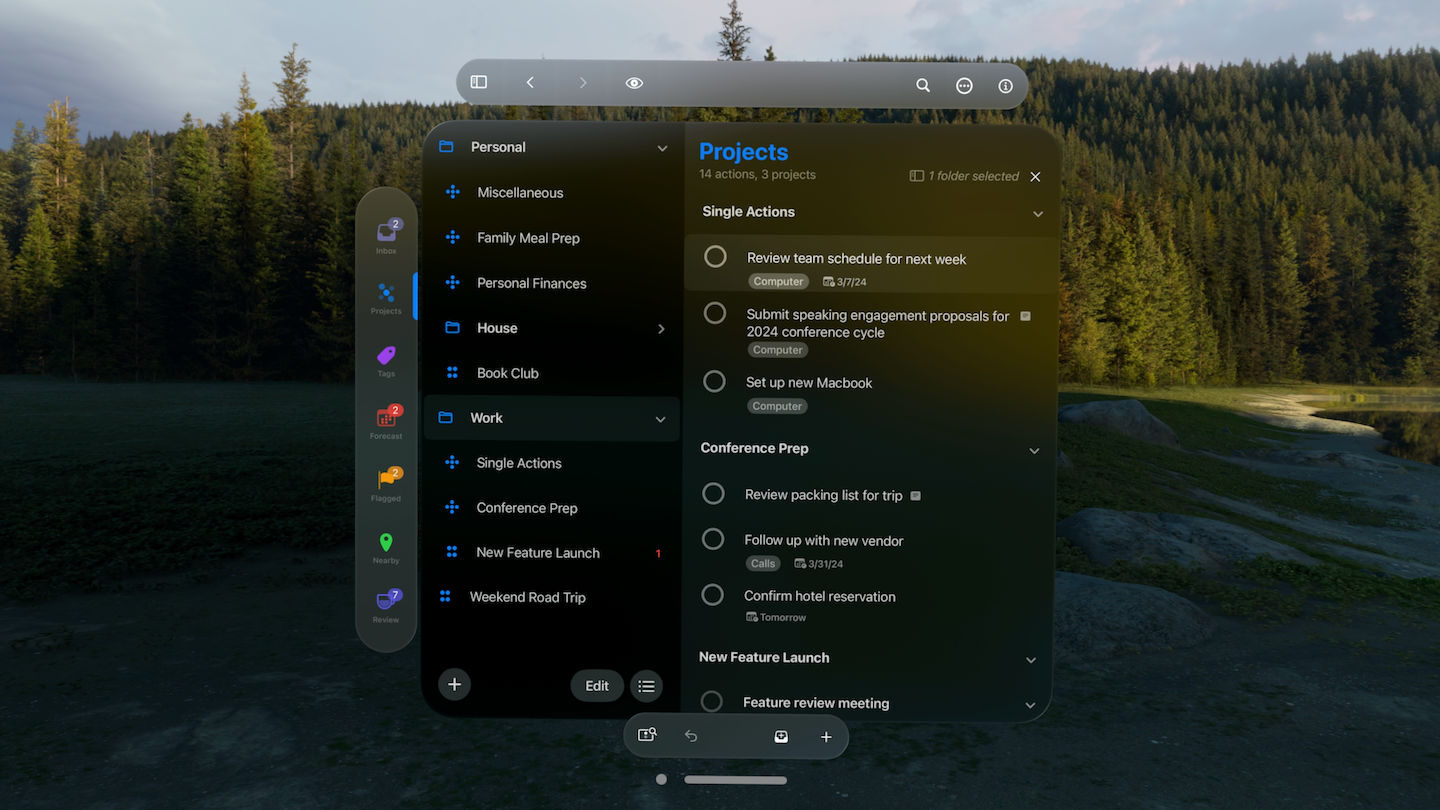
Let’s start with OmniFocus 2! For OmniFocus 2, we’re bringing back to the Mac all of the design and innovation that went into our iPad edition of OmniFocus: dedicated Forecast and Review modes, clearer navigation, and a fresh look and feel. I’m looking forward to sharing it with you! At 6pm on January 31, you’re invited to join Merlin Mann, David Sparks, and me for the first public debut of OmniFocus 2. This will be a free event, hosted at the Cartoon Art Museum (a short walk from Macworld/iWorld), and anyone who attends will get early access to the OmniFocus 2 private beta. Space is limited, so if you plan to attend please let us know.

Next up: OmniOutliner 4! I know many of you have been waiting for this upgrade for a long time—I know I have been waiting for this for a long time! For those of you who might not know the history, OmniOutliner 3 shipped in January, 2005—one year before Macs transitioned to Intel processors. And OmniOutliner 3 certainly hasn’t sat still over the last eight years: we’ve ported to Intel processors and added support for Spotlight, dictionary lookups, LinkBack, Automator workflows, Quick Look, custom toolbars, Word 2008 export, Auto Save, and Versions. But other than a few tweaks to the inspectors and toolbars, its design has mostly stayed the same: it’s starting to feel a bit long in the tooth. So… it’s due.

What’s coming in OmniOutliner 4? We’ve completely rebuilt the outlining engine to support zooming text, showing and hiding columns, and we’ve improved link handling and attachments. We’ve designed a new style system which emphasizes named styles and simplifies the styles interface. And it’s built on a modern 64-bit architecture, with a fresh new look and feel. OmniOutliner 4 isn’t finished yet, but it’s getting close: it’s now at the point where I’m using it to edit all my outlines rather than OmniOutliner 3, so I anticipate we’ll be ready for public beta sometime in the first quarter.

Automatic document syncing is almost here! We call it “OmniPresence”: your documents, synced everywhere you want them to be.

We’ve designed OmniPresence around open web protocols, so you’re welcome to use our free Omni Sync Server or to host your own cloud server. We think that the option to host your own cloud is important—not just because of concerns with respect to privacy and security (though that’s key for many businesses), but because it means you can keep that cloud running as long as you want to keep using it. As we saw with MobileMe shutting down earlier this year, individual cloud services can easily disappear as business models change. Building a solution around open standards means that our customers have a choice of hosting providers rather than being tied to a single ephemeral cloud solution.

OmniPresence is not limited to syncing with a single cloud, either: you can choose which folders to sync with which clouds. This means that teams can set up separate folders in separate clouds, and you can access files from any of them on each of your devices.

Because it’s open and you can host your own cloud, OmniPresence is designed to sync any documents you want: it’s not limited to syncing documents created by our apps. In fact, on the desktop OmniPresence is completely independent of our other apps: if you wish, you can use it to sync TextEdit documents! (But when using OmniPresence with non-Omni apps, we’ll ask that you limit the amount of space you use on our Omni Sync Server since we can’t provide infinite storage to everyone for free. On your own cloud server, though, do whatever you want!)

On iOS, OmniPresence isn’t quite that independent: the sandboxing environment requires that each app embed the OmniPresence logic within its own codebase. We will be publishing our source code for free so other developers can add it to their apps.

OmniFocus 2, OmniOutliner 4, and OmniPresence. Three major upgrades, all coming your way in Q1, 2013.

But as I noted at the top, that’s not all! We’re also working on sandboxing to help keep your Mac safe; and accessibility (currently in private beta for OmniOutliner for iPad) to make our apps easier to use by those who are visually impaired. And we’ve been working on adding Visio and Microsoft Project compatibility to our iPad apps, so it will be easier than ever to go completely mobile with your work.

Finally, with OmniFocus 2 coming we’ve been thinking a lot about how to implement upgrade pricing from Mac App Store apps. As always, we plan to offer discounted upgrade pricing on our own online store, but unfortunately we don’t have the flexibility to offer selective discounts in the Mac App Store. We’ve decided to treat the Mac App Store the same way as we treat retail stores: it’s a great way to discover our software, and can give you confidence that it’s been vetted by a third party. And, just as you wouldn’t get a discount from a retail store if you purchase OmniGraffle 5 while owning OmniGraffle 4, you won’t get a discount if you purchase OmniFocus 2 from the Mac App Store. But we’re in the process of updating our store so that you’ll be able to register your Mac App Store apps to get a discounted upgrade price when you buy an update directly from us.

OmniFocus 2. OmniOutliner 4. OmniPresence. Sandboxing. Accessibility. Visio and Microsoft Project compatibility in our iPad apps. Upgrade pricing from Mac App Store apps. I hope you’re looking forward to 2013 as much as we are! (And don’t forget to let us know if you’re planning to come to the OmniFocus 2 debut!)

Omni’s 2012 in Review

by Ken Case on December 19, 2012 | 11 Comments

As we approach the end of 2012 (or the world, according to some), I’ve been reflecting on just how much we’ve accomplished this year here at Omni.

Omni Release Timeline 2012

We celebrated 20 years of omnigroup.com, of course, and we moved to new offices. But, more importantly, we finished our two-and-a-half-year “iPad or Bust!” initiative by shipping the last of those five apps, OmniPlan for iPad! Version 1.0 doesn’t mark the end of all our work, of course—but it’s a great milestone and I’m incredibly proud of all our team has accomplished.

Finishing up our “iPad or Bust!” initiative has given us the opportunity to start working through a number of other projects on our “to do” lists, so there’s been a lot of news in 2012…

We rolled out our own Omni Sync Server, so you don’t have to become a sysadmin and run your own web server just to sync your devices. (But you can still run your own server if you like: our syncing engine is based on open web protocols.)

OmniFocus has been on speaking terms with Siri since late 2011, of course, but in 2012 we’ve made it more robust and brought support for Siri to the iPad app as well. We also added support for flexible weekly repeats and TextExpander—and just this month we’ve started beta testing our new Mail Drop which lets you email tasks directly to your OmniFocus database.

This year Apple introduced iPads with Retina displays, and we immediately shipped Retina updates for all of our iPad apps. Apple also introduced Retina displays to the Mac with the new MacBook Pro, and we’ve already shipped Retina updates for OmniGraffle and OmniPlan (and are busy working on Retina updates for the rest of our Mac apps).

Behind the scenes, we’ve also been updating all our Mac apps to leverage the latest fundamental advances in OS X: this year we shipped Developer ID-signed updates for all our apps, 64-bit updates for OmniGraffle, OmniDiskSweeper, and OmniDazzle—and we expect to ship 64-bit updates for the rest of our apps soon. We’ve also been hard at work adopting OS X’s new App Sandbox.

Even before we finished “iPad or Bust!” one of our top priorities has been to build automatic document syncing into OmniGraffle, OmniOutliner, and OmniGraphSketcher—we want it to be as easy to sync all our apps as it is to sync OmniFocus and OmniPlan. We’ve been working on this for over a year and a half now, and at the start we had very promising results: it felt like magic when it worked, and we thought we’d be ready to ship last year. But though our code was finished, we found the back end service we were trying to use wasn’t working reliably, and we felt it would be irresponsible to ship something so critical until we knew the full solution was solid. After a year of trying to help get that solution working, we went back to the drawing board and designed a new syncing solution based on open web protocols. Nobody was more disappointed about the delay this caused than we were—but we knew we needed to find some way to move forward, and I’m pleased to report that the redesign has gone very well (and our new syncing solution is now in internal testing).

Which, of course, leads right into the subject of my next blog post: what’s coming next from Omni? (Stay tuned!)

In OmniFocus for iPhone 1.15, one of our most-requested features went live: TextExpander Touch support.

There are so many different ways to use TextExpander with OmniFocus so I won’t even begin to offer suggestions here, but there’s a lot of reference material out there to link to.

  • Sven Fechner started us off earlier this year with a bit on using expansions to track project updates (in OmniFocus for Mac.)
  • David Sparks uses TextExpander to populate action titles with frequently-typed phrases.
  • Kourosh Dini goes a bit further and performs some calculations inside action titles, especially for “waiting for” contexts.
  • Michael Schechter goes one step further, completely automating a clipped email by populating context and project fields, but it won’t work in OmniFocus for iPhone. Sorry!
  • Finally, a very useful rundown of TextExpander by Thanh Pham. Mac-centric, but nearly everything works with TextExpander Touch & OmniFocus.

You can find out more about TextExpander Touch (and the original Mac variant) at Smile Software.


Dan W., current holder of the newest Omni employee title, uses TextExpander extensively:

Everyone appreciates a timely response and sometimes it’s required. I can’t always reply to messages right away—when I need to research a topic or have a conversation with someone—but OmniFocus helps track this and doesn’t bug me to send that email until all the required tasks are done.

TextExpander snippets for me are most useful in creating template email skeletons. Each email draft is an OmniFocus task and the task’s “Notes” field is my scratchpad for composing my message. My basic template sets up a text based form that includes ‘To:’, ‘CC:’, ‘Subject:’ and ‘Message body:’ with some space to write the body, it even places my curser just after the message body so I can start typing in the right spot. TextExpander Touch can’t prompt for user input like the Mac application can (an iOS limitation), so I rely on these text based prompts.

‘To:’ and ‘CC:’ remind me to call out who I’m looking for a response from and who’s just listening in. Plus, they also work as a reminder when I think of someone else I’d like to bring into the thread. As I’m composing my draft I have snippets to create URL links from my clipboard, properly case Omni product names, or include my email signature.

When I’m ready to send, I’ll copy and paste the template fields into an email message and hit Send. I also remind myself in the email template to create a “Waiting for response” placeholder task once I’ve sent the email.

Late last week we released updates to OmniFocus for Mac and iPad — OmniFocus for iPhone came a bit later.

All three updates include the extremely useful and oft-requested feature of flexible weekly repeats. Set up an action to repeat every week on certain days: every weekday, every weekend, just Mondays, etc.

Mac Repeat

Previously, the best way to create a weekday-only or weekend-only repeating action was to create one action for each day, and set to repeat every 1 week. That method worked, but admittedly required a bit too much initial effort.

Set up a configuration with a few clicks or taps: on the Mac, open up the Inspector; on the iPhone and iPad, bring up the Action Details editor and tap the Dates column like usual. Choose the “every” repeat type, pick a few days, and done.

iPhone Repeat 50 Percent

This makes things easier for many customers, and we’re very happy to have it available. We’d like to add more functionality for repeating actions in the future, too.

Finally, OmniFocus for Mac has a new icon, OmniFocus for iPad has been retina-ized, and we’ve fixed a few more bugs! For full release notes: Mac, iPad, and iPhone.

Now we can schedule around them.

Update: OmniFocus for iPhone 1.14 was just released! Update when you see it and don’t forget to turn iCloud Reminders back on.

As soon as Apple announced Siri, everyone who owns OmniFocus for iPhone let us know just how much they needed these two tools to work together.

A couple of friendly productivity fiends took matters into their own hands and figured out that Siri could send emails to the OmniFocus inbox on their Macs.

We could have said “Yay, Siri and OmniFocus can work together” and gone back to our long-term projects. Instead, a couple engineers got to talking “You know, if we… and then the server… and…” “Wow, I think that would totally work!”

So, if you have an iPhone 4S and OmniFocus for iPhone, you can stop typing items into your inbox, and just say whatever comes to mind.

David “MacSparky” Sparks put together a couple videos to show you how it works.

OmniFocus & Siri from The Omni Group on Vimeo.

Here’s more detail on how to get set up:

OmniFocus + Siri configuration from The Omni Group on Vimeo.

If you tell Siri a time, OmniFocus will set the due date. If you specify a location, OmniFocus can assign it to the corresponding context.

OmniFocus + Siri: Location from The Omni Group on Vimeo.

We’ll be standing by on the usual support channels if you need any assistance. Twitter:@omnifocus, Email: omnifocus-iphone@omnigroup.com, Telephone: 1 800-315-OMNI

Howdy, everybody! With a new release of iOS and new iPhone hardware, there’s been a ton of excitement and news this week; fun times!

In addition to all the cool new stuff Apple’s released, we’ve been able to build a few things using their toys that we hope will also be pretty exciting; I wanted to take a few moments and tell you about one of them. Specifically, the new location-based notifications we’ve added to OmniFocus for iPhone 1.12 and OmniFocus for iPad 1.4!

One of the first things we added to OmniFocus was time-based reminders; it wasn’t too long after that that folks asked for location-based ones as well. In fact, the first request we got for location-based reminders was back in May of 2007, before we’d even shipped version 1.0 of the Mac app! Over the years, we got more requests, especially once OmniFocus for iPhone and iPad appeared - wouldn’t it be great if the device you were carrying around in your pocket could tell where you were and remind you of the things you needed to do?

The first couple versions of iOS mostly made use of location data on maps. It was useful - you could create a context for a pharmacy you used, add the address, and see a dot on the map if any actions needed doing. You had to remember to look at the map screen, though. With iOS 4, it started to look like the pieces we needed to add the feature were coming together - that version of the OS had the ability to monitor location information and notify an application when the device was in a certain area. We did some preliminary work towards implementing location reminders; the feature worked and didn’t use much battery charge, but it became apparent it wasn’t as fast or as accurate as we hoped. We decided to pause work on the feature.

We were pretty excited by some of the changes Apple made in their recent hardware, though; they found a way to improve the accuracy of location monitoring without using more power. Specifically, the iPhone 4 (and 4S) include a feature called “region monitoring”, which lets them track the devices’ location via GPS without running down the battery. iPad 2 models with 3G also have this capability. Unfortunately, devices released before then don’t have a low-power way to monitor their location as accurately, so they won’t be able to use this type of reminder in OmniFocus. (The Reminders app included in iOS 5 has the same limitation.)

Still, if you have a device that supports it, the location reminders can give you an extra nudge, helping you to complete actions you might otherwise forget. Because battery life is a top priority, though, it’s important to remember that the location is only being checked from time to time. If you pass through an area quickly (by driving past it on the highway, for example) you may not get an alert. It’s also important to note that the regions being monitored are fairly broad - the smallest “distance” setting still corresponds to about one city block, and things get more broad from there. Hopefully in the future we’ll have never-fail pinpoint-accuracy location monitoring, but we’re not quite there yet.

Since we shipped this feature, we’ve gotten questions from some customers that are seeing the “your location is being monitored” indicator more often than they used to, and it’s true that it’ll show up more often. As long as you have an available action in a context with a location attached, OmniFocus will stay subscribed to location information, activating that indicator.

The folks that are concerned by this are usually worried that their battery will be drained more quickly, and in previous versions of iOS, that would have been the case. In iOS 5, though, you shouldn’t have to worry as much. Behind the scenes, iOS 5 is handling things. We can’t know the exact details of how it works, but Apple’s stated goal was to be reasonably accurate while minimizing battery drain. The location monitoring indicator is mainly to help you manage your privacy; avoiding battery drain was a useful side-effect. But in iOS 5, the device is better able to conserve the battery.

It may also be helpful to know that OmniFocus’ map view also shows the indicator: that view determines your location more precisely than the location reminders do - you will see some battery impact there. In fact, shortly after shipping the iPhone update, we discovered that the Map view doesn’t remember to stop monitoring your location after you close the view; that actually can cause battery drain! Thanks to the folks that reported this problem - we’ll get an update out that fixes that as soon as possible.

For more details on location reminders, check the new help pages; they’re accessible from the Settings screen in each app. In the meantime, I hope this post helps you decide if location reminders will work for your purposes. Have ideas, suggestions, or concerns? We’d love to know what you think! Drop some comments here, or email our support ninjas; you’re also welcome to ask questions in our forums or on Twitter. Thanks, everyone!

Good things come in threes. Stooges, Musketeers, Supremes. Star Wars, Indiana Jones, Lord of the Rings. Columbus' Ships, Newton's Laws, Caesar's Motto. The list (the one I'm keeping in OmniOutliner for iPad) goes on and on... and the Rule of Three once again proves true for David Sparks' 3-part series of OmniFocus Ninja Tricks from his Mac Power Users Podcast.

In each of the three screencasts David guides you through some essential workflow steps to make the most of OmniFocus. Episode 1 covers the various ways to capture your tasks, Episode 2 delves into the planning process and in Episode 3, he explains the best ways to take action and review. As an attorney, author, and all-around man of many hats, it's pretty safe to say that David is a paragon of productivity. We're delighted to share his trilogy of tricks with you. 

When the iPad was announced last year, I posted that we were planning to bring all five of our productivity apps to iPad. We've just submitted OmniOutliner for iPad to the App Store, the fourth of those five apps:

I've been looking forward to OmniOutliner for iPad all year: OmniOutliner is the app I turn to whenever I want to collect and structure my thoughts (it's where I'm writing this text right now!) and it's great to be able to take those outlines with me and work with them on my iPad.

Now that OmniOutliner for iPad has reached GM, we're busy putting together some screenshots and an intro video which explain how the app fits together, and we look forward to posting those to our main website as well as more information here. For now, though, let me share this teaser video:

We don't know exactly how long it will take for OmniOutliner to be reviewed, but hopefully not more than a week or two. If you'd like to be notified by email the moment OmniOutliner is available on the App Store, you can subscribe to our low-traffic OmniNews mailing list or to our OmniOutliner Users mailing list. And, of course, you can watch this space—or follow @omnigroup or @omnioutliner (or me, @kcase) on twitter.

Meanwhile, let me briefly give some updates on our other projects! But first, an important reminder: our plans do change over time, so please don't rely on things happening according to today's particular snapshot of those plans.

  • OmniPlan v2 just went into beta, adding multi-user collaboration over the air (through Apple's MobileMe or our own Omni Sync Server, or your own private WebDAV server). For more about that, see last week's blog post. Once we wrap up this beta, we'll finally be ready to start on the last of our “iPad or Bust!” projects, OmniPlan for iPad.
  • Our free Omni Sync Server has been in beta since last summer, and it's been working quite well: over 18,000 people have signed up and feedback has been overwhelmingly positive. This will remain a free service for all Omni customers when it leaves beta; if you haven't tried it already, I encourage you to give it a spin!
  • OmniGraphSketcher for Mac has a major update now in beta which adds support for log scales—important when you're trying to compare trends in data which might be orders of magnitude apart. We're also working on bringing that work over to the iPad app.
  • We're very close to submitting an update to OmniFocus for iPhone, adding the very popular Forecast view which was introduced in the iPad app. (Here's a screenshot.) Our test pilots found a few bugs around the edges that we need to squash before it's ready to ship, though, so it'll probably be another week or two before it's submitted (and another week after that before it's reviewed).
  • For OmniOutliner 4 for Mac we've taken apart our entire outline architecture, rebuilding it on top of more modern OS X infrastructure such as CoreAnimation and bindings. The rebuilt outline architecture from OmniOutliner 4 reached a major milestone last week with our public beta release of OmniPlan 2—and now that OmniOutliner for iPad has been submitted, we can focus more of our direct attention on OmniOutliner 4.
  • We're planning some major updates to OmniFocus for Mac, polishing up its user experience to match the ease of use and aesthetics of the iPad edition, adding the Forecast and Review modes which we introduced in the iPad app, and adding support for syncing projects with OmniPlan.
  • And finally, we're looking forward to updating our apps to take advantage of the new features Apple is introducing in Mac OS X Lion, such as the Versions autosave architecture, built-in Resume, and full-screen apps.

As always, I'd welcome any feedback you might have: leave a comment here or send me a message on twitter (where you'll find me at @kcase).

UPDATE: I just realized that I forgot to mention the price! OmniOutliner for iPad will be $19.99.

Our devices have voices.

And they have these voices to let us know everything from "someone is trying to get in touch" to "it's your move in [popular letter-adorned tile placement game]". When they speak, it sometimes sounds like they're saying "FIRE!" when they mean to say "You've got some spam to delete, buddy." Sometimes it sounds like they're whispering "Hey, there are kittens batting at dandelions in a meadow." when they really mean "No, seriously, FIRE!" And more importantly, any sound that is repeated with enough frequency will turn itself into a distant peep that you ignore or an in-your-face racket that turns you into The Hulk.

These were the challenges we considered when creating a notification sound for OmniFocus for iPhone and iPad. The job of the OmniFocus notification sound is to alert you to items that are due. So not only is it an alert, but it's an alert that lets you know you have some work to do — talk about a potential double whammy of irk.

So how do we combat this? There are a few things that make sense to do: keep it short; make sure it's in a range suited for the device's speakers; don't repeat it a bajillion times; and make sure that its voice lands somewhere in between DEFCON One and DEFCON Fun.

This gets us pretty far. To take us the rest of the way, we relied on the comfort found in familiarity and a voice that says simply, "I have something for you."

Here comes the music theory:

For the enforcement of familiarity, we chose a chord that has the same root and inversion as a sound with which many of us are well-acquainted: the Mac start-up chime. (The low low fifth is eliminated to accommodate the device's speakers.) It's not likely that most people will be able to say "Hey, that's like the start-up sound!" or even have a conscious response to it, but it's ubiquitous enough that the sound should *ahem* strike a chord. To make sure we find the right words to say, and for further familiarity, we had the root come in a touch late. With the third on top, this creates the notion of a descending major third or the same ding-dong sound a doorbell makes. The timing is different, of course, to make sure you don't look at the door when OmniFocus tells you it's time to take the trash to the curb or your Really Big Project is due.

All that said, everyone's ears are conditioned differently and our hope is that, in the end, it's unobtrusive without being too shy. Really, we just want it to be useful. 

Thanks for taking a minute to read about our one-second sound. If any of this resonated with you, please take a listen and feel free to drop a note in the comments. (Might I recommend F#?)

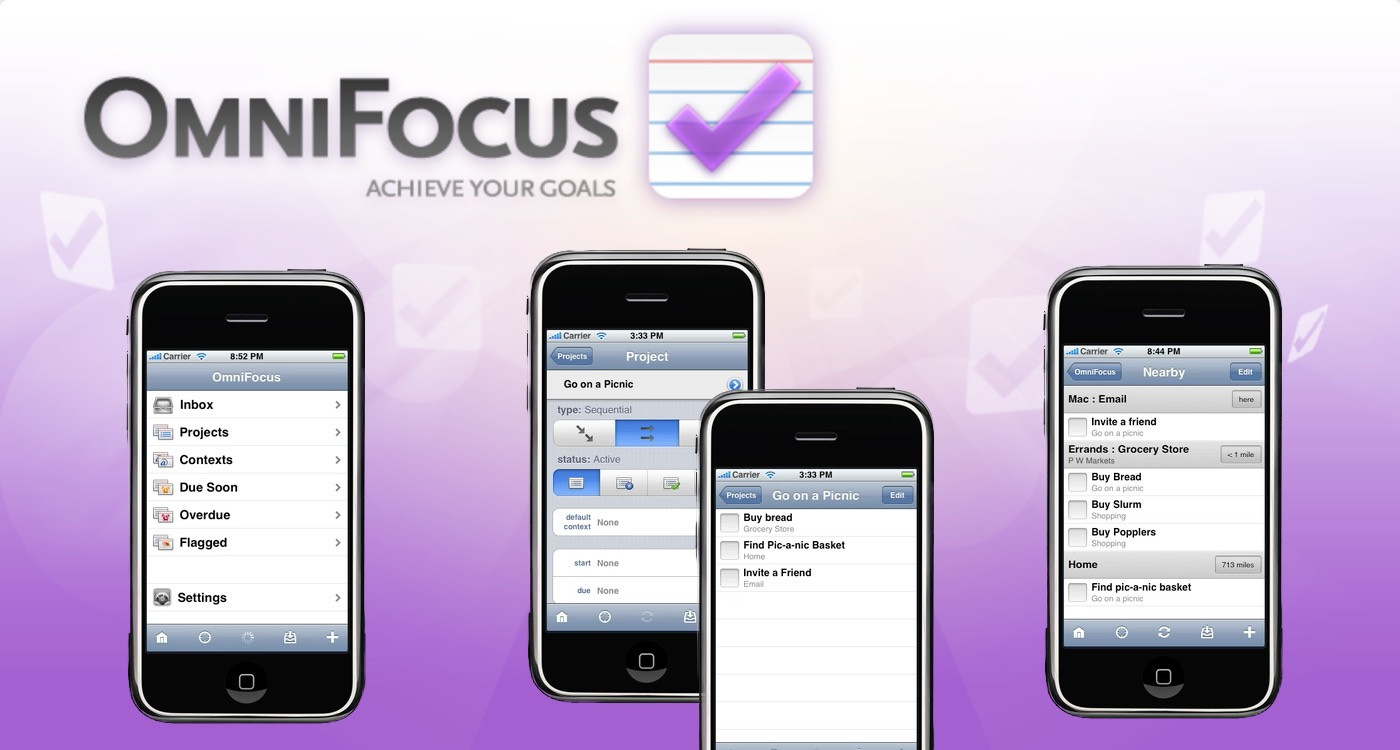
As you may know, we now have three different editions of OmniFocus: OmniFocus for Mac, iPhone, and iPad. Our hope is that these options give you the right set of task management tools, so you can use whichever is right for your circumstance, wherever you are. You know, so you don't have to try and hammer a nail with a screwdriver. Because screwdrivers are for screws, and . . . uh, nails need . . . those nail-poundy whatsits, and—

Okay, that metaphor got away from me a little bit. OmniFocus: It's a Nail-Poundy Whatsit When You Need a Nail-Poundy Whatsit doesn't really roll off the tongue.

Anyway, I thought it would be interesting to talk with some OmniFocus users who are running the software on more than one device. I was curious to see how folks balance their task management when they're in different modes, how each version supports the work they do, and see if those who have all three versions really do use all three. Some of you may be wondering which versions you need, and I hope some of these stories will help give you a little more insight into what might work best for you.

One of the questions I asked was whether people used the app differently on one device as opposed to the other. (IE, is the way you interact with OmniFocus for iPhone the same as how you use it on a Mac?)  I also asked if they had a clear favorite, or if each version serves separate but equal needs.

I apologize in advance for the length of this post (seriously, you might want to get some coffee and maybe take a bathroom break first), but I received so many great responses I wanted to share as many with you as possible. Without further ado, let's hear from the OmniFocus users:


I keep the Mac version open at all times and use it to collect most my tasks, because I'm frequently by the computer. Whenever something needs action, I fire up the quick entry window, write it down and forget about it. Then while working I go through tasks by context. If I need to work on wireframes, or am just in a meeting, I now carry the iPad with me and collect/process through the new app for the iPad - there's no real reason to carry the laptop anymore.  If I'm not at work or if I'm outside for any reason, I use Omnifocus on the iPhone. When mobile, I use it to collect ideas, process my shopping list, and review projects. 

I would have to say that the Mac version is the one I use the most, and the one I can't imagine myself without. The iPad version is still too new for me to consider an essential part of my workflow (to blame is the lack of multitasking on the iPad, that makes it hard to switch between other apps and Omnifocus to collect actions).  — Fred, Developer and User Experience Designer 


I use the iMac primarily when I need to do heavy duty input.  (Also, I use the iMac if I am studying to input items that come to mind or that come up while studying.) I use the iPad version for the Review process, for quick reference when using iMac for other reasons, for quick input/review when I am in waiting situations, for reference/input to notes when in committee situations, when focusing on tasks in particular contexts.  I really do not use the iPod Touch version very much. The biggest use I have for it is if I am going into a store where a shopping list is needed. 

The iPad version is my favorite.  The Mac version is more efficient for input, the iPad version for reference/review. — Doug, Minister


I use the desktop versions for inbox processing, labeling, clipping, etc. Creation of action items happens here. I use the iPhone app to focus and get things done away from the computer.  The iPhone app is really a companion to the desktop, it is not a go-to because I spend numerous hours in front of the computer at work and have easy access to my iMac at home. 

The iPhone is great for course correction and minor tweaks, and truly makes the system "air tight" when you come up with that next action over happy hour. — Jarrod, Accounting Manager


I typically schedule a 15 minute "brain dump" where I sit in front of my Mac Mini and use the OmniFocus for Mac.  Then I usually sync with iPhone. However, after purchasing the iPad version, I have neglected the Mac version and just sit in my sofa while adding all of my tasks to my inbox. I also love the new "Forecast" feature on the iPad. I don't take my iPad outside of the home (I have the wi-fi version), so I usually sync with my iPhone. Even though I really love the iPad version of OmniFocus, I feel that the iPhone version is my most used device. It goes with me everywhere I go and gets more mileage than the other two devices.  So, the way I see it, both OmniFocus for Mac and iPad are used primarily as input devices for brain dump and some organizing and the iPhone version is the one the gets to go out and actually get things done and has the satisfaction of getting that "check" to accomplish all tasks. 

I would say that my favorite right now is the iPad version.  Omnigroup has done a great job with the app.  It may just be that I'm in a "honeymoon" stage, so I would have to see how I feel a month from now to see if I still enjoy it as much as I do now.  The iPhone version is great for its portability.  It goes everywhere I go and I always have my tasks with me (though I don't know if that's necessarily a good thing -- especially on vacation). — Mauricio, Church Teacher 


I used the iPhone app more when I was out and about, but since I was using it on an iPod Touch and wasn't always near wifi, it wasn't that effective. And I found it slow and hard to navigate on the small screen. I don't think I really use the Mac and iPad versions all that differently.  If I used something other than wifi for connecting, I guess I might be more likely to use the iPad (or iPod) while I was in the car, but as it is, I use OF generally at home or if I'm at the office for pretty much the same tasks. Though I think I've traditionally done more task entry on the Mac version, that's starting to shift. 

The new iPad app is fantastic.  It's now become what I think of as the home device for my task list.  I still use both laptops, but I strongly prefer the iPad version.  One thing, though, that is easier on the laptop version is setting specific dates. So, clear preference for the iPad and they all serve pretty much the same need with a few minor differences. — Robin, Faculty Member


OmniFocus Mac: I use OmniFocus for the Mac primarily for two reasons.  The first is to be essentially an OmniFocus server that has OmniFocus open all the time and captures emails I send myself, so they can be converted into tasks.  This is done on my Mac Mini sitting at home.  The other is when I need to do a really thorough review, like my quarterly review, where I know I may need to do some mind sweeps or serious reference file cleaning, which I'd do on my MBP.  

OmniFocus iPad: This has become my almost de facto review and entry method.  I've been trying to do as much work digitally as possible during the day by using my iPad as a replacement for the typical day planner/folio I've carrying around for years.  I'll have my iPad with me during the day and use it to capture tasks from a meeting or conference call.  

OmniFocus iPhone: This is my mobile task list manager when running errands, out on the job site, or capturing quick ad-hoc tasks in places I may not have my iPad with me.

I use OmniFocus for iPad for a majority of my time inside OmniFocus, but each version has its importance to me depending on when/where I'm interacting with my lists.  My overall workflow for handling/processing my lists really requires all three versions for me. — Jason from MyGeekDaddy 


How I use OF depends a bit on where I am. When in the office, I use OF in conjunction with Evernote. I keep extensive notes in Evernote, but anytime an action item comes up, I use clippings or quick entry to add a new item to my inbox. Then, I go through my Inbox periodically throughout the day to move items to projects and add context. I also try to retain 0 items in my email inbox, and I use the mail clippings feature to keep track of those emails that require action by me.

When I'm home or out of the office, the iPhone becomes my main device. I will refer to context lists depending on where I am, but mostly I am consuming/completing items from my iPhone rather then entering new items. If I do happen to have my home machine up and running, I will use it to review existing projects or add new items as they come up. Obviously, I depend heavily on synchronizing all of this data among my three devices.

I can't say I have a clear favorite because the two versions serve different needs. I would never want to be without the other. — Dave


I use OmniFocus on my iPhone mainly for quick reviews or quick entries if something hits me. Since I always have my iPhone with me I can always do a quick glance at what’s going on or remind myself self of where I’m going (direction in life). The use iPad version more now than the MacBook one because of easy portability but I still use the Macbook version when I take some time to sit down and do a full review of everything going on. The beautiful part of it all is all my devices sync perfectly through MobileMe. 

Probably the iPad (is my favorite) because it still has that new toy feel to it. — Dewey, UI/UX/Interaction/Graphic Designer 


I use each product in a slightly different way:

1. OmniFocus for Mac. When I need to do a lot of list work, I rely on the desktop version of OmniFocus. With a 24" monitor, I can quickly see and work through multiple lists. This is my favorite version and I use it everyday to get organized.

2. OmniFocus for iPad. With the smaller screen, I use it primarily for reviewing/tweaking individual projects. I also am really enjoying the new Review and Forecast modes. This version gives me most of the power of the desktop version, but with more convenience and portability.

3. OmniFocus for iPhone. I use it for "on the go" data collection and reference. It's my back-up brain. I no longer carry a Moleskine for data capture since I always have my phone with me.

Each version is slightly different which allows me to think about my work in different ways and "see" my work in different ways. I can easily find stray actions or dead contexts by using different versions. The trio of products helps me keep my lists up to date and my mind distraction free: everything I need to remember is in OmniFocus. Which version(s) of OmniFocus you need depends on your work style and the gear you carry with you. All three versions help me manage a busy work life, and even more importantly, they allow me to not work all of the time. OmniFocus quietly remembers all of the details while I'm outside enjoying our very brief Minnesota spring and summer. — Dave C.


I mainly use the desktop version of OF on my home iMac and my MacBook Pro.  The databases sync via my mobileme account, and i have had zero problems with that.  This is key, when my laptop was in the shop, it was simple to set up OF on a borrowed machine and sync it.  I was up and running in minutes.

While I do have the iPhone version, I rarely use it.  On my 3G it just didn't open and sync fast enough, though the quick entry feature was nice for capturing thoughts on the go.  Now that i have the iPhone4, I need to revisit if OF for iPhone is useful for me.  I don't have an iPad, yet.

Desktop is my clear favorite, by far. — David, Apple Certified Technical Coordinator


On the Mac: I generally still do my inbox processing here. In part, this is because I've mentally associated a specific place and time for inbox processing and that's something I already find difficult to do elsewhere (so the portability of the iPad isn't as much of a win). It's also because drag-and-drop still wins for speed when I'm working through an inbox.  Further, if I'm digging through other notes or tools for items that need to be processed, having multiple windows open in a "traditional" desktop environment lets me get that stuff into OmniFocus more efficiently than it does on the iPad. 

On the iPhone: The phone has some advantages and disadvantages that make it's place in my use very specific. The three aspects of the device that matter the most are physical size (both a pro and a con), it's almost always with me (big pro) and painful multitasking (con). Even with the iOS4 model, it's simply too heavyweight to switch around between apps, which means that any heavy-duty cross-referencing activity or inbox processing is right out. Additionally, anything other than a short text entry is kind of unpleasant just by virtue of the small physical dimensions. All that said, the fact that, in a pinch, I can basically do *anything* I could do with the bigger versions of the app is a Huge Deal. That's really the key to making OmniFocus work for me. Anything I might need to do, I can, and with a device that's almost always with me. 

On the iPad: This is  very new, of course, and I expect my use will evolve, but it has largely replaced the Mac version for the bulk of my use. In particular, the Forecast and Review modes are enormous wins and are straight up my preferred ways to see what's coming up and to do my weekly review across all three platforms. Much of the rest of the reason why the iPad is so fundamental to my workflow is because of the extra portability the iPad affords me with minimal compromise on how much I can see at one time. Yes, I find certain tasks easier to do in isolation on the Mac version, but the fact that the iPad is *so* much lighter and easier to carry with me than my Macbook trumps that most of the time. The "in a pinch, I could do anything here" effect still holds on the iPad, but it feels less like a compromise than on the iPhone. I could imagine a future in which I work almost strictly from the iPad version, with the iPhone as companion. I don't think it's there yet, but it's certainly plausible.

As to a favorite, I don't think I have a clear one. I think I could go without the iPhone and Mac versions for the longest, but I think that without the ubiquity of the phone and the power-user aspects of the Mac that my integration of the tool into my life would start to fracture long term. I'm pretty danged pleased with the iPad version though. Especially Forecast and Review, which really seem elegant and useful to me. — Josh


Of course, the OS X version is the most functional and is my primary client. When syncing was added, I was able to easily switch between my work and home computer (before that I kept the database on a flash drive). I purchased the iPhone version the day it was released so that I could have all my precious tasks with me while I was in a meeting or out and about. The iPhone version was good for reviewing and updating things, but the onscreen keyboard kept creation or significant modification of tasks to the desktop. Running 2x mode of the iPhone app on the iPad helped, but the native iPad version narrows that gap significantly.

As it stands, there still are some things the desktop version does that cannot be found elsewhere. The two primary are the notes field which supports rich text on the desktop (as compared to plain text on iPhone/iPad) and the totally useful Clip-O-Tron 3000 which I have begun using quite extensively to process mail and some related clippings. The interaction between mail clippings and Mail.app (having the relevant section in the notes with a link to the original message for additional context or to reply).

The best way to answer (which my favorite is) is to ask if there were only a single product, which one would I take? That would have to be the OS X version. The iPad is close second but the 1.0 version isn't quite there yet. Don't get me wrong, I use it daily both at home and at the office. The addition of reviews means I could live with the iPad version only, but it would be a compromise. With your desire for improvement I'm sure that every update will have me re-evaluate that decision. — Michael, IT Technology Manager 


The iPhone is my primary capturing device. When I'm on the road, in a meeting, on the train, I use OmniFocus for iPhone for capturing ideas and tasks to my inbox. When I'm travelling by car, I specially appreciate the audio note feature. Since iOS 4, I started using reminders on that device as well. 

On the Mac, I do the capturing in my home office, the organization of projects and actions. The integration with mail and the system in general is a great help. Doing a review on the iPhone is not very comfortable and I nearly never did that. So - before the iPad version was available - I did my weekly reviews on the Mac. At work, I had my MacBook on my side and did the capturing there. As I usually don't have a mac at my clients sites, the main reason for carrying my MacBook around was OmniFocus (and DEVONThink) and the more comfortable way of data entry and organization compared to the iPhone.

The release of the iPad version did a great thing for me: I now carry around my iPad. Doing a review on the iPad is very comfortable, even way better than doing that on the Mac. And I can do it wherever I want, i.e. on my balcony watching the sun dawn over the swiss alps or in the train, when I'm on my way home from a meeting in Zurich. Organizing is still not as intuitive as on the Mac, but it's possible.

As a conclusion: I could live without OmniFocus, I could even live without GTD. But I don't want to live without them. I am using OmniFocus on a regular base on my iMac, my MacBook, my iPhone and my iPad. If someone's not in a Mac Environment and wants to to GTD in an effective and efficient way, I do recommend buying an iPhone and an iPad and start using OmniFocus on both devices. With the iPad, there's no longer a strong need of the Mac version. You can do everything on the iPad as well. But if someone already got a Mac, I'd go for iPhone and Mac. I can go on like that for a while, because every combination is better than not having OmniFocus. The only thing, I'd not recommend, is having OmniFocus only on the iPhone. It's pretty hard to do the important organizational stuff on the small screen.

Currently, my clear favorite is OmniFocus for iPad. If I could only have one of the OmniFocus products, I'd definitely choose the iPad. It's more portable than the MacBook and OmniFocus for iPad is more comfortable to use than OmniFocus for iPhone. So it's the best of both worlds. In my opinion, if you have all devices (iPhone, iPad and Mac), you should buy OmniFocus for all of them. It gives you some more convenience and saves time. At a pricepoint of less than $150, it pays for itself. For me and most of my clients, it's equal to less than an hour of our work time. — Boris


I find the Mac and iPad versions the quickest when it comes to getting the information inside, especially with a bluetooth keyboard on my iPad. I'm a little more used to the Mac version but I love the look of the UI in the iPad version.  I really love the Forecast feature of the iPad version and I really hope I can test that feature in the beta Mac version soon.  I always have my iPhone with me so I never forget what groceries I need to buy or the dimensions of something I need at the hardware store. 

I don't have a favourite.  I need my iPhone version because it's more portable.  The Mac and iPad versions fill similar niches but, at the moment if I had to choose, I'd take the iPad version over the Mac because of the better looks and the Forecast feature. — Darcy


I now use OF on iPad the most. It's nice to be able to break away from the computer and sit somewhere more comfortable to review and organize. I have mail forwarding set up on my desktop, so I am constantly sending email from my office PC to land in my inbox. It shows up on my iPhone and iPad very quickly. The iPhone version is useful for it's mobility, but I really just use it now as a last resort if I don't have my iPad with me.

They serve different needs, and I'm glad to use all three, but I'd say the iPad version is my favorite. — Ben Smith


iPhone: The iPhone is essentially a glorified inbox collector for me these days. The most important GTD step is to actually write everything you think of down immediately so you don't waste your energy remembering it until you get home. I always have my phone with me, so OmniFocus iPhone is perfect for that. I'll also check on due/flagged items from my phone to help plan my day a bit.

Mac: This is where I organize all my tasks. If I need to process a bunch of inbox items, it's faster for me to just sit down and do it on the Mac. Most of my tasks have to be done at the mac anyway (writing code, sending emails, paying bills online, etc) so it's very nice to have the app around.

iPad: I'm not exactly sure where iPad fits in yet. The OmniFocus app there is so new I don't have anything set in stone yet. I've been using it for weekly review (which is great!) and to check in on all my tasks in bed at night. I'll do some inbox processing there too just to get peace of mind before I go to sleep. Again, it's so new I don't have a routine yet. I'd imagine if I go back to a full-time job where I couldn't use a Mac, I'd bring the iPad in just for OmniFocus.

I've been using the Mac version since beta so it's definitely my favorite just due to my comfort level with it. However, if I was new to the OmniFocus world, I'm guessing the iPad might take the cake here. I do love the iPhone version, and am impressed it launched alongside the app store. However, it'd be interesting to see the UI get a bit of a redesign to match some of the great improvements in OmniGraffle/OmniFocus for iPad. I think a new user would be fine with Mac + iPhone, or iPad + iPhone. You need the iPhone for collection out in the world, but need iPad or Mac for the heavier duty work. — Will, Developer 


Each version is very different from its siblings, and I use all of them differently. The iPhone app lets me bring my list with me, so I use it when I'm out running errands or visiting a client. It's also the place that I capture most of my ideas for things I need to do, which I'll leave in the Inbox until I get back to the office or home. I use the Mac version for what I call heavy lifting. Either reorganizing a project because facts on the ground have changed, or entering a lot of information, either with copying and pasting, typing notes, linking documents, or linking emails.

I use OmniFocus on the iPad probably the most. Every morning I wake up and scrub through my list at the kitchen table while drinking coffee to plan what I need to get done for the day by marking those items flagged. The new Forecast feature and the improved Review feature make this really easy, not to mention I find the touch interface more viscerally pleasurable to use. Then throughout the day, I get work done on my computer, and check things off on my iPad which sits on my desk in its stand. I really like being able to have my work and my to-do list on two separate screens. I always found command-tabbing between the two to be a pain.

OmniFocus on the iPad is easily my favorite. As I mentioned above, the touch interface is just a joy to use, and I find it far easier to plan my day and my projects when I'm away from my desk.

I do think each version serves a separate need. If pressed, I could get by without OmniFocus on iPhone because I could use the Notes app as an Inbox. I could probably also get by without OmniFocus on the Mac because I mostly use that version for heavy data entry, which is possible, but less convenient on the iPad. That said, I do think that if OmniFocus works for you and you can afford it, it's worth having a version for each platform you own. The different wireless sync options makes it so easy.

For someone who wanted to check out OmniFocus, I'd recommend the iPad version. OmniFocus is powerful on all three platforms, but I think the iPad version retains the easy navigability of its Mac sibling without being as intimidating as the Mac version can seem to new users. — John W., Lawyer


I think I use OmniFocus about the same way on my Mac, iPhone, or iPad. I toss ideas and quick tasks into the inbox so I don't have to break my concentration, then I organize it all later when I have some downtime. I love the keyboard shortcuts on my Mac, of course, because it's such a low-friction way of getting an idea out of my head and into an app where I won't forget it. But I use the iPhone and iPad versions the same way. They make it super convenient jot down ideas while on-the-go without having to lug my comparatively clunky MacBook Pro everywhere.

I think they all fill great niches. The Mac version lets me work very quickly without ever taking my hands off the keyboard, but the iPhone version is always with me wherever I go. The iPad version is a gorgeous evolution of the interface and workflow though, and it makes me wish I could work 24/7 just on my iPad, so if anything, I almost prefer it to the Mac version. — David Chartier, Associate Editor at Macworld.com


WHEW. I told you this was long. Thanks for all the wonderful responses, folks, and I hope those of you reading along found this valuable. I think it's clear there's no "best practice" recommendation for which of the apps will be most useful for you; it totally depends on your work style and where you are when you need access to your OmniFocus data. I know for me it's all about context, and I'm glad I have the choice to use a tool that suits my needs whether I'm at my desk, on the go, or sitting in a meeting. We hope, ultimately, that's what you feel like you have with OmniFocus: the right toolbox.

Questions/comments? Hit us up in the comments. We always love hearing from you.

Page 1 of 3 pages  1 2 3 >