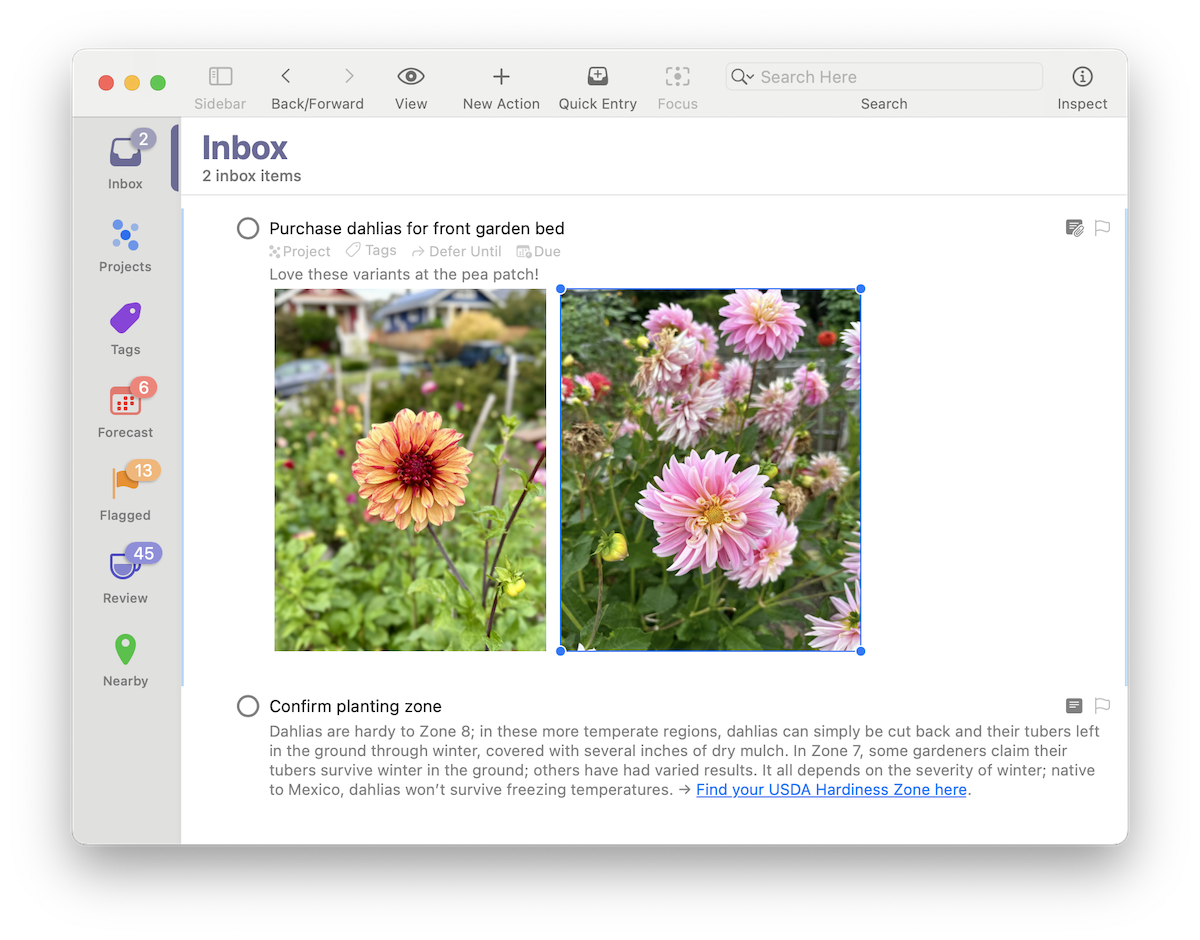
OmniFocus 4.6 improves note and attachment functionality in OmniFocus, with new support for image attachment resizing, paste behavior refinements, and more!
OmniFocus 4.6 improves note and attachment functionality in OmniFocus, with new support for image attachment resizing, paste behavior refinements, and more!
In this episode of The Omni Show, Tuple CEO, Stephen Dolan, shares how he navigated major professional shifts while keeping his OmniFocus setup remarkably simple. He explores how clarity, consistency, and trust form the foundation of both his task management and leadership approaches.
Daniel Von Fange, senior engineer at Origin Protocol, has spent about a quarter century chasing “perfect code.” His journey spans industrial robotics, firmware for embedded systems, and today’s high-stakes world of crypto-currency smart contracts.
In this compelling return to The Omni Show, Jason Atwood—now CEO of Arkus—dives into how two decades of OmniFocus usage continue to shape his leadership, his decision making, and the team culture. Andrew and Jason explore the evolution of productivity tools in the face of AI, what it means to conduct a decade-in-review inside OmniFocus, and how Atwood is future-proofing his organization by embedding GTD & OmniFocus at every level.
Today, we join Andrew Canion—manager, podcaster, and basketball commentator—as he reveals how OmniFocus fuels his productivity. Overseeing 16 remote centers in Western Australia while excelling in multiple roles, he shares how sharp task management and streamlined workflows boost his efficiency.
Today, we chat with Lee Garrett, the new owner of ScreenCastsOnline, about how he uses OmniFocus to stay on top of things. Lee takes us through his journey—from IT tech to project manager to business owner—and how productivity tools have helped along the way.
In this episode of The Omni Show, we sit down with Rosemary Orchard, a renowned productivity expert and co-host of TWiT.tv’s iOS Today, to explore how she optimizes her workflow with OmniFocus.
In this episode of The Omni Show, we sit down with Ken Case, CEO of the Omni Group, to dive into this year's 2025 Omni Roadmap Blog Post. Ken shares insights on remote work, automation improvements, and getting the inner-workings in Omni apps ready for Apple Intelligence.

One of our traditions is to set aside some time at the beginning of each year to reflect on the past and to share plans for the future: our roadmap. Learn more about our plans for OmniGraffle 8, document links that can be synced across devices and shared between team members, new features coming to OmniFocus 4, and Apple Intelligence.
January 29, 2025
In this episode, we hear from Robert Pope, IT Director at the Online Learning Consortium (and avid OmniFocus user). Robert shares how he uses OmniFocus to build a comprehensive workflow for task and project management, by applying the principles of GTD (Getting Things Done), and integrating with tools like Jira.
Rick Manelius, founder of Atomic Form, joins The Omni Show to discuss how he integrates productivity tools like OmniFocus into his multifaceted life as a tech entrepreneur and family man. Rick delves into the innovative work of Atomic Form, which is transforming the way digital art, NFTs and their historical provenance are not only preserved, but also experienced and appreciated.
In this episode, Victor Savkin, CTO at NX and ex-Googler, discusses his approach to productivity and task management. Get a behind-the-scenes look at how OmniFocus has been instrumental in managing his complex workload and responsibilities. From exploring his passion for tooling to reflecting on how design and ergonomics influence quality, this episode unearths Victor’s unique insights and experience in the software space.
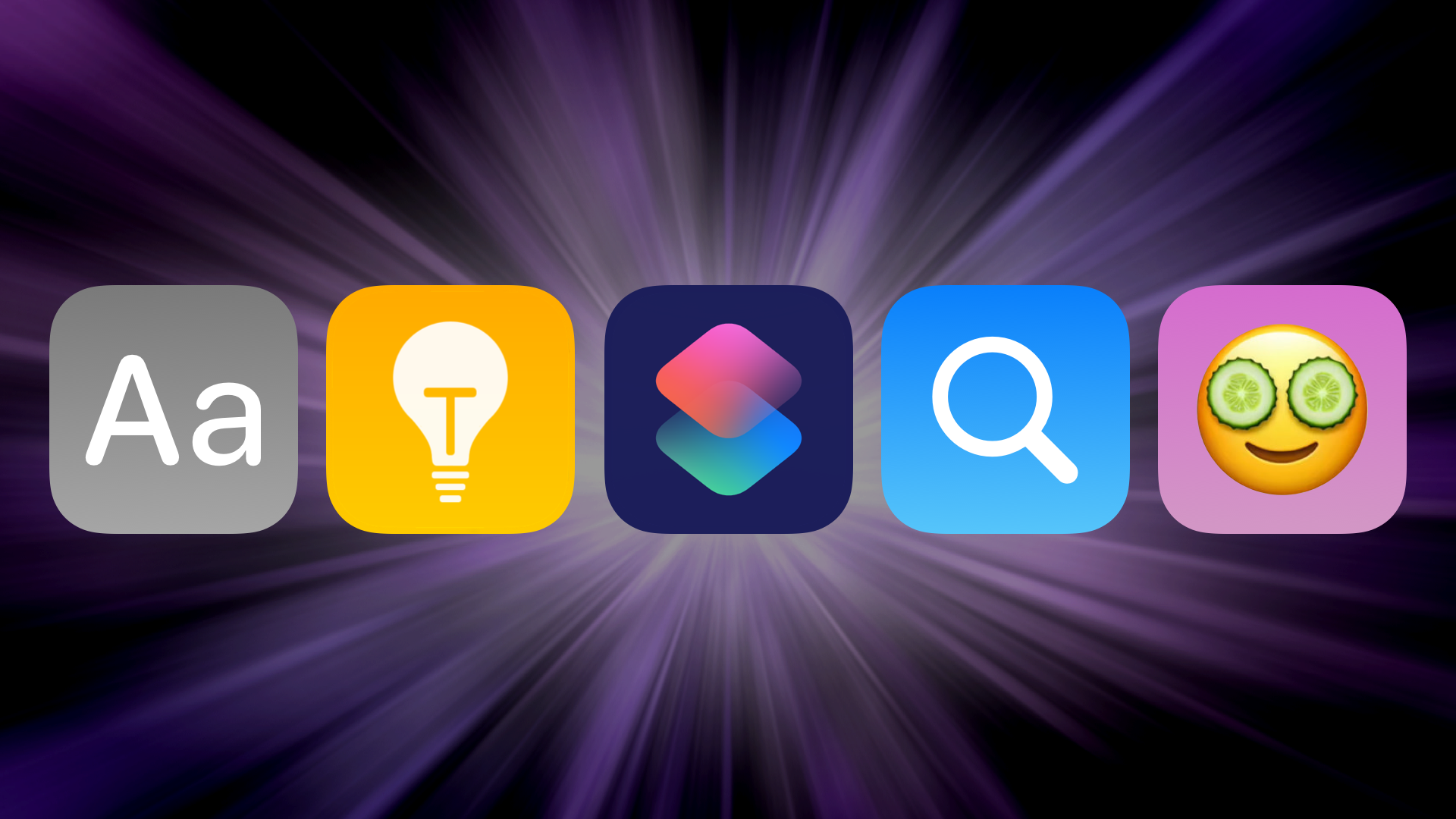
We’re delighted to announce a powerful update tuned to make you more productive through automation, integration, and customization. With improved Shortcuts actions for automation, enhanced integration in Spotlight results, Tips to reveal the hidden power of OmniFocus, and new Mac-exclusive appearance options… OmniFocus 4.5 is here to help you focus, and will look good doing it!
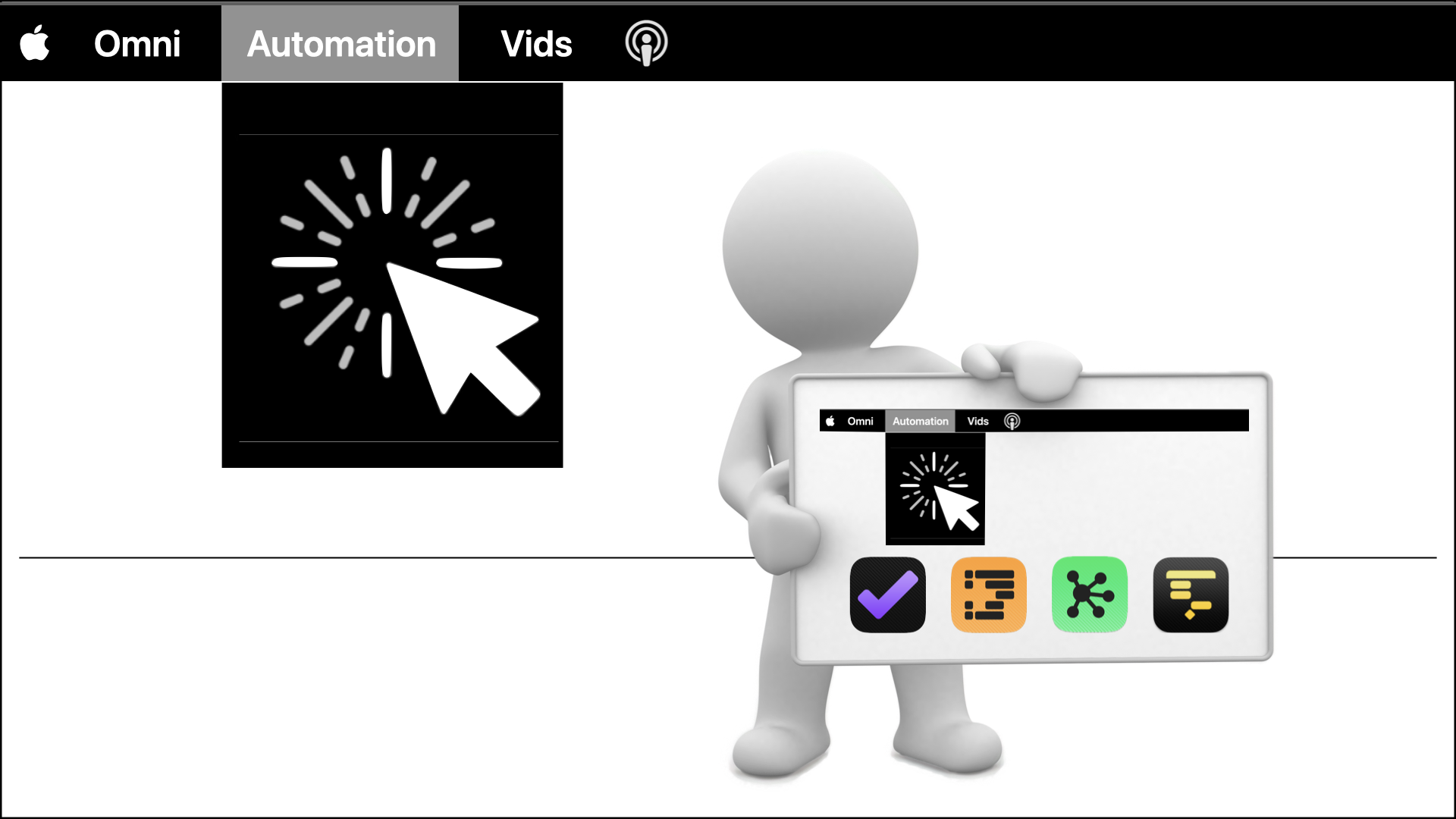
Got a minute or five? Today, we'd like introduce you to Sal Soghoian's latest project, Omni Automation Vids! These are super quick snackable nuggets to show you tips, techniques, and concepts related to Omni Automation. Each episode is a short video screencast.
What do streaks, checklists, and a teensy bit of productivity devotion have in common? They're all part of Bonni Stachowiak, EdD's secret sauce for balancing a whirlwind life as a podcaster, professor, dean, and mom. Bonni shares how she integrates teaching, leadership, parenting, and podcasting— leveraging OmniFocus to stay grounded.

What a wonderful bit of news to wake up to! This morning Apple announced the finalists for their Apple App Store Awards for the best apps and games of 2024. For the "Mac App of the Year" category, they wrote these words: "OmniFocus 4, for fostering focus with simplified task management."
November 25, 2024
Today, we dive deep with Joel Clermont, a web app developer, Laravel framework expert and co-host of the No Compromises podcast. We look into the nuanced ways he's been using OmniFocus (since version 1.0!) to stay organized and focused. Joel breaks down his approach to quarterly goal-setting, capturing ideas on the fly, and reviewing tasks to keep projects on track across his business and his life.
Today, we chat with Amy Zamikovsky, a seasoned financial advisor and licensed attorney who has mastered the art of data organization and retrieval. Amy shares her journey of discovering OmniOutliner, which revolutionized her approach to law school and exams, as well as client management in the world of wealth advising.
Join us as we chat with the multi-talented William Gallagher, deputy chair of the Writers Guild of Great Britain and the creative force behind the 58Keys YouTube channel. William shares how he leverages OmniFocus and other Omni Group products to manage his diverse responsibilities, including producing the Apple Insider podcast and his famous “Three Biscuit Guides."
Today, we sit down with Lynne Murphy, a professor of linguistics at the University of Sussex, who shares how she uses OmniFocus to deftly manage the demands of her academic career, international travels, and personal commitments.

© 1994–2026 The Omni Group; Apple, MacBook, the Apple logo, iPad, iPhone, Apple Watch, and App Store are trademarks of Apple Inc., registered in the U.S. and other countries and regions. Apple Vision Pro is a trademark of Apple Inc.