The Blog

This is the third in a four-part series of posts on how students can use OmniFocus to reduce stress and improve results. Previous posts covered how to use OmniFocus to collect all your tasks in one central location, and arrange those tasks. Today we’ll look at how OmniFocus can help you pick the best task to do in the moment. The final post will talk about using OmniFocus to review your progress.

Focusing on What Matters Now

In my previous post, I talked about setting the project and context for a task to move it out of your OmniFocus Inbox. That post also briefly covered using Project, Context, and Forecast views in OmniFocus for iPad to find what to work on next. In this post I’ll describe how to use OmniFocus to view just the tasks you need to see right now. This ability to focus on just what you want to see, while temporarily hiding the rest of your tasks, is where OmniFocus gets its name.

Project, Context, and Forecast Views Revisited

As I mentioned last time, OmniFocus provides three main ways for viewing your work: Project, Context, and Forecast views.

Project view shows your tasks organized by project and single-action list. This view is great when you want to plan the next few steps of a project. It’s also your go-to view when you know that you want to work on a particular project and want to recall what the next step should be.

Context view shows your tasks organized by … context. In this view, OmniFocus will list every available task in each context, regardless of project. …

Forecast view shows your tasks organized by due date. In this view, OmniFocus shows the tasks that are past due, due today, due over each of the next few days.

In OmniFocus for iPad, tap in the sidebar to switch to the corresponding view. On the Mac, choose Projects, Contexts, or Due from the Perspectives menu. On the iPhone, tap Projects, Contexts, or Forecast from the OmniFocus home screen.

A Natural Order

Project, Context, and Forecast views are enough for many people to tackle their tasks with confidence in OmniFocus. When you’re ready to take your productivity to the next level, OmniFocus has some great features for narrowing your view to just the essential items that you can work on now.

To see how more advanced features of OmniFocus work, it helps to understand the difference between next, remaining, and available actions.

The basic idea is straightforward. A next action is the single next step that you can take to move a project forward. Remaining actions are all the actions on a project that you haven’t yet completed. Available actions are the remaining ones that aren’t blocked by something else.

Now you’re probably thinking, “Wait a minute! What do you mean ‘blocked by something else’?”

You can tell OmniFocus that a project is either sequential or parallel. When you tell OmniFocus that a project is sequential, you’re telling it that the actions in that project must happen in order. This means that the next action in that project is the only available action. For example, you might have a project to write a term paper that looks like this:

A Sequential Project

Tap to embiggen

This looks like a sequential project. You have to check out the books before you skim them. You want to skim them before you read and take notes. You want to have some ideas from your notes before you start drafting your paper. And so on. Checking out the books is the next action and is the only available one. It blocks all the other remaining actions.

In contrast, you can tell OmniFocus that a project is parallel if the order of the actions doesn’t matter. In that case, all the incomplete actions are both remaining and available. OmniFocus assumes that the first action you list is the “next” action—we’ll see shortly how that’s useful—but, because all actions are available, you could work on any one of them.

Here’s an example of a parallel project:

A Parallel Project

Tap to embiggen

Here all of the actions are available. Because you listed it first, OmniFocus considers “Order new running shoes” to be your next action. You can always reorder the tasks to tell OmniFocus that a different action should be the next one for the project.

In most ways, a single-action list is like a parallel project. The only difference is that every action in a single-action list is considered to be a next action.

A Single Action List

Tap to embiggen

Just Show Me What I Can Do Now

Why the detour through next, remaining, and available actions? OmniFocus can filter your tasks to just show one of these groups at a time. Let’s look at how that might be useful.

Suppose you’re really swamped and want to look at the smallest useful set of your tasks. You can switch to Context view, choose just the Context for where you are right now, and narrow your view to just show next actions. For most people that will give you a list of just a few items to choose from. I know for me, that’s a great way to stop procrastinating and make some progress.

Let’s walk through how you would do that on the iPad:

  1. From the Home view of the sidebar, tap Contexts.
  2. In the main view, find the context that you want to focus on, like Studying.
  3. Press and hold on the context until the popover menu appears.
    Tap and Hold Popover
  4. Tap Focus.
  5. OmniFocus will zoom in to just show the tasks in your Studying context.
  6. Now you can filter that list to just show your next actions. To do that, tap the View icon in the upper-right corner. (At Omni, we jokingly refer to this as the eye of Sauron. We’re kind of geeky that way.)
  7. OmniFocus will display a popover that lets you choose between showing next, remaining, available, or all actions. Tap Next Action, and you’ll have a nicely narrowed list of tasks.
  8. Pick a task and get to work!

Eye of Sauron Popover

Why not leave the view set to show just next actions? There are a few cases where you’ll want to see a broader view. For example, suppose you have a context for things to talk about with your Mom. When you give her a call, you’ll probably want to see all the available actions for that context. That way you can take care of everything in one conversation. As another example, if you aren’t feeling particularly pressed for time, you might want to view available actions so you can pick the most interesting thing to do next, rather than just narrowly focusing on next actions.

When you use the View popover to tell OmniFocus to narrow the list of tasks, notice that the text below the context names changes to let you know what sort of tasks are shown. This also gives you an idea of what tasks are hidden.

Popover Effects

OmniFocus doesn’t forget the hidden tasks. Remember that you can always tap the View icon and switch to showing remaining tasks to see the ones that were hidden. (You can even choose to show all tasks if you want to look at all the work you’ve already accomplished.)

The other editions of OmniFocus also have controls for narrowing the tasks and contexts that you see. OmniFocus for iPhone has a View icon in its toolbar that works the same as the one on the iPad. In OmniFocus for Mac you can control which context is displayed by selecting it in the sidebar. You can control the visible tasks using the View Bar, available by choosing Show View Bar from the View menu.

Focusing on a Project

Sometimes it’s useful to focus on just a single project. For example, suppose you’re working with some teammates to finish up a report and prepare for your presentation in the morning. You want to focus on just that project and hide all your other tasks. Here’s how to do that:

  1. For the Home view of the sidebar, tap on Projects.
  2. Find your Finish Team Report and Presentation project in the main view.
  3. Press and hold on the project until the popover menu appears.
    Project Popover
  4. Tap Focus.
  5. OmniFocus will zoom in to just show your Finish Team Report and Presentation project.
  6. Tap the View icon in the upper-right corner and switch to Remaining actions.

Now you can see everything that the team needs to accomplish before that looming 10:00 a.m. deadline. As the team thinks of other tasks you need to finish, you can tap the ‘+’ button in the upper-right corner to add the tasks to the project.

Add action while focused

Work without Worry

By using the View popover and focusing on just the context or project you need at the moment, you can make OmniFocus show you exactly what you need to get your work done without worrying that you’re missing something.

In the next post, I’ll wrap up the series with a brief discussion of using OmniFocus to review your projects and give some links to other resources that will help you move on to graduate level task management.

Editor’s note: Special promotional pricing is available for a limited time on OmniFocus for Mac and OmniFocus for iPad. Don’t forget about OmniFocus for iPhone, either. Students and teachers can also take advantage of every day special pricing on our Mac apps via our own Edu Store.

This is the second in a four-part series on how students can use OmniFocus to reduce stress and improve results. A previous post covered how to use OmniFocus to collect all your tasks in one central location. Today we’ll look at techniques for arranging those tasks so OmniFocus can help you pick the best task to tackle next. Future posts will talk about using OmniFocus to focus on the right task to do in the moment and review your progress.

Have it Both Ways with OmniFocus

In my previous post, I talked about using Quick Entry to toss all of your tasks into your OmniFocus inbox. What do you do with those tasks once you’ve collected them? OmniFocus gives you some great tools for organizing your work so you can tackle it without freaking out.

The two main tools for organizing your work in OmniFocus are contexts and projects. You can assign a task to both a context and a project. By doing that you have a lot of power to focus on just the right view of your work.

OmniFocus comes in three editions, for Mac, iPhone, and iPad. Contexts and projects are available in all three versions of OmniFocus. To keep things simple, I’ll talk about OmniFocus for iPad in this post.

Contexts

A context in OmniFocus is a way of recording what resources you need to complete a task. That’s intentionally a little vague, but some examples should help. For some tasks, you might need to be in a particular place. Such “Place” contexts might include Library, Dorm, or Grocery Store. For other tasks you might need to talk to a particular person or group. Sometimes we call these “Agenda” contexts. Examples here might include Mom, your Tech Comm Project Team, or your friend Jessica. Still other tasks might require a particular mindset. For example, you might choose to have separate contexts for Writing and Studying. It’s easy to spend lots of time deciding on a final set. My advice would be to pick a few and stick with them for a while before making changes. Here’s a good starter set for students:

  • Decker Hall (Consider a context for important buildings or areas on campus.)
  • Library
  • Dorm (It’s useful to have a context for wherever you live at school.)
  • Home
  • Mom
  • Jessica (Consider having a context for each of your most important relationships.)
  • Brian (It’s probably worth having a context for your roommate, even if you don’t consider that an important relationship.)
  • Writing
  • Studying
  • Fun (Ideas to waste time, be social, and maintain your sanity go here.)

To create a new context in OmniFocus for iPad, first go to the Contexts view by tapping Contexts in the sidebar. (If Contexts doesn’t appear in the sidebar, you can tap the Home button, , to reveal it.)

From the Contexts view, tap the ‘+’ button in the upper-right corner and choose New Context. Enter a name for your new context and tap Done.

Popover Context

Projects

In addition to a context, you can also assign each task in OmniFocus to a project. A project in OmniFocus is a collection of related tasks that, taken together, help you accomplish some goal. For example, you might have a project named “Arrange financial aid for next year”. That project could have several actions like, “Stop by financial aid office to ask about what records they need,” “Call Mom about getting copy of tax forms”, and “Take forms to library to make copies”. You might have another project named “Finish term paper” with tasks like “Sketch rough outline of three different paper ideas” and “Talk to Dr. Horton about paper ideas”.

Projects With Contexts

Don’t feel like you have to list every possible task that you’ll have to do to finish a project. The important thing is to group tasks into projects and to make sure that each one has a clear next action. You’ll have trouble moving forward on a project if you haven’t thought about what to do next. On the other hand, try to avoid planning out every single detail in advance. Circumstances might change before you get to step 24 of your 81 step plan! Then all your planning would have been wasted effort.

Creating a new project in OmniFocus for iPad is a lot like creating a new context. To create a new project, tap Projects in the sidebar. (Again, if Projects doesn’t appear in the sidebar, tap Home to reveal it.) From the Project view, tap the ‘+’ button in the upper-right corner and choose New Project. Enter a name for your new project and tap Done.

Project Editor

Sometimes you’ll have a task that doesn’t really belong to a multi-step project. For example, “Get quarters for laundry” or “See if Mom and Dad are coming to Parents Weekend” might not have additional steps. You can use a single-action list for these tasks. Unlike a project in OmniFocus, a single-action list doesn’t have a definite end point. It’s just a collection of miscellaneous tasks that you want to do.

To create a single-action list, begin by creating a new project as described above, but before tapping Done in the Project editor, tap on the Type field and choose Single Actions from the popover.

Single Action

Moving out of the Inbox

So now that we’ve added some projects and contexts, how do we use them?

When you create a new task, by default OmniFocus will put the task in your Inbox. You move the task out of your Inbox by giving it a context and a project. To set these in OmniFocus for iPad, tap the Inbox button, then tap the task. The task editor will appear. You can set the context and project from the Info tab.

Info Popover

Tap on the Context field to set the context. You can choose one of your existing contexts from the popover that appears, either by choosing from the list or by first typing a few characters in the search field to reduce the number of possibilities.

Assigning the task to a project works similarly.

While you’re thinking about the task, this is also a good time to set start and due dates if they’re called for. You do that on the Dates tab. Set a start date on a task if you want to hide it until that date arrives. Suppose you know that you’ll have to re-write a paper after you get it back from your instructor. She’s promised to return your first draft on Monday. You could set a start date for Monday and not have to worry about the paper until then. You can also set a due date on a task.

It’s tempting to put due dates on everything. I recommend only putting due dates on tasks that really have a deadline. You have enough deadlines as a student. False urgency just creates stress!

Date Editor. Ignore the Repeat section, we'll get to that.

Once you’ve set the context and project, and perhaps dates, tap the Done button. The editor will close and OmniFocus will automatically move the task out of your Inbox.

Where did it go?

After you’ve moved tasks out of your Inbox, OmniFocus for iPad provides three main ways for viewing your work: Project, Context, and Forecast views. Tap Projects or Contexts in the sidebar to switch to the corresponding view.

Project view shows your tasks organized by project and single-action list. This view is great when you want to plan the next few steps of a project. It’s also your go-to view when you know that you want to work on a particular project and want to recall what the next step should be.

Context view shows your tasks organized by, wait for it, context. In this view, OmniFocus will list every available task in each context, regardless of project. For example, suppose you’re getting ready to call your Mom. You can look in your “Mom” context and notice your task “See if Mom and Dad are coming to Parents Weekend” from your single-action list along with “Call Mom about getting copy of tax forms” from your financial aid project.

Forecast view shows your tasks organized by due date. In this view, OmniFocus shows the tasks that are past due, due today, due over each of the next few days. This is a great view when you’re trying to decide whether you can make that weekend road trip or need to buckle down and get some work done.

Forecast View

In the next post I’ll talk about using OmniFocus for choosing what task to work on next, including some more advanced features of projects and contexts.

Editor’s note: Special promotional pricing is available for a limited time on OmniFocus for Mac and OmniFocus for iPad. Don’t forget about OmniFocus for iPhone, either. Students and teachers can also take advantage of every day special pricing on our Mac apps via our own Edu Store.

OmniFocus is a powerful task management app. It’s available for Mac, iPhone, and iPad. This is the first in a four-part series on how students can use OmniFocus to reduce stress and improve results.

  • Today we’ll cover how to use OmniFocus to collect all your tasks in one central location. OmniFocus provides Quick Entry tools that let you capture every item that you need to work on.
  • Once captured, you can use OmniFocus to sort your work in ways that let you concentrate on just what matters now using the powerful, built-in organizing features. The second post in this series will talk about organizing your work into projects and contexts.
  • You can quickly view your tasks using a variety of built-in views in OmniFocus. Or you can take advantage of more powerful view settings to see exactly what you need while hiding the rest. The third post in the series will show you how to become an OmniFocus power user and take more control over what you see.
  • Finally, using Review mode in OmniFocus, you can make sure all of your projects keep moving forward. You’ll sleep better knowing that you aren’t leaving anything behind. The final post in the series will discuss strategies for reviewing your projects.

Don’t let anything slip through the cracks

As a student, one of the biggest challenges is keeping track of all the things you have to do. You might be a full-time student with four or five separate classes, extracurricular groups, social activities, and a part-time job. Or maybe you’re a practicing professional juggling work and family obligations while taking a night course or two to advance your career or broaden your horizons. Either way, your instructors aren’t likely to be consulting with each other, your boss, or your social calendar about the number of things already on your plate.

One of the keys to staying calm and productive amidst that onslaught is keeping a list of all the things that you have to do. With Quick Entry at the ready, OmniFocus is here to help!

OmniFocus comes in three editions, for Mac, iPhone, and iPad. All of them have great features for quickly jotting down new things that you have to do. I’ll describe some situations where each might be most useful. That doesn’t mean you need to buy all three versions. They’re a great trifecta, but any one of them will help you. (Editor’s note: Check out the end of this post for information on special promotional pricing.)

Suppose you’re sitting in class taking notes on your iPad. (By the way, we have a great app for that too.) Your instructor mentions that the role of anarchy in the English Civil War will be on your test. Just press your iPad’s home button, tap the OmniFocus icon, then the friendly, yellow Quick Entry button.

OmniFocus for iPad's Quick Entry button

Write “Study anarchy in English CW for history exam” and tap save. There’s no need to fill in all the other details. You can update those later. For now, be confident that you’ve added the task to your list. When the time comes, you’ll totally ace the anarchy question.

Just tap save when done

Or maybe your Modern Music History prof thinks the end of the class period doesn’t apply to him. You’ve thrown everything in your backpack so you can dash off to your next class when he announces “one more thing”: a three page essay on the evolution of punk rock in the U.S. and U.K., due on Monday. This is a great time to use OmniFocus for iPhone: tap the OmniFocus icon, tap the Inbox button—you don’t even have to wait for the app to finish loading—enter “Write punk rock essay”, set the due date for Monday, and tap Save.

Add to the Inbox in OmniFocus for iPhone

That night you’re at home listening to the Ramones on your Macbook Air while you do some background research for your essay. You get an email from your math instructor with the problem set for next week. OmniFocus for Mac’s clipping service is great for pulling tasks out of email messages. Select the problem numbers in the email, then from the menu bar choose Mail → Services → OmniFocus: Send to Inbox. Double-check the information in the Quick Entry window and click Save. (You can also set up a keyboard shortcut for Clipping in the OmniFocus Preferences for even quicker entry.)

"I can tell this is a fake screenshot because Prof. Pritchard would’ve used an Oxford Comma"

You’re about to call it a night when your friend IMs about a concert next weekend. (It’s a Clash cover band. What a coincidence!) You decide to go and you volunteer to order the tickets… but not tonight. Just hit the quick entry hot-key on your Mac—by default, that’s Control-Option-Space—type “Buy concert tickets”, and click Save.

The quick entry power of OmniFocus can also be a lifesaver on those nights when you go to bed exhausted, the remnants of that second liter of Mountain Dew still coursing through your veins, but your brain refuses to rest. Instead of letting that rolling list of worries just keep you awake, grab your iPhone and add the tasks to OmniFocus. Perhaps in the morning you’ll decide to delete half of them as unimportant, but if you’re like me, you’ll find that just writing them down helps you let go and fall asleep.

Once your tasks are out of your head and into OmniFocus, you can stop worrying and focus your mental energy on the actual material you have to learn. All the tasks are safe in your OmniFocus Inbox wanting for you to tackle them. In the next post, I’ll talk about ways to use OmniFocus to organize your work into projects and contexts so you can focus on what to do next. We’ll also look at some simple techniques for regularly reviewing your progress to keep everything moving forward.

Editor’s note: Special promotional pricing is available for a limited time on OmniFocus for Mac and OmniFocus for iPad. Don’t forget about OmniFocus for iPhone, either. Students and teachers can also take advantage of every day special pricing on our Mac apps via our own Edu Store.

Before joining the engineering team at The Omni Group, I was an associate professor at Rose-Hulman Institute of Technology. As an academic, I relied on OmniFocus to stay on top of the wide variety of demands on my time and attention. I always found summer was a great time to regroup and gear up for the coming year, so I thought it might be a good time to share some of the OmniFocus techniques that worked for me.

You can get OmniFocus for your Mac, iPhone, or iPad. To keep the discussion simple, I’m going to concentrate on OmniFocus for Mac here.

I want to touch on four areas where OmniFocus was especially helpful to me as an academic: dealing with interruptions, preparing for meetings, tracking projects, and saying “No.”

Dealing with Interruptions

Many of my days as an academic seemed to be a rapid succession of context switches. Between classes, committees, and meetings with students, my train of thought sometimes spent more time switching tracks than moving forward. I found that having a detailed list of the tasks that I needed to finish, including due dates, helped me to quickly choose the next thing to do when I got back to my office or finished helping a student.

I made heavy use of the Quick Entry window for dropping new tasks into my system as they occurred to me. My department chair was a great one for delegating by email, so many tasks made their way into my system through the OmniFocus Clipping Service. I could select the portion of an email that needed additional action, hit my clipping shortcut keys, and add details to the new task in the Quick Entry window.

Quick Entry in OmniFocus

By default, the Quick Entry window doesn’t include due dates. I found that academic work was much more deadline driven than my work in industry—class sessions happen as scheduled and conference deadlines are firm. Because of this, I set up OmniFocus to display due dates everywhere. To display due dates in the Quick Entry window, you can click the gear icon and make sure Due Date is checked in the list. To display due dates in OmniFocus proper, you can go to the View menu, choose Columns, and make sure Due Date is checked.

Adding the Due Date column

Preparing for Meetings

As an academic, I spent much of my time meeting with students or colleagues. I used OmniFocus “Contexts” to make sure that time was well spent. To be prepared for ad hoc meetings, I used an Agenda context. Under that, I had contexts for my advisees and the colleagues with whom I most often met. If I thought of a paper to recommend or a gentle reminder that I needed to pass along to someone, I’d create a task in OmniFocus (Quick Entry again!) and set the context to the student or colleague in question. Then when I met with them, I could check their context in OmniFocus and be sure to cover everything in one meeting.

Agenda Contexts

OmniFocus was also useful for preparing for regularly scheduled meetings. I kept a context for each committee on which I served. A day or two before these meetings, I could review the context for that committee and quickly compose an email with the agenda and reminders of the commitments other members had made.

Tracking Projects

The joys of an academic career come from pursuing interesting ideas and nurturing students. Around those there is a huge cloud of repetitive tasks that we have to complete, like preparing course materials, writing grants, designing exams, and arranging conference travel. Each of these has a familiar rhythm.

OmniFocus is great for managing small projects like these. I kept a folder named “Templates” containing sample projects. For example, here’s a project template that I used for making sure I took care of the necessary details at the end of each term:

  • Wrapped-up CourseNumber
    • Enter final grades
    • Collect final ABET samples for accreditation
    • Backup ANGEL course
    • Post link from homepage to course snapshot
    • Brainstorm list of changes to the course made or planned for next time
    • Respond to course evaluations
    • Post course evaluation response

At the end of a term, I could just open my Templates folder in OmniFocus, copy the project, switch to my Teaching folder, paste in the new project, and tweak its title to include the right course number.

To keep the “originals” of my sample projects from cluttering my to-do list, I set the Template folder status to “Dropped”. OmniFocus keeps dropped folders around, but hides them by default.

Here are a few other template projects that I used as an academic:

  • Had Grader Grade Assignment
  • Attended ConferenceName
  • Reviewed thingToReview for venue
  • Posted Committee Minutes for MeetingDate
  • Administered Course Number Exam Exam Number
  • Prepped week WeekNumber (I kept different template projects for different courses.)
  • Initialized CourseNumber
  • Wrapped-up CourseNumber

A dropped folder with templates

Copying from a Templates folder is great for basic projects. If you need more flexibility, such as setting relative dates for individual tasks in a project or substituting key phrases, I wrote a script that will handle that. You can download my Populate Template Placeholders script, instructions included, from my personal project page.

OmniFocus also has built-in support for basic repeating projects that recur at consistent intervals. I found that my work wasn’t regular enough to use these much, but they might work well for you.

Saying “No”

Working on a college campus is to be surrounded by interesting ideas and exciting opportunities. One of the biggest challenges is learning when to say, “No.” OmniFocus can be a powerful tool to help with that.

By having all my projects and tasks in one place, OmniFocus helped me recognize when my plate was too full for “just one more thing”. Showing a colleague, or a department head, the number of items that I had to finish in the next week was a great way to explain why I had to turn down a new opportunity. And when the opportunity was too good to pass up? The Review perspective in OmniFocus was great for looking over my current commitments and deciding what things I could reschedule or set aside.

Conclusion

As you recharge for the coming school year, take a look at OmniFocus. It’s a great way to get a better handle on your projects and tasks. You can download the Mac app here for a free 14 day trial, read more about OmniFocus for Mac, or check out OmniFocus for iPad and iPhone. And be sure to contact our amazing support ninjas if you have any questions.


Editor’s note: Special promotional pricing is available for a limited time on OmniFocus for Mac and OmniFocus for iPad. Don’t forget about OmniFocus for iPhone, either. Academics can also take advantage of every day special pricing on our Mac apps via our own Edu Store.

Behold! A new cloud-y day is upon us. We shall make backups of old, look to the new, and say goodbye to MobileMe.

Apple decided about a year and a half ago to shut down MobileMe, iCloud would be the new, better solution, and iDisk functionality would cease to exist.

That affects some OmniFocus users: if you’re still using MobileMe to sync your OmniFocus data, you need to switch. Our latest updates to OmniFocus remove all mention of iDisk and MobileMe, but your existing settings will continue to work up until the day the service is shut down, June 30th.

Afterwards, take some time to make the transition from MobileMe to iCloud. (Don’t miss out on the improved calendar, contact, and bookmark syncing, along with Photo Stream and Document Storage.) You can do that at me.com/move, and there’s a great Apple Support page here. (Update: Apple has removed both pages after the transition.)

Now a look at options:

The Omni Sync Server

Our own Omni Sync Server is fast, free, and extremely easy to set up (25 seconds if you move fast), and is run by a team of folks that are determined to craft the best server specifically for our applications.

You’ll also benefit from future, device-agnostic features.

Omni Sync Server Signup

Alternatives

  • If your data can’t leave the network, Bonjour syncing is handy. Public networks and firewalls occasionally cause pain, but can (usually) be remedied.

  • If you’re not using an iPhone or iPad, (physical) Disk syncing is another option. (Don’t use your Dropbox folder!)

  • Finally, use pretty much any WebDAV server. Search one out, set one up yourself if you know how, or have a friendly sysadmin set one up.

After picking a method or service, head to our “How do I Migrate?” page and finish up.

“How Do I Migrate” tl;dr: Sync all your devices, then sync your primary device again. Switch to your new sync server on each, starting with your primary device.


If you’re concerned about transitioning from MobileMe to something else, don’t hesitate to email us here or call at 800 315-6664.

Know of an encrypted (on disk), secure, or otherwise trustworthy WebDAV service worth passing on? Let others know in the comments.

We receive a lot of emails and phone calls every day. Some asking for Feature X, others to report a bug. A fair amount, though, are stories from customers about how they use our applications. Each story leaves us feeling grateful to be in the business.

About a year ago, we decided to bring a few of these to video. We sincerely hope you’ll find them as inspiring as we do. More stories are in the pipeline, and we’re always wanting to hear more.

This story is about Tim Stringer and OmniFocus. In 2008, Tim Stringer’s daily schedule went from busy and productive to monofocused: heal. He was able to pick up a new habit during the process, though, and the outcome was—and remains—a very good one.

The story

Tim wrote more about how he uses OmniFocus. He shares much of what he’s learned through his company, Technically Simple, as an OmniFocus coach.

We talked to Tim in beautiful Vancouver, BC. Thanks to MacFanatic—especially the founders, Jani and Genevieve—for use of their space.

Do the Discardia

by Kris on March 28, 2012 | 2 Comments

Welcome to another edition of our Use Case profiles, this time featuring Dinah Sanders, a writer and productivity coach from San Francisco. Dinah recently published her book Discardia: More Life, Less Stuff, which advocates for a new way of addressing over-accumulation. “Make room for more awesomeness” is the primary tenet of her guide to helping you toss out extraneous objects, bad habits, or emotional baggage in order to uncover the stuff that brings you more joy.

Some of our more diehard archivers, defer-ers, and On Hold enthusiasts might appreciate some of her advice in this area. OmniFocus folks that frequently find themselves full of dread at the prospect of delving into their ever-expanding list of projects, though, might consider moving her book to the top of their Amazon Wishlist.

Or heck, secede from the procrastination and grab an iBooks copy now, and consider another step in your “Self Improvement” project done!

Sure, it could be argued that adding another book to your library might be an ironic next action for those who wish to free themselves from feeling burdened by too much stuff, but what Discardia celebrates isn’t minimalism for mere minimalism’s sake, it’s about maximizing what adds value to your life by removing what isn’t helpful.

We recently spoke with Dinah about how she uses OmniFocus and she put it to us this way:

Overwhelm can be a big problem with any task management software, but it is especially a risk when following the GTD approach of getting everything out of your head and into a trusted system. I’m not saying that’s a bad thing—even a somewhat chaotic version of that is going to be better than keeping it all in your brain—but it does expose to us just how many expectations on ourselves we actually carry around.

My belief is that it’s okay to have hundreds of things you’d like to do; what will screw you up (and keep you from achieving many of them) is consciously or unconsciously living as though you must do them all. Limiting your canvas can boost your creativity and increase the chance of completion. The two features which make OmniFocus an intensely valuable tool in helping hold back a sense of overload are the review infrastructure and the ability to distinguish between active and on hold projects. You can dump everything in there, yet still keep most stuff out of your face on your day-to-day action lists while trusting that it will remind you to think about it again at appropriate, adjustable intervals.

And whether it’s today or the next time you sit down for a Review, taking the time to trim your database can have an equal effect to actually checking things off - clearing your plate is clearing your plate!

Remember that there’s a difference between finishing your fair share and biting off more than you can chew. As Dinah puts it in her book: “We all have pet projects, social commitments, goals for personal and professional growth, and hobbies to which we devote our time. We stroll past the buffet of life and load our plates. Unfortunately, we make a lot of trips back to that smorgasbord of options and, pretty soon, we are groaning under the load. Do you really like everything you picked up thinking it would be tasty? Can you really finish all that? Would doing so leave you feeling painfully over-stuffed?”

One way Dinah suggests kicking off un-cluttering a living space could easily be leveraged in OmniFocus as well: “Get yourself two boxes. Label the first box ‘Better Place’. Put in any items currently in your chosen space that belong somewhere else. Label the second box ‘Keep?’ and place into this box anything you’re not sure you want anymore.”

Go ahead, try it! Click the action button at the bottom of the OmniFocus for Mac sidebar, select “New Single Action List” twice, and label them accordingly. Now peruse your projects and drag anything into those two bins that isn’t making you feel empowered to accomplish more awesome actions. Then, redistribute the contents of ‘Better Place’ to more advantageous projects, and carefully consider what’s in ‘Keep?’ before placing them On Hold or putting the final nail in their respective coffins by marking them Dropped, and sending them to your Archive to rest in peace.

Sidebar screenshot

That’s one way to lighten up OmniFocus to support a more meaningful, less maniacal to do list. As an avid OmniFocus user—since the days it was Kinkless—Dinah definitely knows a thing or two about optimization. Discardia is (adequately) full of practical tips and encouraging guidance, concentrated into three core principles: Decide and Do, Quality over Quantity, and Perpetual Upgrade.

In the spirit of that last principle, consider adding the Discardia iCal calendar to help remind you when it’s a good time to ceremoniously cast off any excess baggage and enjoy more awesomeness.

Late last week we released updates to OmniFocus for Mac and iPad — OmniFocus for iPhone came a bit later.

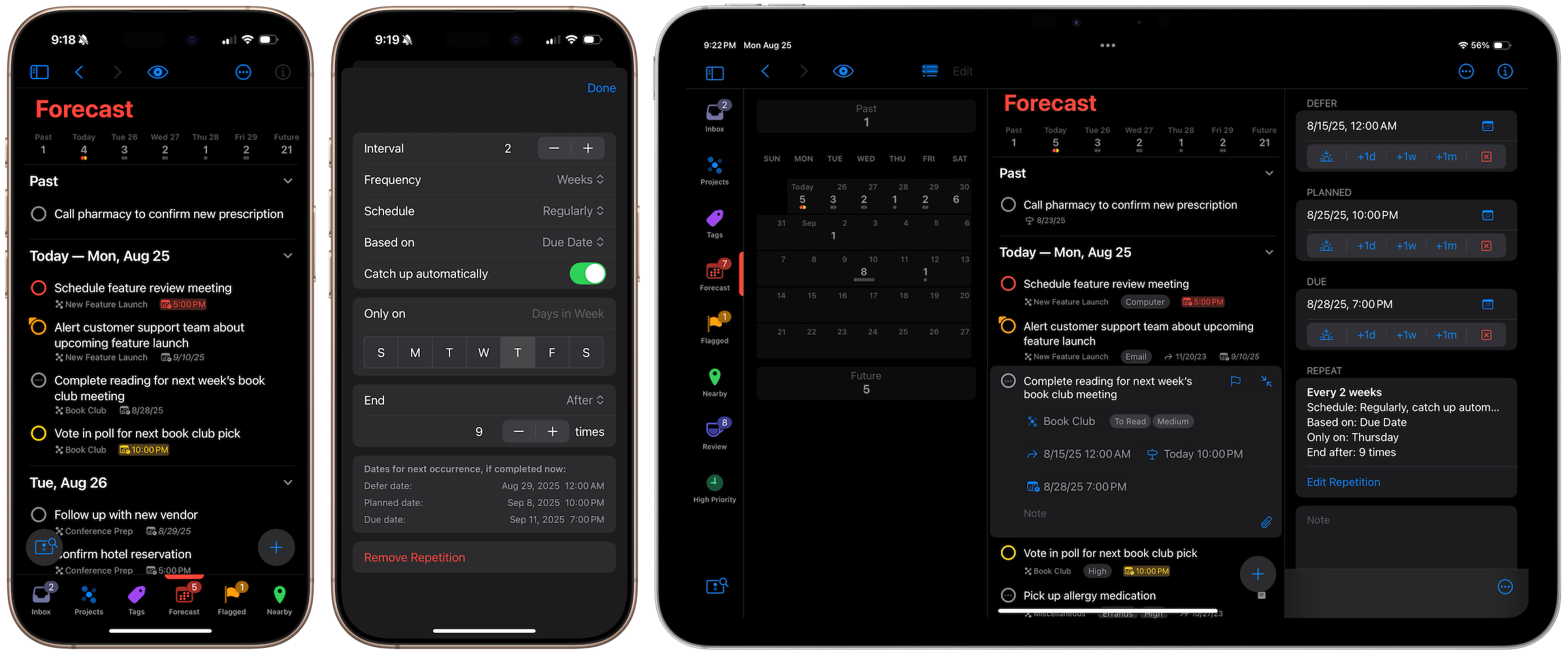
All three updates include the extremely useful and oft-requested feature of flexible weekly repeats. Set up an action to repeat every week on certain days: every weekday, every weekend, just Mondays, etc.

Mac Repeat

Previously, the best way to create a weekday-only or weekend-only repeating action was to create one action for each day, and set to repeat every 1 week. That method worked, but admittedly required a bit too much initial effort.

Set up a configuration with a few clicks or taps: on the Mac, open up the Inspector; on the iPhone and iPad, bring up the Action Details editor and tap the Dates column like usual. Choose the “every” repeat type, pick a few days, and done.

iPhone Repeat 50 Percent

This makes things easier for many customers, and we’re very happy to have it available. We’d like to add more functionality for repeating actions in the future, too.

Finally, OmniFocus for Mac has a new icon, OmniFocus for iPad has been retina-ized, and we’ve fixed a few more bugs! For full release notes: Mac, iPad, and iPhone.

Now we can schedule around them.

Update: OmniFocus for iPhone 1.14 was just released! Update when you see it and don’t forget to turn iCloud Reminders back on.

Howdy, friend-os! Today, I get to do something we’ve been looking forward to for a while now: announce that the Omni Sync Server is coming out of beta.

We’ve had the server up for almost two years now - it launched way back in April of 2010. In that time, the server has been scaled up from a Mac mini here in our offices to a collection of machines in our colocation facility, all working together to help you move your Omni apps’ data back and forth between your OS X and iOS devices, as well as to store backup copies of that data just in case things go totally diggstown and you need them.

When we launched the server, it was an OmniFocus-only affair, but we’ve added support for the server to all of our iOS apps. On the Mac, OmniFocus and OmniPlan have built-in support for the server as well. (The Mac apps that don’t already include support will get it in the future.)

So, to the tens of thousands of folks out there that have been storing your data on the server this whole time: thank you very much for being willing to sign up and help us build this thing. There’s always a seat for you on our little red wagon. To everyone else: if you were interested in using the server but didn’t want to sign up while it was in in a testing phase, we’re rolling out the red carpet for you. Head over to omnigroup.com/sync and set up an account.

Oh, and did we mention that you can have this all for the low, low price of zero? One of the things we learned is that we can build and run a service like this without needing to charge for it. Consider it a delicious after-dinner digestif you get whenever you buy one of our apps. Enjoy!

As soon as Apple announced Siri, everyone who owns OmniFocus for iPhone let us know just how much they needed these two tools to work together.

A couple of friendly productivity fiends took matters into their own hands and figured out that Siri could send emails to the OmniFocus inbox on their Macs.

We could have said “Yay, Siri and OmniFocus can work together” and gone back to our long-term projects. Instead, a couple engineers got to talking “You know, if we… and then the server… and…” “Wow, I think that would totally work!”

So, if you have an iPhone 4S and OmniFocus for iPhone, you can stop typing items into your inbox, and just say whatever comes to mind.

David “MacSparky” Sparks put together a couple videos to show you how it works.

OmniFocus & Siri from The Omni Group on Vimeo.

Here’s more detail on how to get set up:

OmniFocus + Siri configuration from The Omni Group on Vimeo.

If you tell Siri a time, OmniFocus will set the due date. If you specify a location, OmniFocus can assign it to the corresponding context.

OmniFocus + Siri: Location from The Omni Group on Vimeo.

We’ll be standing by on the usual support channels if you need any assistance. Twitter:@omnifocus, Email: omnifocus-iphone@omnigroup.com, Telephone: 1 800-315-OMNI

Page 2 of 11 pages  < 1 2 3 4 >  Last ›