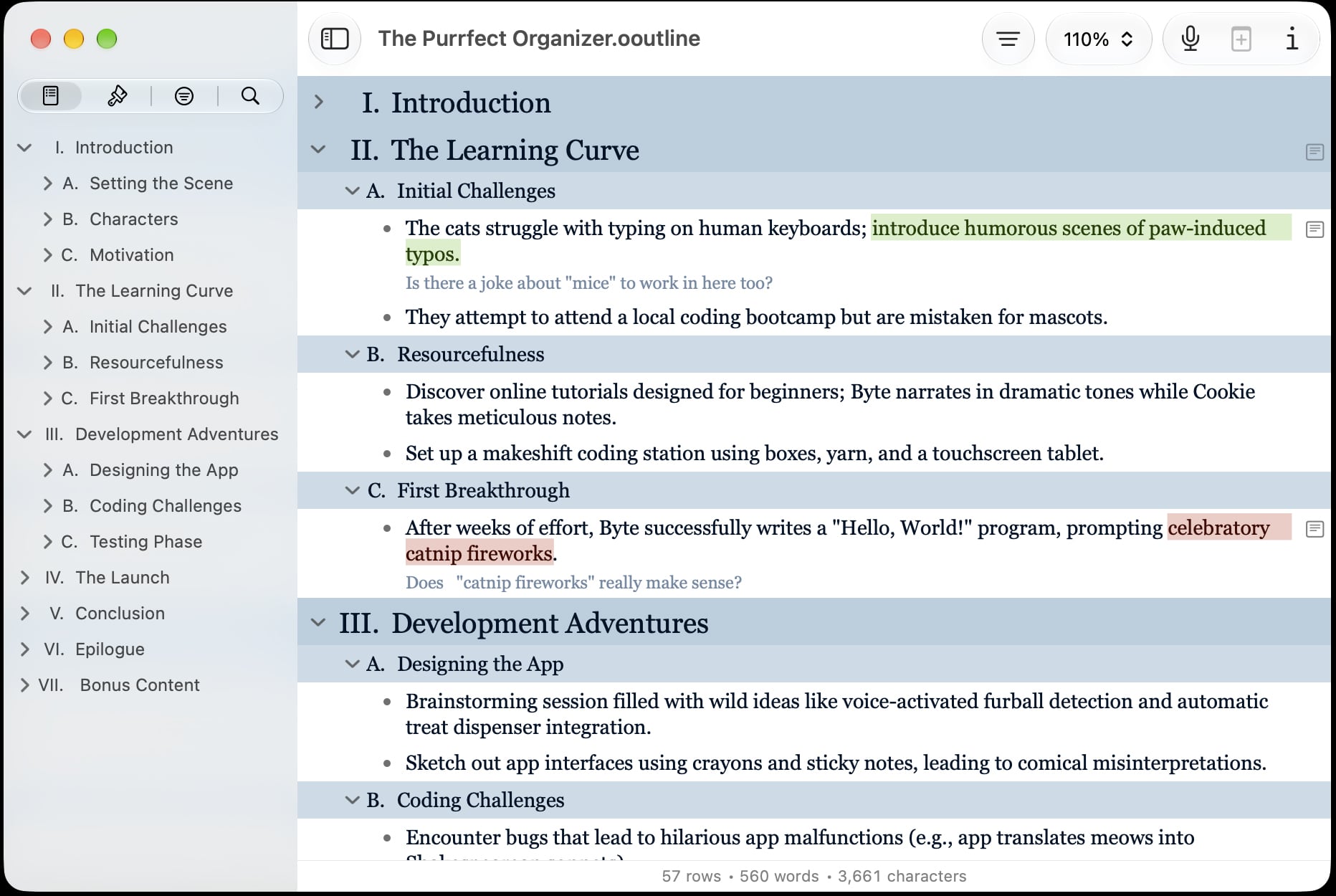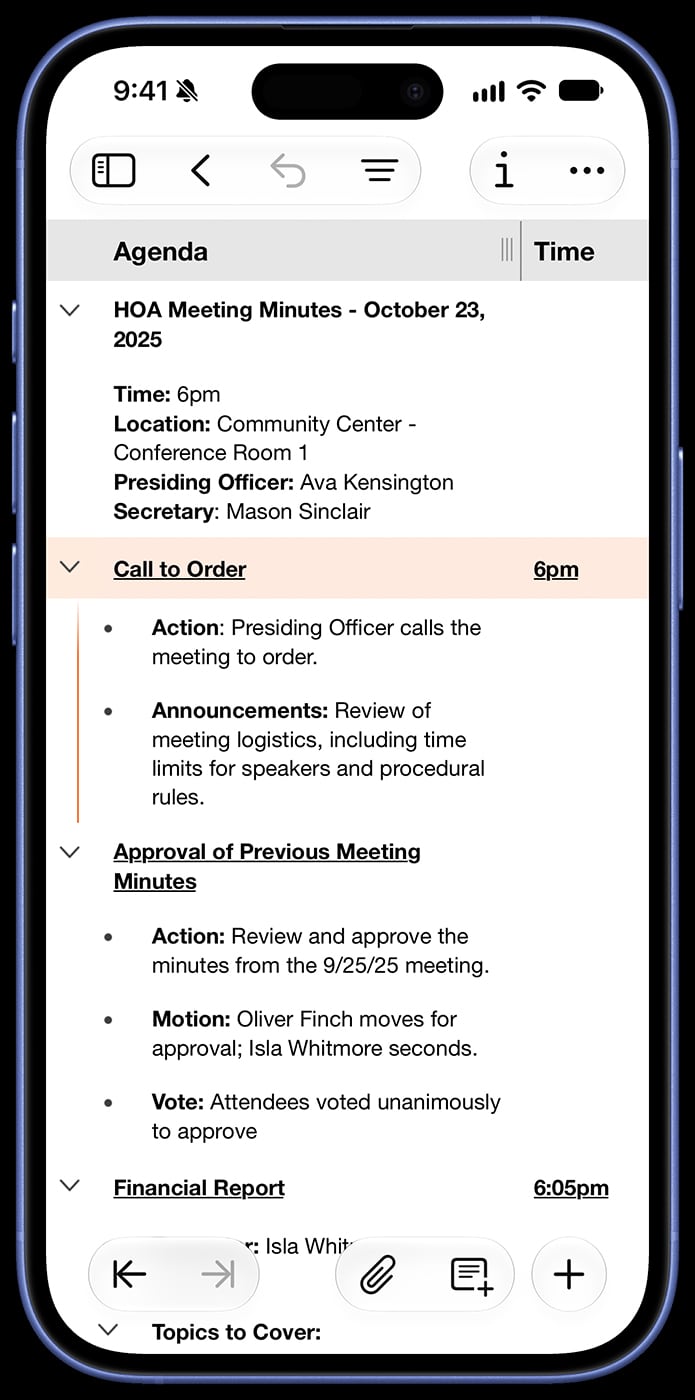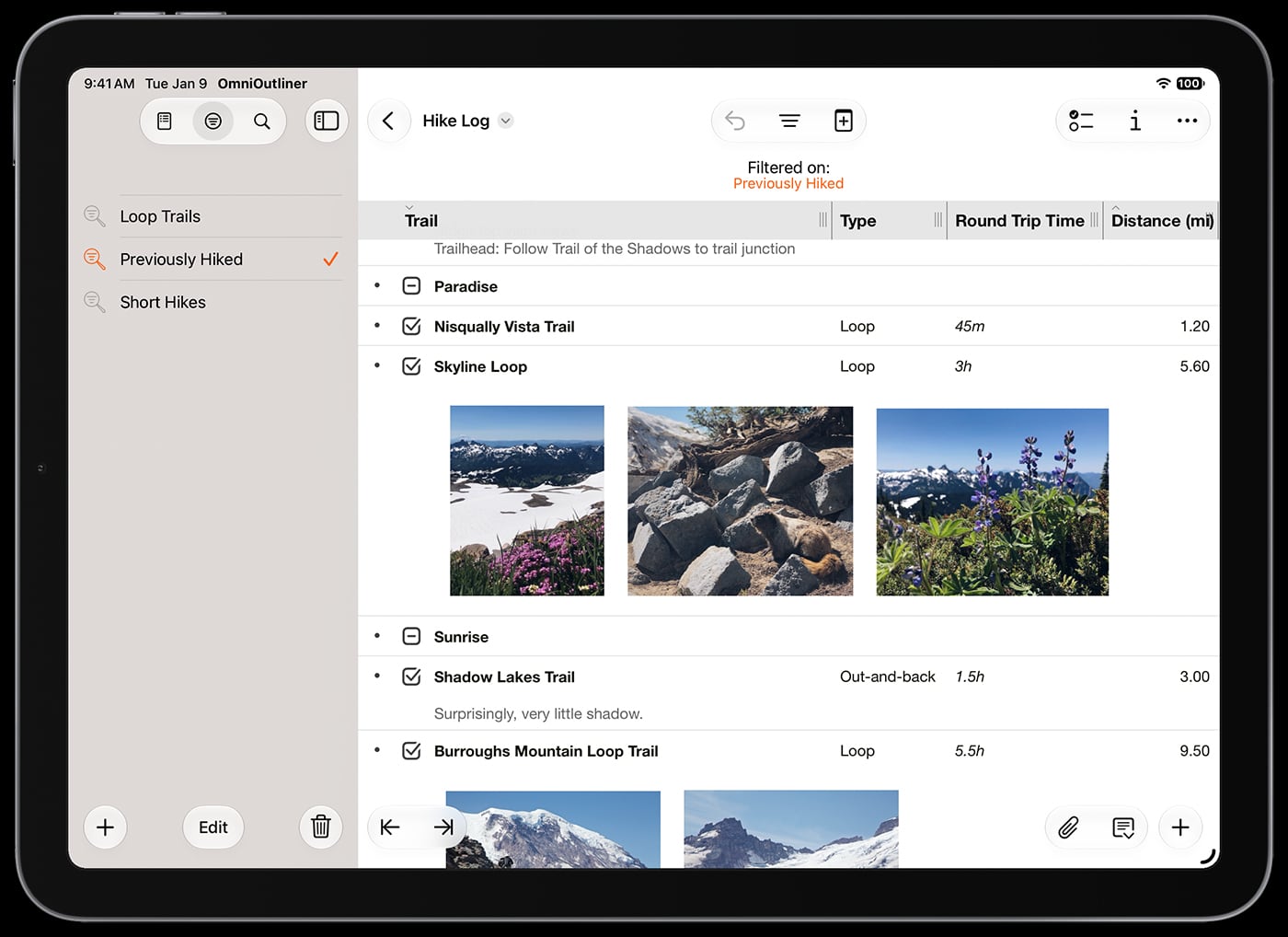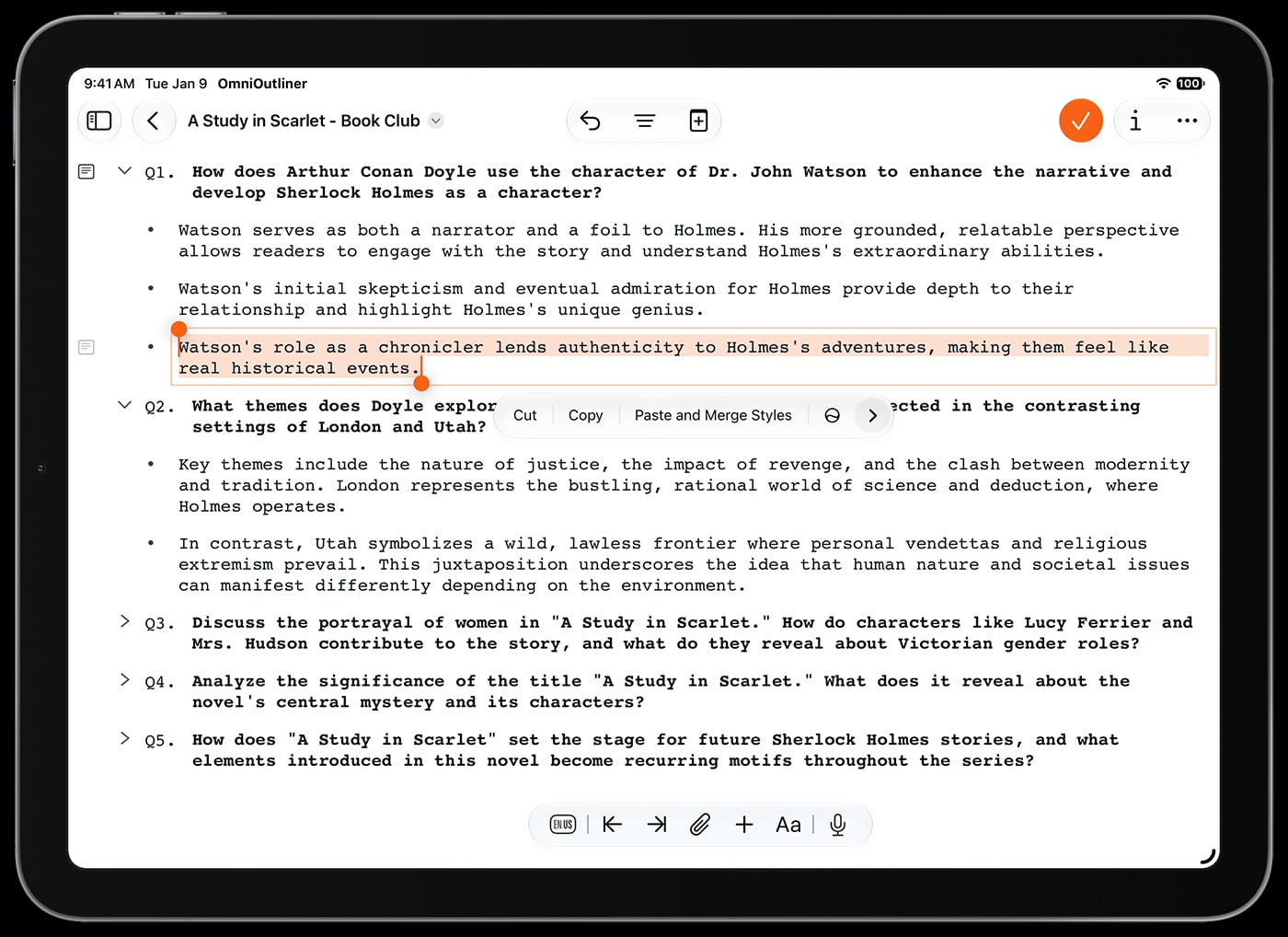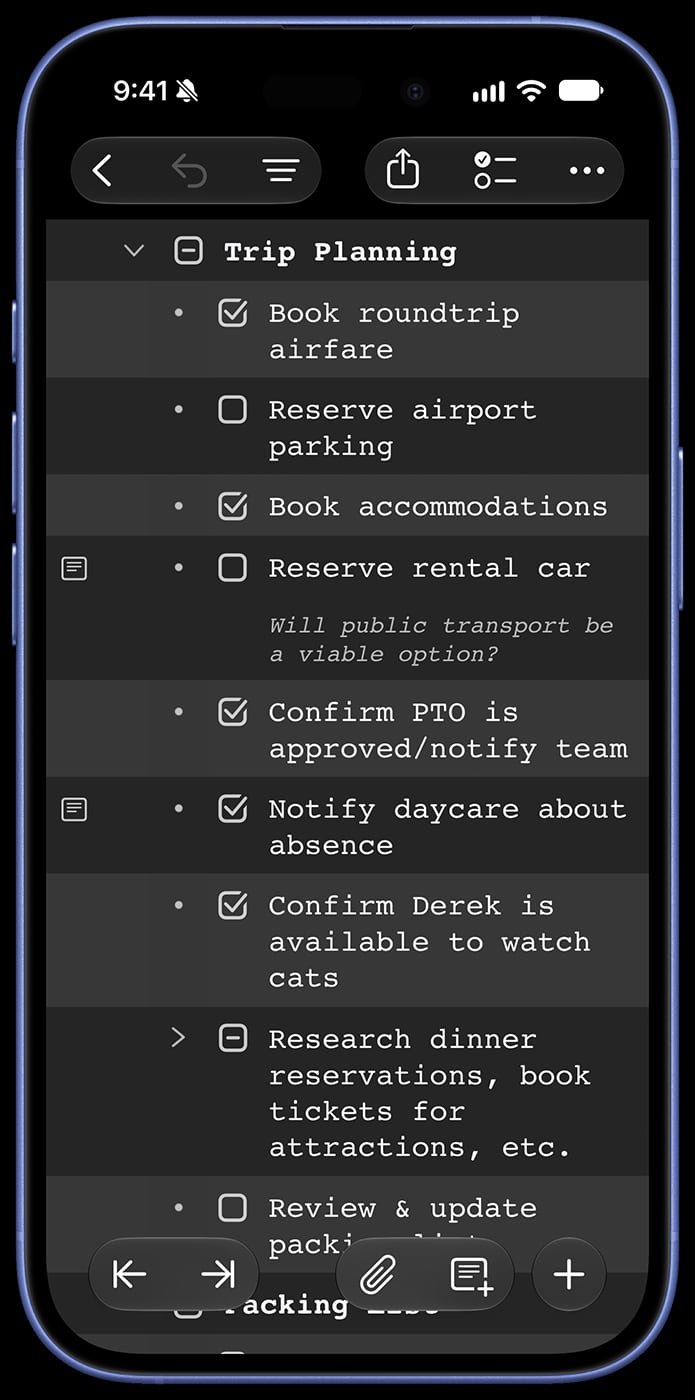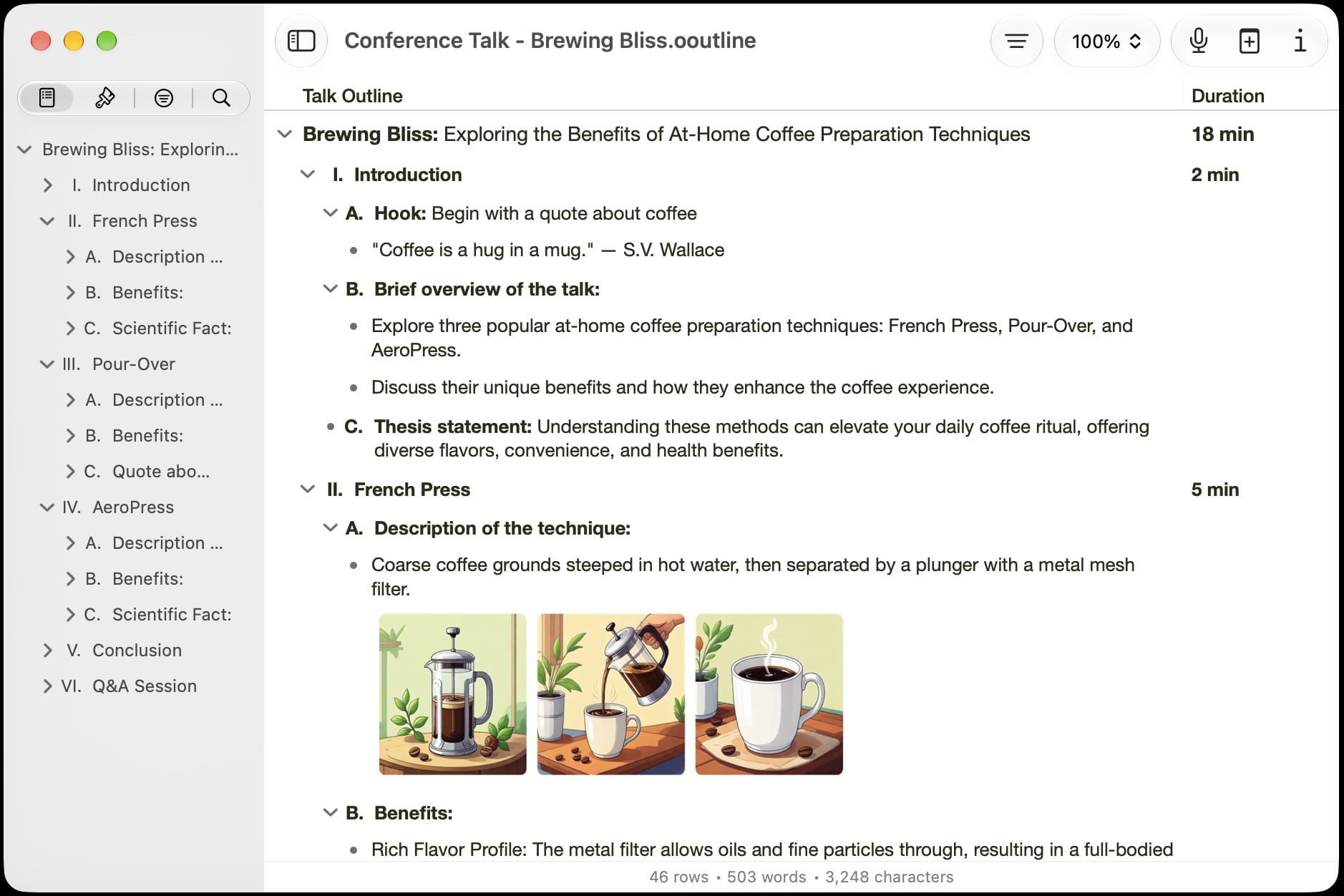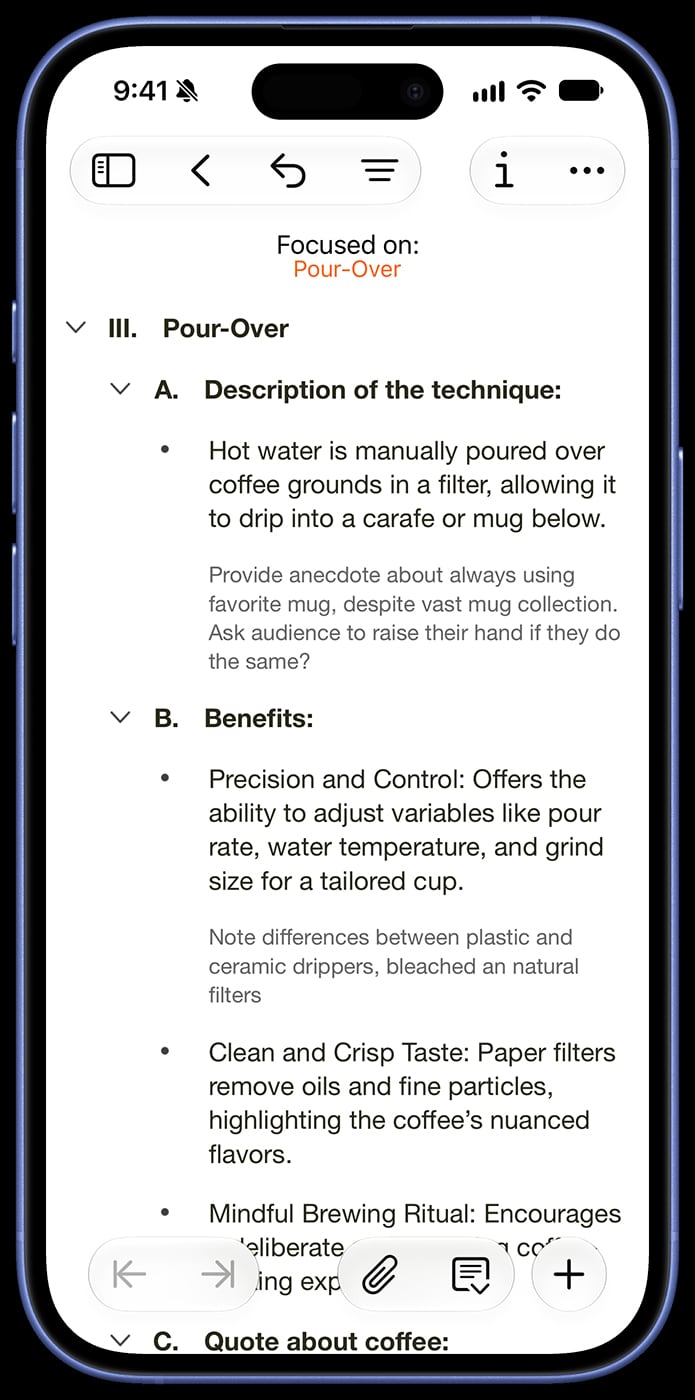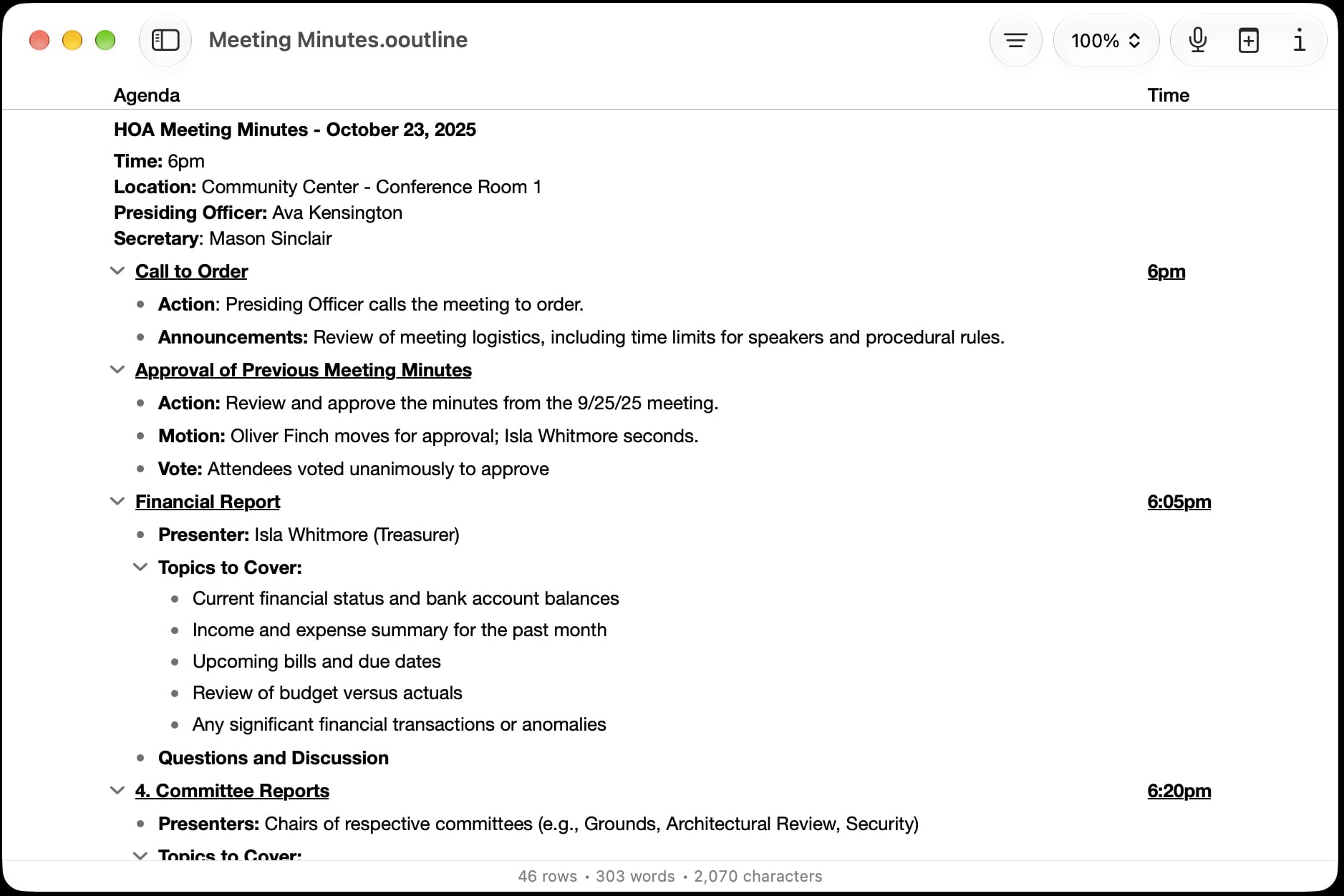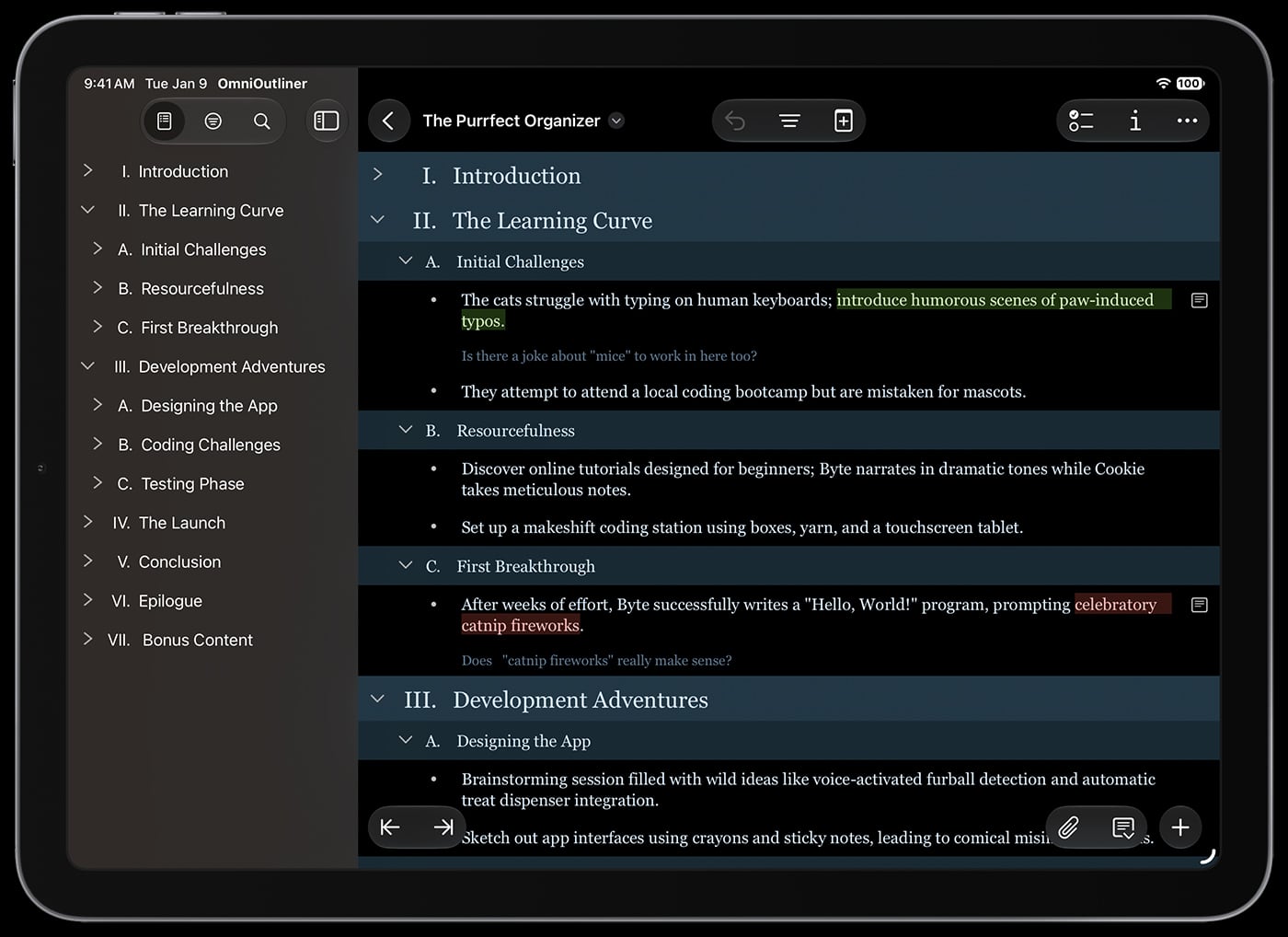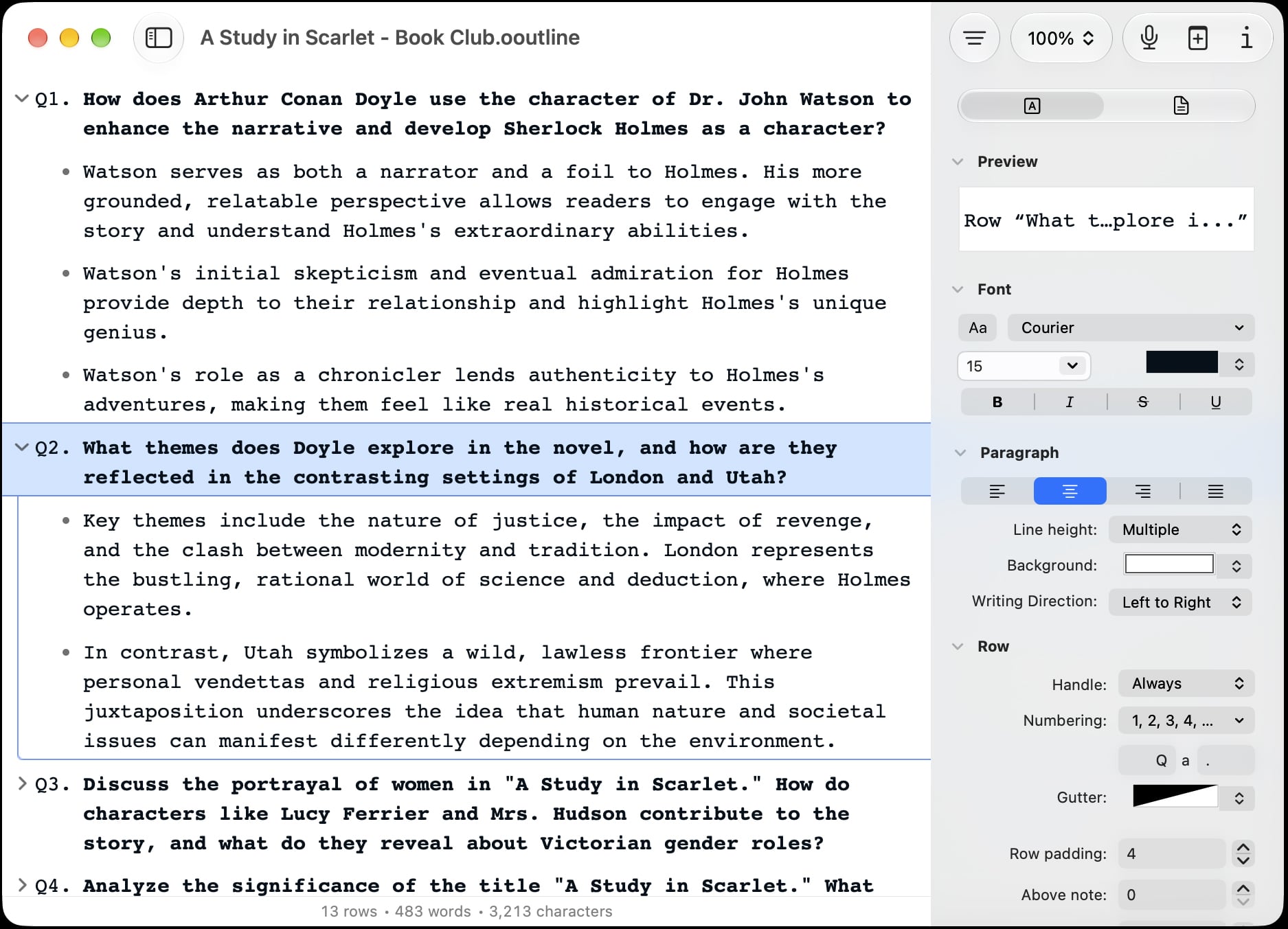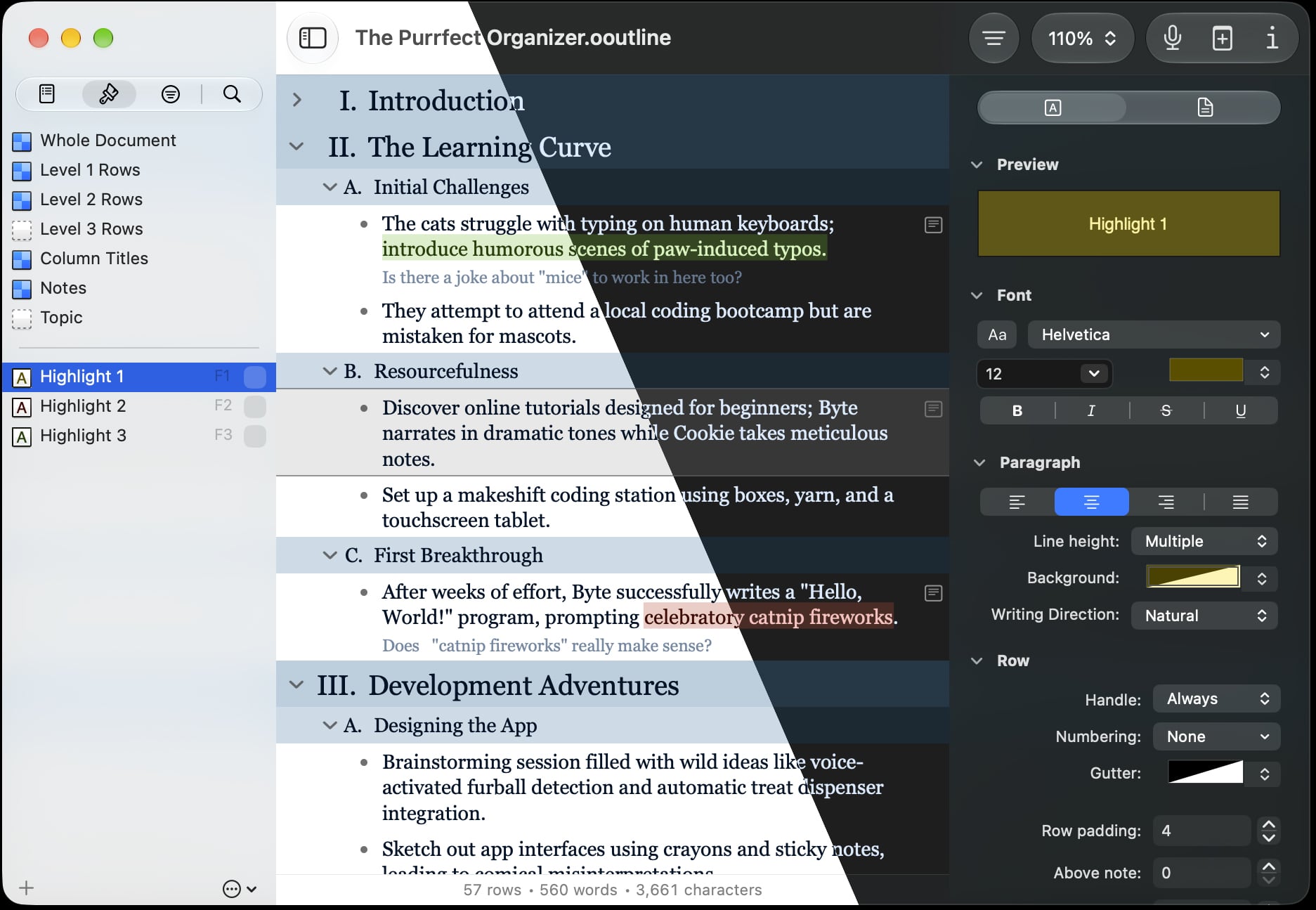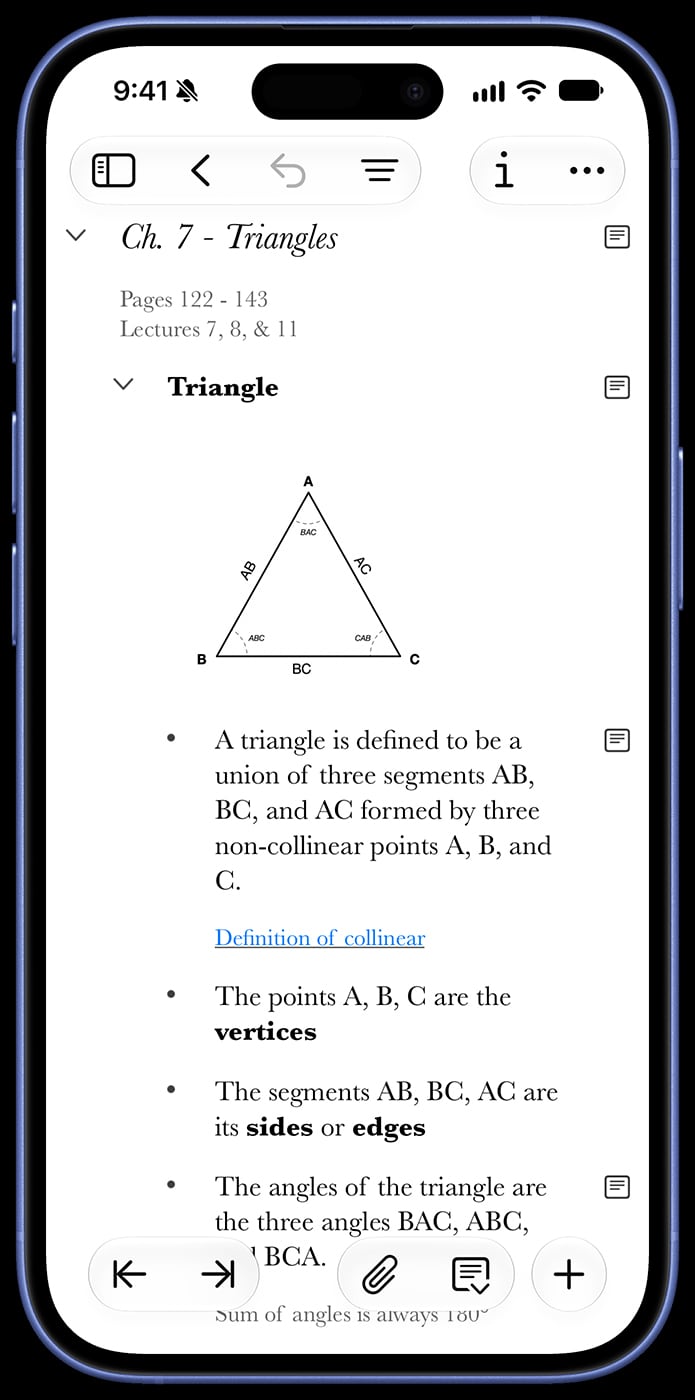
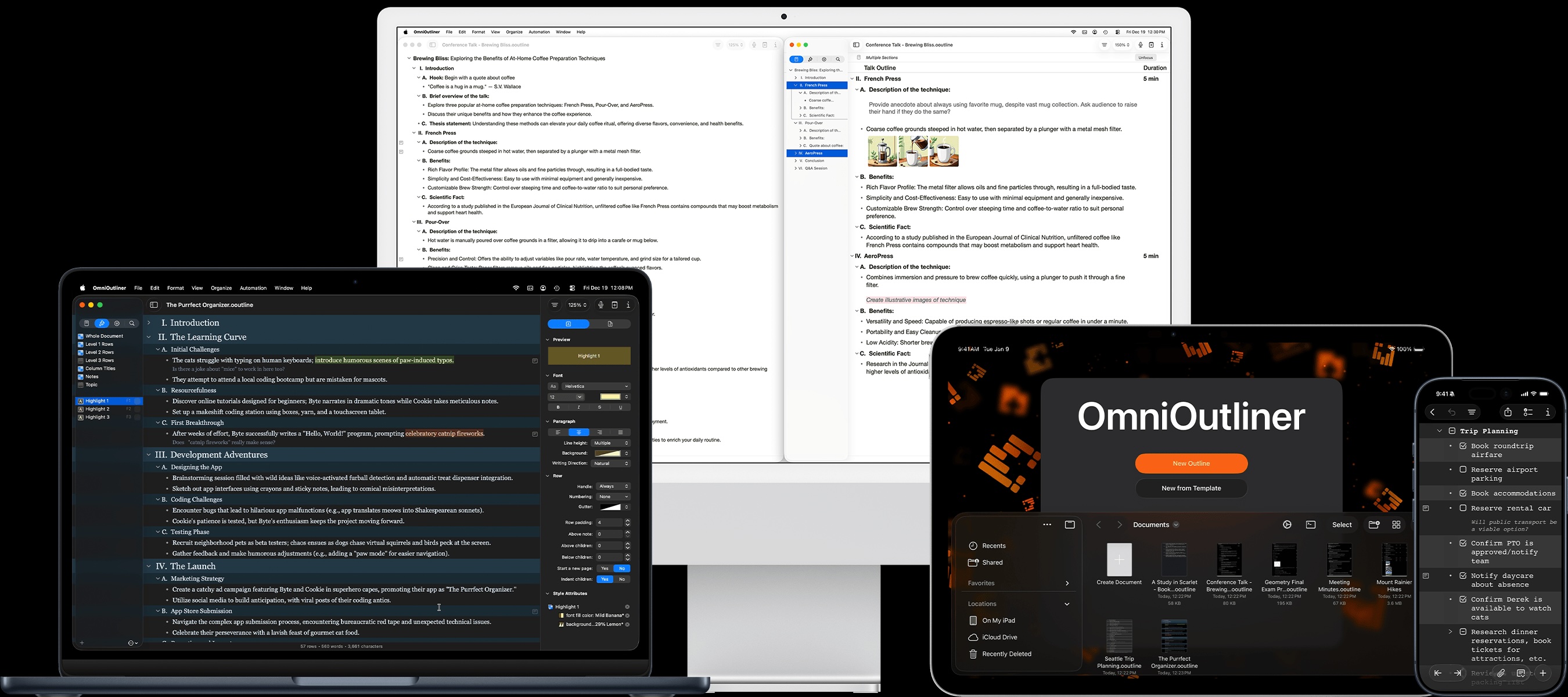
We've updated OmniOutliner with version 3 to deliver the features most requested by our current customers: support for inline images, links to external URLs, more flexible options for searching and navigating, and rich formatting options for presentation on screen and in print.

However, we didn't stop there - some features are just more relevant to the power user, and that's why we've created a "Pro" version of OmniOutliner with even more options. Here's a look at what OmniOutliner Professional has to offer.

Features

Folded Editing

Folded editing works with you to actively hide and display the information in your outlines, so you can save time and be more productive by focusing on exactly what you want to see.

Sections

The new Sections drawer in OmniOutliner Professional reveals your entire document framework at a glance, and allows you to jump from one top-level place to another.

Named Styles

Named styles are sets of style attributes that you can save and apply to any part of your outline. Once you've set up a style to your specifications, drag it into your named styles list, then it can be used over and over. Named styles make quick work of your editing - you can apply style changes throughout your document just by dragging styles directly onto the items you want to change.

Clipping Service

OmniOutliner Professional's new clipping service allows you to select text from other applications and seamlessly store that information in OmniOutliner without actually copying and pasting. It's fast and easy to archive snippets from email, content from web pages, paragraphs from TextEdit, and so on - and OmniOutliner stays out of your way while you're doing so.

Audio Recording

Can you talk faster than you can type? Capture those great ideas instantly with OmniOutliner Professional's new audio recording features. OmniOutliner allows you to capture audio directly into your documents so you can add voice memos, or whatever audio you like. The audio file is embedded in your document along with a notation of the date and time.

Saved Templates

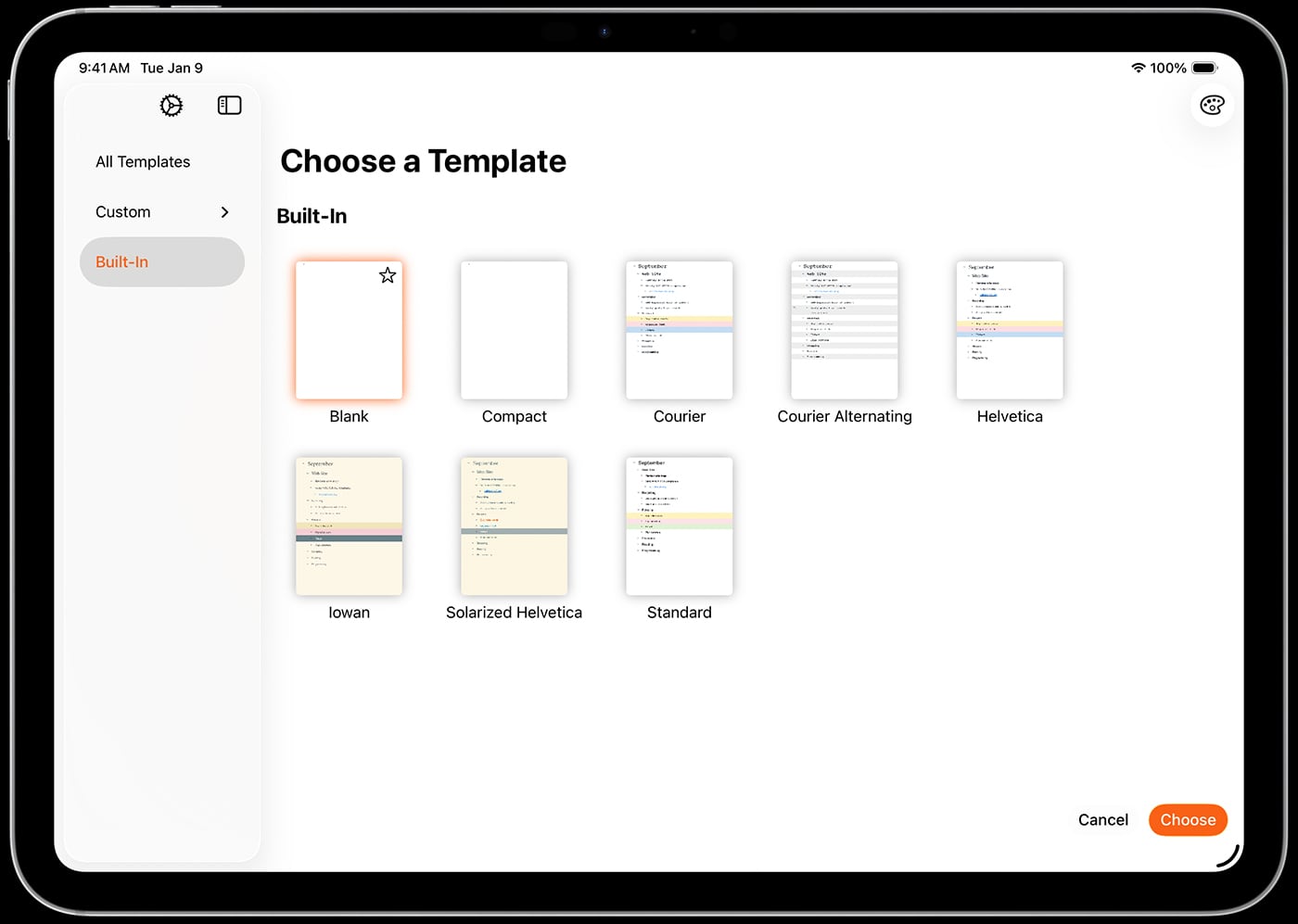
Your documents can be saved as templates, which can then be used as starting points for new documents. Templates preserve everything about an outline, including its content, its styles, and its document preferences. Once you've saved a template in your Library folder, you can create new documents using OmniOutliner Professional's File > New From Template command.