Documents & Organization

The Resource Browser in OmniGraffle is a great way to access both recent documents and your entire collection of Stencils & Templates. You can also search Stenciltown and upload new stencils for others to download.

The Document Picker in OmniGraffle for iOS contains your entire collection of Graffles, Stencils, Templates, and Plug-Ins. Organize into folders, export or duplicate, and more.

Take advantage of the new Files app in iOS 11. All of your documents across all of your storage providers, easily accessible.

Keep things shipshape with groups. Groups can keep common objects contained and one selection away, but each item still completely accessible with another click or tap.

Your document might not be just one page. Or version. Use Canvases as different pages to draw different things on, or as pages to draw different versions of things.

Three different ways to set up your Canvas: Fixed, Flexible, and Infinite.


Set your document to use whatever unit you want: inches, pixels, millimeters, or feet. Or more!

We’ve added the ability to import even more: paste SVG code or files directly onto your canvas.

Layers can be used to organize each canvas, absolutely, but they’re also used to provide depth, law and order, and more.

Create Graffle documents at any scale. Use it to plan an entire estate and still print it on a sheet of paper.
Tools
Bring text or graphics into OmniGraffle 3 using iOS 11’s native Drag and Drop support between apps. Plus, inside OmniGraffle, rearrange your Object Sidebar hierarchy.

Use the Selection Tool to select one, two, or many different objects on your canvas. You can select multiple objects on the Mac by clicking and dragging. On iOS, keep one object selected and then tap a few more. Double-click or -tap to add or edit text on an object.

Squares, rectangles, circles, triangles, and more. OmniGraffle’s default library contains a ton of common (and uncommon) shapes.

Add lines to connect shapes or objects to your Canvas. Lines can be straight, orthogonal, curved, or Bézier.

Used for adding text labels to a Line or a piece of text on the Canvas. Complete with margins, spacing, line-height, and more. Kerning available on Mac.

Use the pen tool to create custom shapes with Bézier points. Start a shape with a click, add more points along the way with another click, and double-click to finish.

The Point Editor Tool moves aside the typical (length and width) bounding box to focus on each point on the selected object.
Additional Tools

Use the Diagramming Tool to quickly create additional children directly on the Canvas. Set up a connection by clicking a point in the diagram, and then clicking again where you’d like the next one.

The Style Brush is used to Copy and Paste certain elements from a shape, to another shape. You can pick and choose which characteristics to share with other shapes right from the toolbar button.


Use the Action Browse Tool to click interactive objects and invoke their assigned action. You can create and activate Actions in Pro, but only activate in Standard.

Common points (like north, south, east, and west) are a click away in the Properties Inspector, or you can use the Magnet Tool to decide exactly where a line is going to attach.

Use Zoom to magnify just the part of the Canvas you’d like to fill your OmniGraffle window. Or, click anywhere on the canvas to zoom in incrementally.


Move the new tool palette in the way or out of the way—it can be collapsed or placed vertically or horizontally in any corner.
The Unified Sidebar

New in 7 and 3: We’ve integrated each and every object in with layers and canvases, making organization, labeling, and moving objects around even easier.

Rearrange shapes, create groups, and access Quick Actions: Zoom to Selection, Copy Object Style, etc.

OmniGraffle is incredibly good at making a wide range of flowcharts (or mind maps—whatever you call them is what it does!). Click in the tab to get started, return to create a new item, tab to indent, and shift-tab to outdent.

Shows you all of your vertical and horizontal guides on one page. You can create new guides, copy and paste guides into another canvas, and quickly get rid of them all.

Your document is made up of different elements, though some share similarities. OmniGraffle offers easy selection access to objects that share the same styles. Example: all objects that use 12 point Times New Roman AND cast a shadow. In one click you can select them all before choosing something else.
Move Fast
Enjoy the easy, natural precision of the new Apple Pencil when creating and editing shapes and lines — make your documents pixel-perfect, even faster. And customize the double-tap gesture: make it switch to the previous tool or toggle the Navigation Sidebar, Inspector, or full-screen mode. (OmniGraffle supports both generations of the Apple Pencil, but the double-tap gesture is a feature of the 2nd generation.)

OmniGraffle has built-in support for Apple’s Touch Bar. With nothing selected, the options are simple: add a shape, add a stencil, add an image, or zoom. When you select something the Touch Bar reacts to show you controls that apply to that object—like fill or rotate.

Stencils are collections of common elements that can be reused and are easy to access. Plus, OmniGraffle has instant search access to Stenciltown: a free collection of stencils that people just like you have created to share with others. The Stencil window is available in either Sidebar, or as a floating window.

A template is a document that acts as a common starting point for new documents. It specifies document units, whether or not they have grids, colors, and more. OmniGraffle comes with several included, and it’s very easy to create your own.

A simple color palette for Solid Fill — something to get you going.

OmniGraffle exports to many graphics formats. PNG, JPG, GIF, BMP, TIFF, PDF, EPS, PSD. And for folks that want an outline of a diagram, OmniOutliner. New in 7: For a lot of folks, multi-resolution files are necessary; OmniGraffle makes it super easy. When exporting, choose your base DPI. Then add more resolutions with the + button!

With Smart Duplicate, placing additional copies of common objects is painless. Duplicate once with Command-D, put the resulting item right where you want it, and then keep duplicating: each additional object will keep the initial spacing and alignment values you set.

One of OmniGraffle’s most-used features is Diagram Layout, powered by the Graphviz engine. Space out nodes on Circular, Radial, Hierarchical, or Force-Directed charts as quickly as pushing a button, or turn on Automatic Layout (Mac-only) for as-you-type speed.

Opinions about “what’s right” for Zoom In/Out have always been strong! Set shortcuts for menu bar actions and tools right in OmniGraffle. Plus, choose from apps you might already be used to; Adobe Illustrator and Sketch sets are included already.

Moving a group of objects has never been easier with the new, Center Move Handle positioned over whatever is currently selected.

When using Apple’s Smart Keyboard or other Bluetooth keyboards, you’ll have access to a plethora of shortcuts.
The Inspectors

Refined in 7, OmniGraffle’s Object, Properties, Canvas, and Document inspectors make tweaking styles and settings easy. The inspectors are available as a sidebar—on the right—but can easily be deconstructed and turned into your Very Own Monster. Drag them out by grabbing the expansion arrow next to each inspector’s name.

The object inspector controls each and every aspect of each shape or text object.

The next level of customizing your environment for speedy work. Save your favorite workflow configurations—including the Toolbar, Status Bar, Extras, and Inspector Window positions—so you can switch between them, fast.

This inspector controls connections between actions in OmniGraffle Standard; more functionality is available in OmniGraffle Pro.

The Canvas inspector contains settings for each individual canvas. You can turn on the Infinite Canvas, set ruler units, and enable grid spacing.

Document-specific setting like file format, margins for printing, and document-wide metadata.
Alignment and Guides

Enable Horizontal and Vertical Rulers with Command-R. Change the Origin Point on the canvas where the horizontal and vertical rulers meet. When moving objects around on the Canvas, their edges will also appear on the ruler for guidance.

With the Rulers open, drag out a manual guide from the horizontal or vertical ruler to place your own alignment guides. Even more control.

Align the different edges of objects, specify spacing between objects, and align objects to your Canvas’s grid.

Smart Guides look at common sizes and distances on the canvas and offer “snap” suggestions when the object’s distance from other objects seems important. On the Mac, we use Force Touch feedback so you can feel when something lines up. New in 7 for Mac: Hold option when hovering over an object to find the distance between your selection(s).

More With Objects

Everything created in OmniGraffle is a vector shape, scalable even to the biggest sizes. Keep that vector going by exporting to PDF. (SVG and EPS also available in Pro for Mac.)

Apply a gradient to any shape in OmniGraffle. Create linear, radial, and double gradients.
Make your text stick right to the edge of a path. Double-click on a line to add text, or drag a text object onto a line.

Add a stroke to any line or shape, image, or block of text. Outside of the standard stroke styles (single, double, inside, outside), Freehand and Plastic offer different looks for documents that might need a unique or “rough” design.

Make non-destructive cropping and transparency changes to images directly in your documents.

Prototyping made faster. Sketch out a rough shape and OmniGraffle will figure out what you meant. Tap Undo to revert to the original sketch.
Pro Features
Advanced Organization

Shared Layers are most often things that you want on each Canvas that won’t be changed often, but need to be easy to change when you do—they make sharing common assets easy. Headers, footers, logos — things like that.

Use artboards and Artboard Layers for organizing your document and, on the Mac, setting up elements for exporting. They uniquely alter your interactions with elements above them by making moves quick and easy: anything contained in or on an artboard will be moved at the same time.

When Canvases become cluttered, subgraphs are the easiest way to clean them up. Subgraphs enable you to collapse graphics that don’t need to be shown all the times, but remain a click away.
Files, I/O

We put a lot of work into our Visio® support. OmniGraffle can read files, templates, and stencils: .vsd, .vsdx, .vdx, .vst, .vtx, .vss, .vsx. While OmniGraffle does import both binary and XML formats, OmniGraffle exports as XML.

Export using Artboards, or Copy As SVG to paste into an HTML document or supported app.

Combine your graphics with Actions and then export as an Image Map. Action Links are preserved to quickly navigate your exported document in a web browser.
Moving Faster

For mockup demonstrations, full-screen unveilings, or meetings, use Presentation Mode to cycle through your documents’ Canvases and Artboards. Zoom in (just like when editing the Canvas) or add Actions to objects for more control.

Use the keyboard to move from one shape to the next without ever touching your mouse or Trackpad. Great for editing text.

Convert to a table by pressing Command-Shift-T, then add additional columns and rows any direction as needed.

Cross-platform scripting for both iOS and macOS with JavaScript. Write automation once and run it everywhere. Create Plug-Ins, scripts, and get more done, faster. Plus, good, old-fashioned AppleScript on Mac.

Set up actions to hide layers, switch to or zoom in on a different view or canvas, and even run a script.

Pro Graphics

Non-destructively unite, intersect, and subtract objects. Uncombine later to make changes to the original shapes.

The power to edit character shapes without firing up the font editor. Convert any text to Bézier-handled objects to add an extra flick to the swash of your ‘g’ descender.

Turn a line’s stroke into a shape with easily editable Bézier points so you can give it a gradient or fill effect.

Use standard graphic blending modes for additional “filters” that you can layer on to objects.
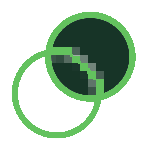
Give an object a distortion effect that can change whatever is below it: blur, pixelate, or magnify. Pair this with blend modes for even more of those must-have effects.
Even More Pro‑cise

For when you’re designing for multiple screens—on multiple screens. When zoom is at 100%, match a screen pixel, Apple point, or PostScript point. All your design work will look the same on all your displays.

Combine the Point Editor Tool and the Geometry Inspector (or Mini Inspector!) to change the X and Y coordinates of any point on the object.

Any object on the canvas can have its own identification and metadata. A name, a note, a bunch of key:value pairs—even it’s own attached AppleScript or JavaScript. Use these for interactions later on, too.
