Behold, the final entry in our thrilling saga of Getting Active With OmniFocus, and in this episode, ALL WILL BE REVEALED. WAS your intrepid blog author in fact able to master the art of personal task management? DID she stay committed to using OmniFocus on a regular basis? After nearly three months, HAS she learned a single blessed thing, other than the surprising fact that the lyrics to “Blinded By the Light” actually feature the phrase “revved up like a deuce”, not the far more confusing and less-savory line she misunderstood for years?
All this and more … after the break! Please enjoy this awesome sign I found in West Seattle:

Aaaaand we're back. So, I've talked about the first days of using the app, setting up in-depth task info, and the process of reviewing my OmniFocus document.
Confession: I have not exactly embraced reviewing. In fact, it would be more accurate to say I have not done an official review since talking about what a great idea reviewing was. Just keeping it real over here, folks.
The last topic I wanted to cover is Perspectives, but first, I'll show you what my document currently looks like:
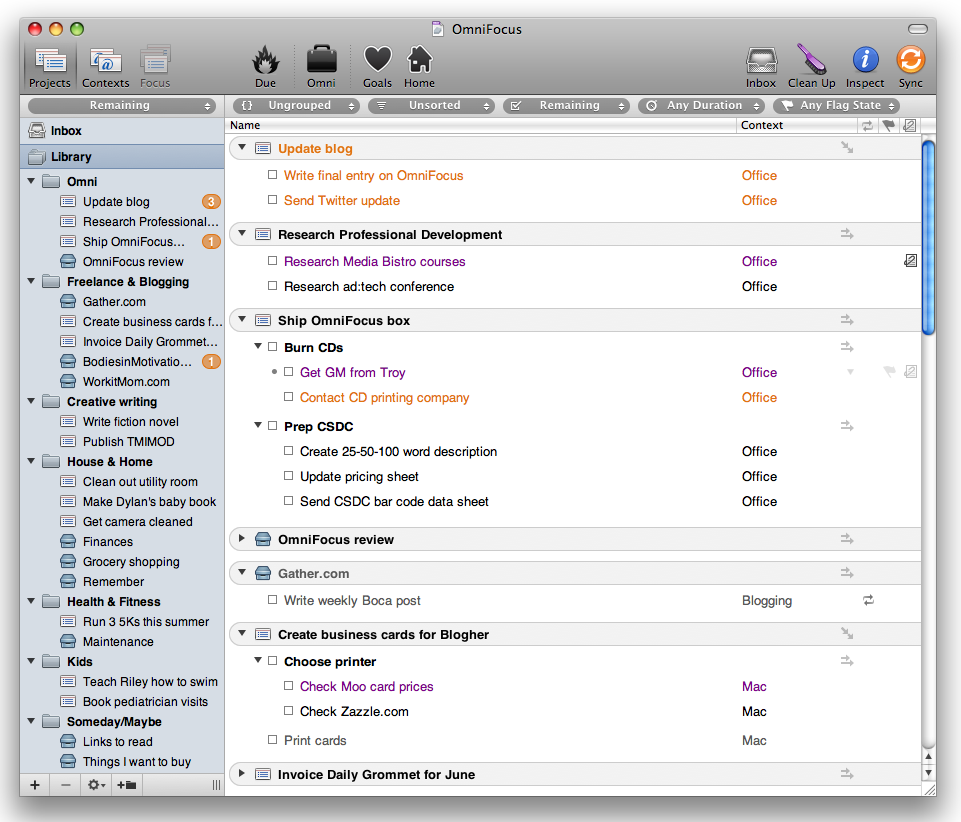
(You may notice my toolbar looks different from YOUR toolbar. That is because I am a unique snowflake. I'll get to that part in a second.)
Until recently, all of my OmniFocus projects were really categories, not a group of related tasks working toward a common goal. I set it up that way because so many of my tasks are repeating and it seemed easier for me to think of each project as a bucket.
Over time, I learned that the downfall with this approach for my working style was the stagnancy of seeing the exact same top-level list every time I looked at my document. It was too easy to start skipping over important areas, or simply becoming le bored with the whole thing. So I re-worked my document to include more actual projects with a beginning and an end, and changed some of the necessary information buckets to single action lists.
As a result, it felt like I suddenly had a LOT more information in my document, and even though everything seemed a lot more organized, I wasn't really able to take the whole thing in at a glance any more. The more stuff you have in OmniFocus, the smarter you've got to be about accessing it. This isn't a limitation of the app—I mean, the thing that really makes OmniFocus stand apart from the task-management crowd is its myriad options for viewing your data—it's just another one of those areas of personal responsibility. OmniFocus is awfully damn smart, but you still have to tell it what to do, you know?
The first step is to figure out how you want to look at your information. Want to only view things that are due this week? Focus on a certain project? Display items that are available, flagged, and under the “Phone” context? By selecting items and fiddling with the View Bar to filter data, you can do some serious fine-tuning to your working environment.
Of course, after you've clicked around and set up filters and gotten everything tweaked juuuuust right for one working mode, you might want an entirely different set of viewing criteria for concentrating on a separate collection of information. This is where Perspectives comes in REALLY handy. In a nutshell, Perspectives allows you to save your window settings, so you can easily switch between viewing environments without having to re-configure everything every single time and consequently lose your flipping mind and ultimately find yourself sobbing on YouTube about how everyone should just LEAVE BRITNEY ALONE, OMG.
One of my saved Perspectives is a focused view of some projects that are relevant to my home life. I set this up by first selecting some projects and single action lists by Command-clicking until I had everything I wanted in my window.
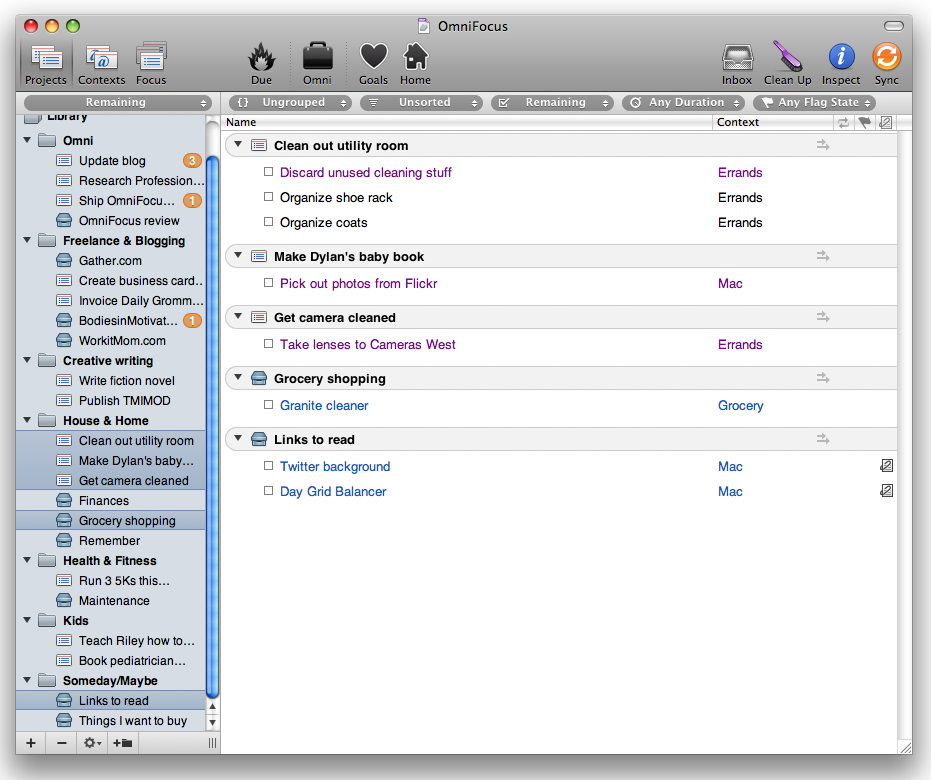
I selected Focus on (Selected Items) from the View menu (you can also do this by clicking the Focus toolbar button), which basically tells OmniFocus to ignore everything in your document outside of the selected items. The sidebar only includes those items that you're focusing on.
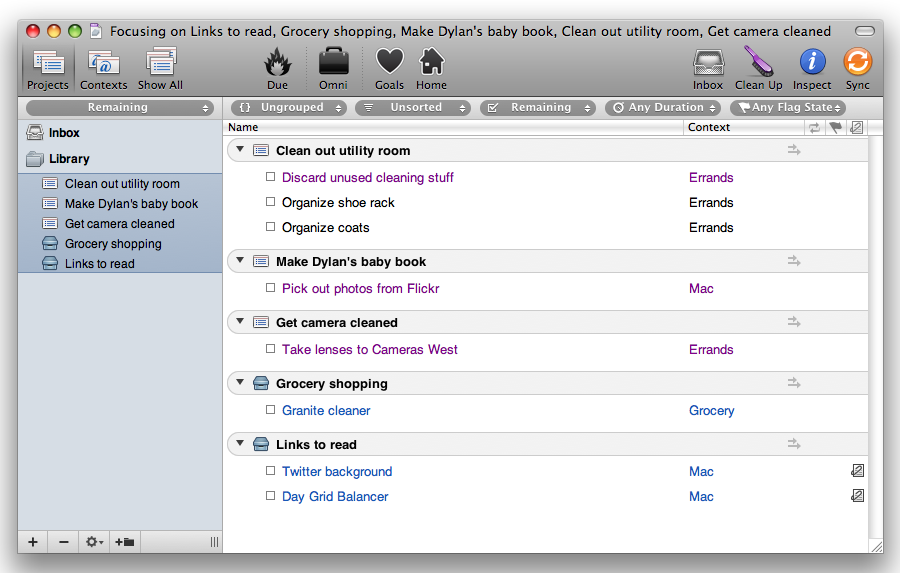
I then chose Show Perspectives Window from the Perspectives menu. To create a new perspective, I clicked the little plus sign down there at the bottom left of the window, then typed “Home”. Kerblam: perspective saved, along with all my view settings, filters, and sorting criteria.
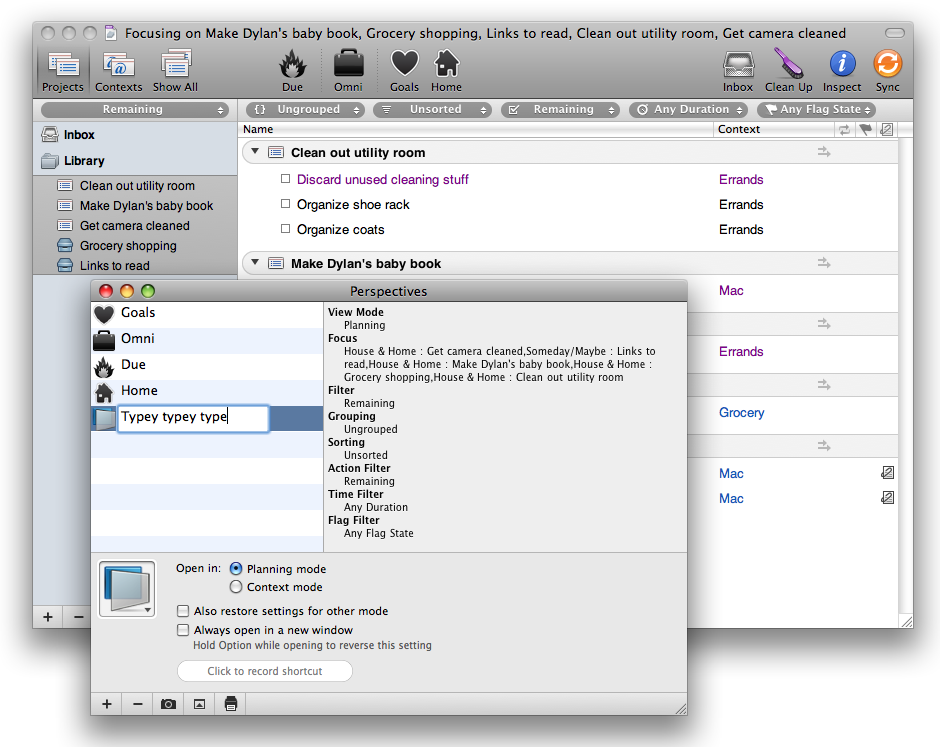
I know, I know: you've got burning questions at this point. Like How'd you get that spanky custom icon? and Say, is Omni known for its healthy snacks?
1) On the bottom left of the Perspectives window is the selected perspective's current icon (if you don't see the settings, click the Expand Settings button). To choose a different icon, click the wee little arrow at the lower right of the icon. Awesome, except it gets even better: you can drag in any image and drop it on the icon to replace it. I used custom icons for all of my saved perspectives.
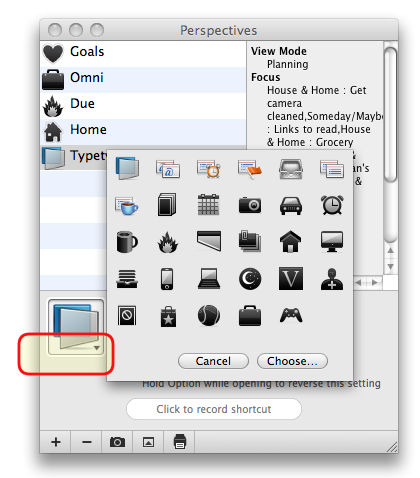
2) No.
Finally, I customized my toolbar to include icons for each of my perspectives. Right-click on your toolbar and choose Customize Toolbar… and you can drag any of the items (which will include any perspectives you create) into your toolbar and arrange everything just so.
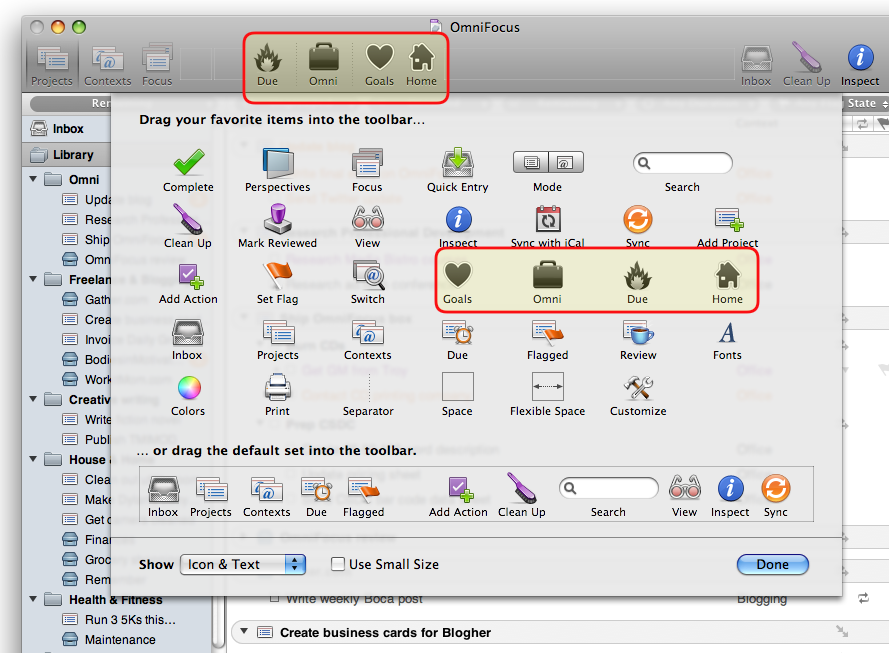
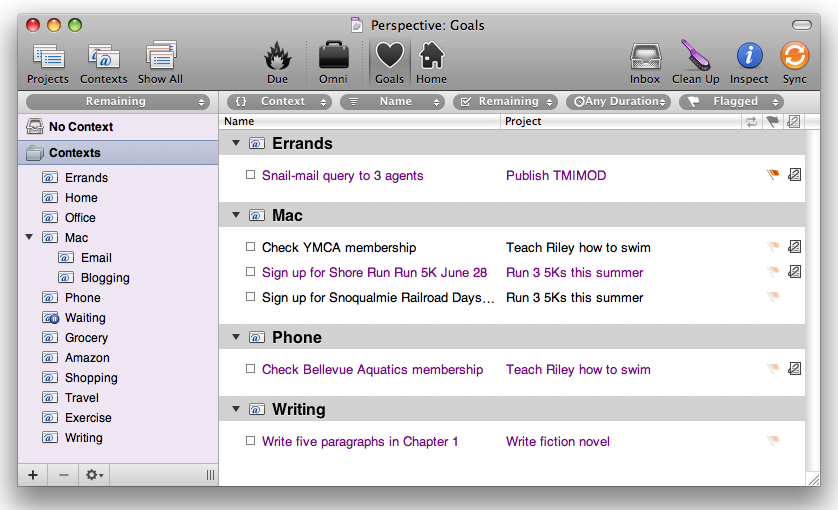
Now whenever I want to quickly change views from one work mode to the next, I just click a toolbar button. I even have a perspective titled “Goals”, which is a saved view of some long-term goals of mine. It's not something I look at frequently throughout the day, but it's nice to have it there. Any time I want a visual reminder (or a mental cattle-prodding) of the steps I need to take towards the goals—which range from “Publish a book” to “Teach my son to swim”—I click my pretty little heart-shaped icon and there they are.
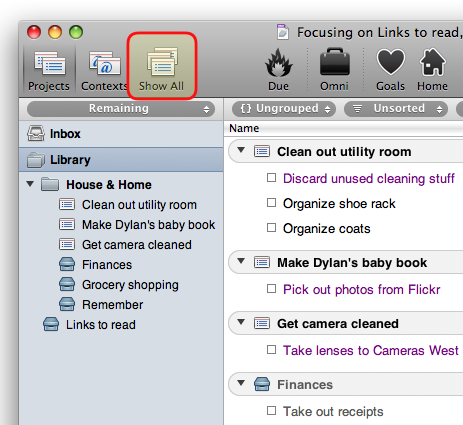
One last note on this whole topic of focused view settings: if you're like me, you may find yourself seemingly TRAPPED in a certain view. It wasn't immediately clear to me how to “un-focus”, in other words. Like, great, I'm focused in on a particular project, but now I want to see my entire library again. Uhhhhhh?
The thing you want to do in this case is tell OmniFocus to “Show All”, either by clicking the toolbar button or selecting Show All Projects from the View menu. Whoomp, there it all is. You could also choose “Revert to Default View” from the Perspectives menu to get out of a certain perspective.
THE CLUMSY WRAP-UP:
After three months, I've found that my dedication to OmniFocus waxes and wanes. I launch it every day I'm in the office, but often forget to do so at home. Which has earned me this warning on more than one occasion:
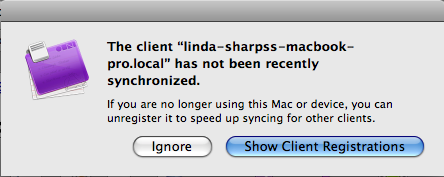
(It's basically saying “Hey, you haven't synchronized OmniFocus on your home machine in a while, you slacker. You want to just unregister that machine, or what?” I just hit Ignore whenever I see this, because there's no button that says SHUT UP WITH YOUR NAGGING.)
I have a bad habit of setting task due dates, then resetting the date once the deadline has passed and I still haven't completed the task. Sometimes I do this, like, a LOT.
As I confessed earlier, I have been entirely remiss in implementing a reviewing process.
Also, I turned off menu bar notifications (in Preferences > Data > Show Due Soon and Overdue actions) so for the express purpose of ignoring items that are overdue. Ahem.
However, I now consistently remember all sorts of things I used to forget. I don't miss the deadlines that are truly important. I have an overall sense of being much more organized, thanks to using one particular system for managing stuff instead of relying on a variety of methods (notepads, Post-Its, the faulty memory-storage recesses in my brain).
One of the benefits we attribute to OmniFocus is similar to the GTD credo, that by getting things out of your head you free yourself to focus on what's really important. I am finding this to be true in ways I didn't quite expect. For me, it's not so much that once something is stored in a system I reap the rewards from not having it lying around my frontal lobe taking up valuable real estate, it's more that the act of focusing on it in order to write it down has a surprisingly positive effect. Engaging with my goals in order to break them down into actionable steps makes me feel much more capable of completing them. Once a challenging project has been turned into words on a screen, it becomes this … doable thing, instead of a Lurking Pile of Intimidating Doom.
This mindset has helped me just buckle down and complete some projects, but more importantly, I believe it's helped me actively take on goals I've been mentally kicking around for years. Since I've been using OmniFocus, I've run a 5K race (my first since 1998), began the process of pitching a nonfiction book, and started writing the first chapter in a fiction novel. Now, would I have done these things anyway? Maybe. I'm convinced, though, that OmniFocus had something to do with it.
I've learned a lot about how OmniFocus works, but I'm definitely still learning about my own workflow and what works best for me. I know it will be an ongoing process, and that in order to get the most out of it, I have to put the effort into it. Have I completely changed my unorganized, task-procrastinating ways? No. Will I still be using this tool a year from now? You know, I really think I will.
Thanks for reading along, and as always, if you have any questions or feedback, I'd love to hear from you!
