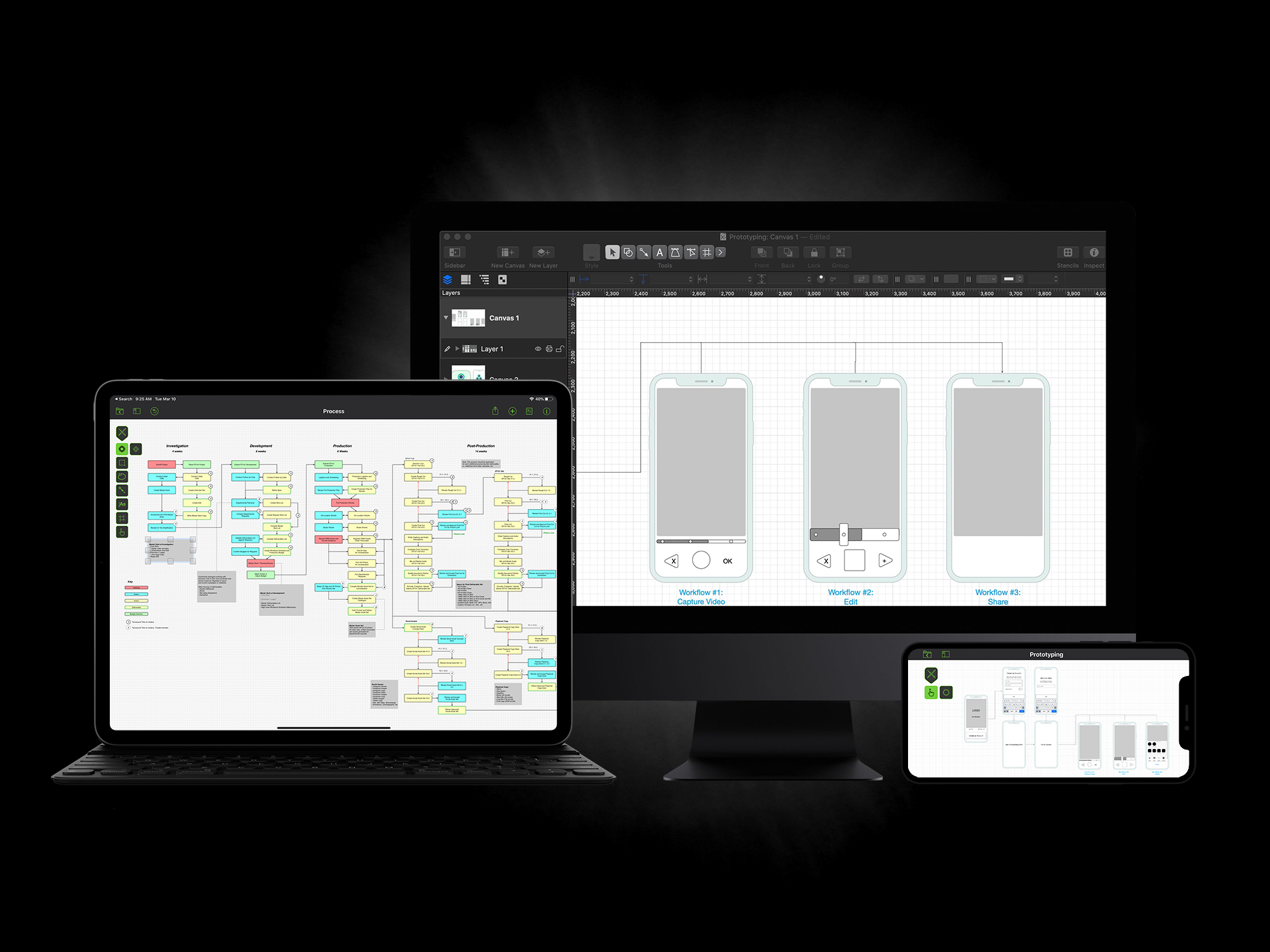
Need a diagram, process chart, quick page-layout, website mockup or graphic design? OmniGraffle 5 handles all of these in one award-winning application. We're not just a pretty interface, however. There's plenty of power under the hood to make all your diagramming and design fast and easy, with the ability to customize and tweak every aspect of your work.

Be sure to check out all the new Pro features as well!

Features
New Layout Engine

The entirely new Graphviz-based layout engine built into OmniGraffle 5 allows for faster and more varied automatic layout types.

Bézier Lines

Curves are beautiful and we've added even more in OmniGraffle 5 with the inclusion of Bézier lines. Add control points to your lines and then swing them around to create the sinuous lines you've always wanted.

Mini Inspectors

We've put the most common inspector controls at your fingertips with OmniGraffle 5's new mini-inspector. Change object size, location, fill, stroke and other key attributes right at the top of the document window.

Style Tray

Object styles (fill, stroke, image, shadow) now appear in a style tray at the bottom of the main window — there's no need to open a separate style inspector. Drag and drop style chits to other objects, to a group, or to a tool to instantly copy the style there.

Stencil Search

OmniGraffle has a huge number of built-in and user-created stencils. Build up enough of these and they can be both useful and overwhelming. We make it easier to manage your built-in stencils with the new search feature in the stencil window. Even better: we've added the ability to search Graffletopia, the popular third-party library of free OmniGraffle stencils.

Outline View

Fire up the Outline view to quickly jot down thoughts — meanwhile, OmniGraffle is creating objects in the main window and automatically laying them out. If you like, move your outlines back and forth between OmniOutliner and OmniGraffle.

Multiple Page Documents

With support for multiple page ("canvas") documents, you can select, add, duplicate, and remove canvases using the status bar or the Canvases inspector. Both the status bar and the Canvas inspector depict your various canvases in icon mode, so you can easily see which shapes are on which canvases. Canvases can be different sizes, and can be rotated 90° when printed, so you can mix landscape and portrait modes. You can also hyperlink within pages - any shape on your canvas can link to a specific section of another canvas.

Diagram Styles

When you enter text information in the Outline view, the graphical objects that are created can be styled and restyled instantly the way you choose. OmniGraffle can associate a different style with each level in your outline, so all your level one items can be represented as blue diamonds, your level two items as purple horseshoes, and so on. You can even use OmniGraffle's outline styles as filters if you import OmniOutliner documents, by mapping styles to your OmniOutliner document structure. Create your own styles by laying out hierarchical objects in the document window and saving them as an outline style, or use our built-in styles.

Bézier Shapes

Complementing the new Bézier lines feature and traditionally only found in expensive, professional illustrating programs, OmniGraffle's Bézier shape drawing tool allows you to easily create custom shapes with lines made up of curves, straight lines, and control points. A Bézier curve allows you to specify not only the end points of a shape's line, but also the direction of the line as it passes through the end points — with a little practice, you'll have almost unlimited control over the objects you design.

Improved Import/Export: PDF, PICT, OmniOutliner

Nearly all existing import and export options have been greatly refined and improved. A vector PICT export format is available: OmniGraffle can both copy as vector PICT and export to that format, so you can more easily copy and paste between OmniGraffle diagrams and popular applications such as Microsoft Word or PowerPoint. Hyperlinks are supported on export to PDF, as is exporting files with multiple canvases as a single, multiple-page PDF file. EPS export has a preview image associated with it. Finally, OmniOutliner support has been updated, with options to import multiple column information, numbering, notes, and more.

Graphing Tools

OmniGraffle knows what makes a diagram different from a drawing, and gives you the tools to create amazing diagrams quickly and easily. Lines stay connected to their shapes, unlike with illustration programs, where you would have to redraw your diagram every time you moved something. In-depth graphing features include connector magnets that you can manually add, edit, and remove — so you can attach a line to a specific point on a shape and have it stay there.

Styles

Styles are the visual elements that define the look of shapes in your document. And with OmniGraffle, you've got lots of options for creating beautiful antialiased diagrams that print exactly how they appear on your screen. Fill your shapes with solid or partially transparent colors (or drop in an image to be offset or tiled within your shape), render complex shadow schemes, define your shape's borders with any number of line types — or just copy a series of styles from another shape.

Smart Guides

Smart guides help you lay out compelling documents in a flash. When you move a shape, distance markers pop up and tell you when your new shape is going to form an equally-spaced row or column with any other shapes. In addition to that, centerlines (or edge lines) draw when you are horizontally or vertically perfectly in line with another shape in your drawing, or the centerline of the canvas. When you're rotating or resizing a shape, markers tell you when your rotation/size matches that of other shapes. Instead of having to rely on a grid or your best guess, OmniGraffle tells you exactly how to create accurate and appealing diagrams.

Style & Selection

Selection & Style allows you to see what styles make up any shape in your document - from image fills to shadows to strokes - as well as how many objects you have selected versus how many there are on the canvas. The Selection functionality lets you select a whole class of objects (all squares, or all red circles, or…) and make changes to that class in one fell swoop. That means you won't have to select items one by one to make sweeping changes to your document.

You can also drag and drop styles onto other shapes to duplicate them. Styles can be dragged separately to apply only a certain attribute to a shape (ie, a blue dashed line only) or as a group to copy the entire style.

Auto Layout

The Automatic Layout inspector rearranges your diagram according to the rules you specify. Choose "hierarchical" to lay out your document in the familiar "tree" format — like in an org chart or family tree. Force-directed, radial, and circular layout styles are also available. Behind the scenes, OmniGraffle is using complicated mathematical algorithms to figure out your layout; you just tell it what to try next. Any messy diagram can be magically organized with just one click!